
Ask an AI about this page
 ChatGPT
 Claude
 Perplexity
 Google AI Mode
 Microsoft Copilot
 Grok
Grok Mistral Le Chat
Send official WhatsApp templates with Reply.la
Reply.la gives you an official WhatsApp Business number (WABA). Connect it to BCL, then add a Reply.la step to an automation. The step can send one of your approved WhatsApp templates, save the buyer as a Reply.la contact, or create, assign and remove labels.
Official numbers send only templates that Meta has approved. For free-text WhatsApp messages from a WhatsApp Web number, use Wabot, Wasapbot or Nakwasap instead (see Send a WhatsApp after payment).
Before you start
Section titled “Before you start”Do these steps in your Reply.la account:
- Connect your WhatsApp Business number under Device Manager.
- Create your message templates under Templates and wait until Meta approves them.
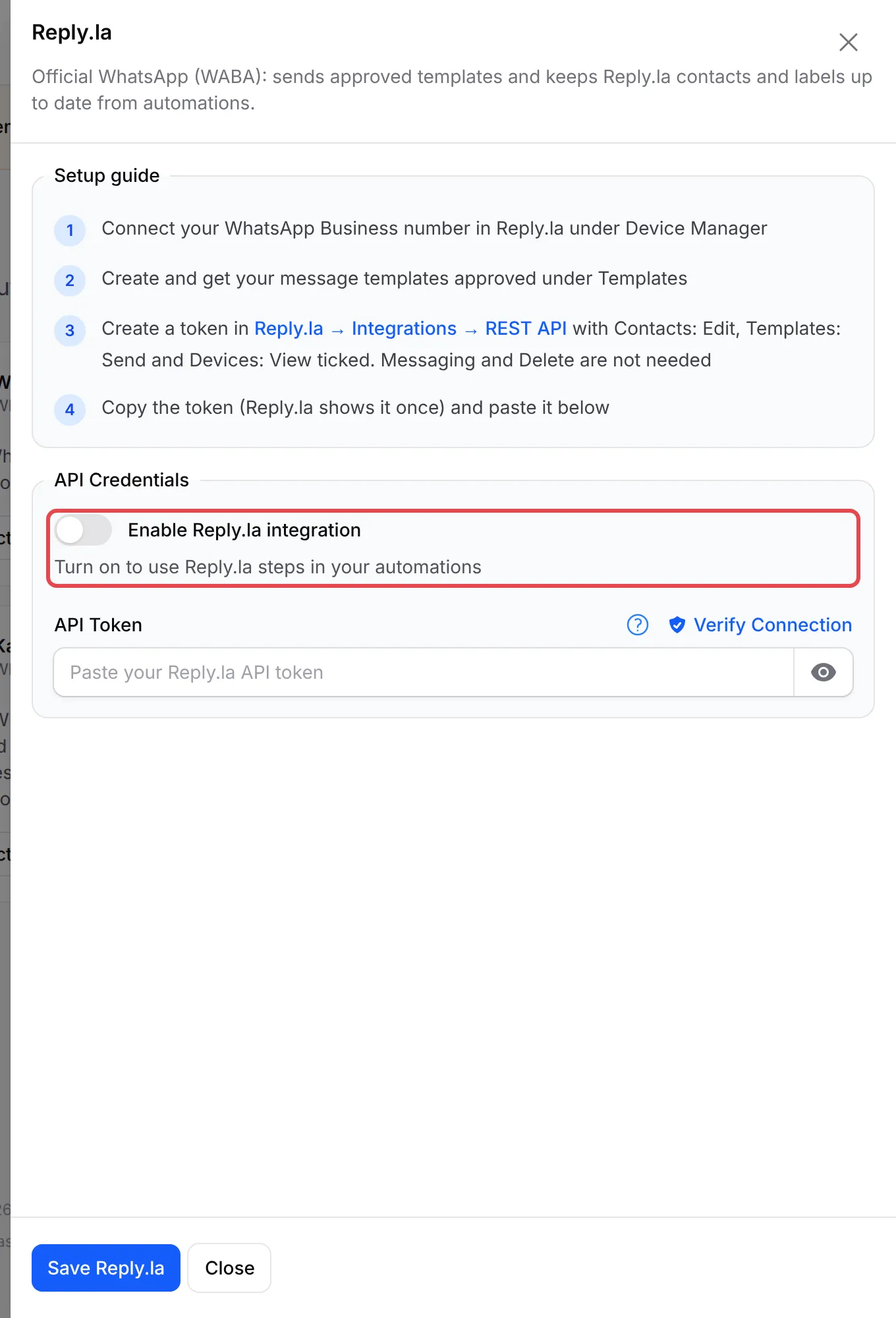
- Go to Integrations → REST API and create a token with Contacts: Edit, Templates: Send and Devices: View. Reply.la shows the token one time only, so copy it.
Connect Reply.la
Section titled “Connect Reply.la”-
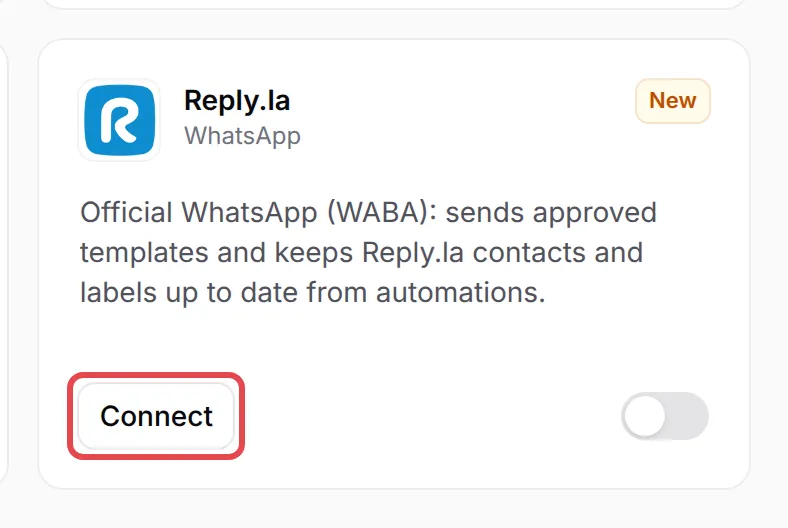
In the sidebar, go to Platform Setup → Integrations. Click WhatsApp to show the WhatsApp cards, then click Connect on the Reply.la card.
-
Turn on Enable Reply.la integration.
-
Paste the token in API Token and click Verify Connection.
-
Click Save Reply.la.
Add a Reply.la step to an automation
Section titled “Add a Reply.la step to an automation”Create an automation, for example with the Payment Successful trigger (see Create an automation). Then:
-
Click Add Node and pick Reply.la under WhatsApp.
-
Double-click the new step to open Reply.la Action Settings, and type an Action Name.
-
In Action Type, pick what the step does:
Action Type What it does Send WhatsApp template Sends an approved template from your official number. Save contact Adds the number as a Reply.la contact, with Name, Email and Company. Create label Creates a label with the Label Name and Colour you choose. Assign label to contact Puts a label on the contact. It saves the number as a contact first if needed. Remove label from contact Takes the label off the contact. -
For Send WhatsApp template, keep the phone variable in Receiver Phone, pick the WhatsApp Number, then pick the Template. Fill each template variable with a BCL variable, for example
{name}or{order_number}. -
To check it, type your own number in Phone Number and click Send. BCL sends the template now, with sample data in the variables.
-
Click Save Reply.la, then click Update Automation and switch the automation on.
Common issues
Which Reply.la token permissions does BCL need?
Tick Contacts: Edit, Templates: Send and Devices: View when you create the token in Reply.la under Integrations → REST API. BCL does not need Messaging or Delete.
Why is my template not in the Template list?
BCL lists only the templates that Meta has approved, for the WhatsApp number you picked. Pick the WhatsApp Number first, then click the reload icon to load the templates again from Reply.la.
I made a new token in Reply.la and now the step fails. Why?
Each Reply.la organisation has one token, and a new token stops the old one. Paste the new token on the Reply.la card under Platform Setup → Integrations, click Verify Connection and save.
Was this article helpful?
Thanks for your feedback.
Sorry this didn't help. WhatsApp us and we'll sort it out with you.