
Ask an AI about this page
 ChatGPT
 Claude
 Perplexity
 Google AI Mode
 Microsoft Copilot
 Grok
Grok Mistral Le Chat
Embed a form on your website
Every BCL form has an embed code: two lines of HTML that show the form inside a page on your own website. Customers fill in the form and pay without leaving your site, and everything still lands in BCL as usual.
Copy your form’s embed code
Section titled “Copy your form’s embed code”You can embed payment, event, lead and booking forms. Save the form first; a new form has no embed code until it is saved.
-
Open the form’s edit page:
Form Where the code is Payment form Payments → Forms, click Edit, then scroll to Embed Code at the bottom. Event form Events → Events, click Edit, then scroll to Embed Code at the bottom. Lead form Lead Management → Lead Forms, click Edit, then scroll to Embed Code at the bottom. Booking form Bookings → Forms, click Edit, then open the Embed Code tab. -
Click Copy at the top right of the code.

The code has a <div> with your form’s address and a <script> that loads it, like this:
<div id="bcl-payment-form" data-url="https://<your-subdomain>.bcl.my/embed/form/<slug>"></div><script src="https://bcl.my/js/bc-encrypted-payment-embed.js"></script>Booking forms keep the code on its own tab:
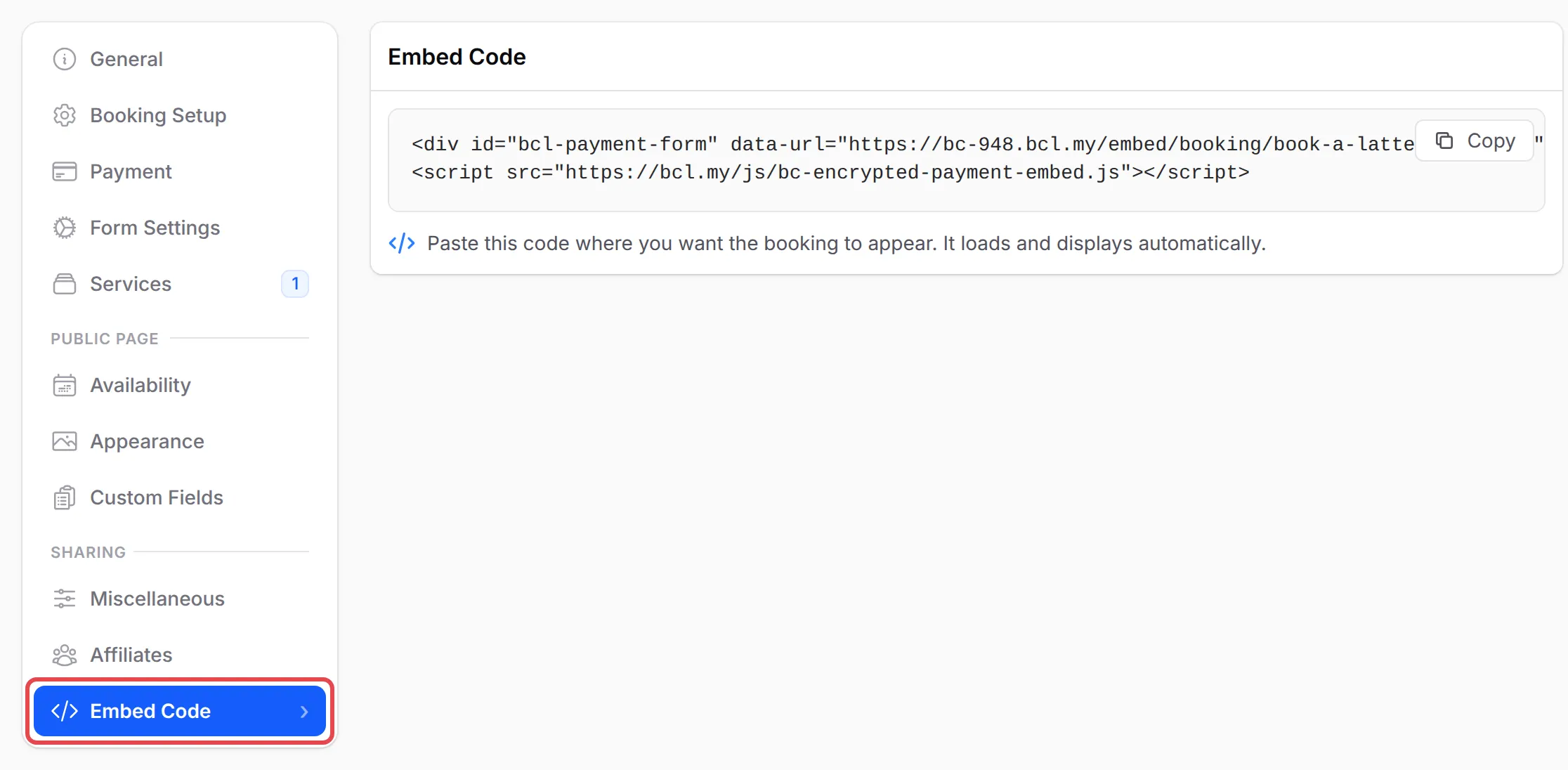
Paste it into your website
Section titled “Paste it into your website”Paste the code where the form should appear, in an HTML block of your page. In WordPress, for example, that is a Custom HTML block; most website builders have a similar HTML or embed block. Then publish the page.
The form loads inside your page and grows or shrinks to fit, so there is no scroll bar of its own. When the customer pays, the whole page moves on to the payment step and then to your form’s thank-you page.
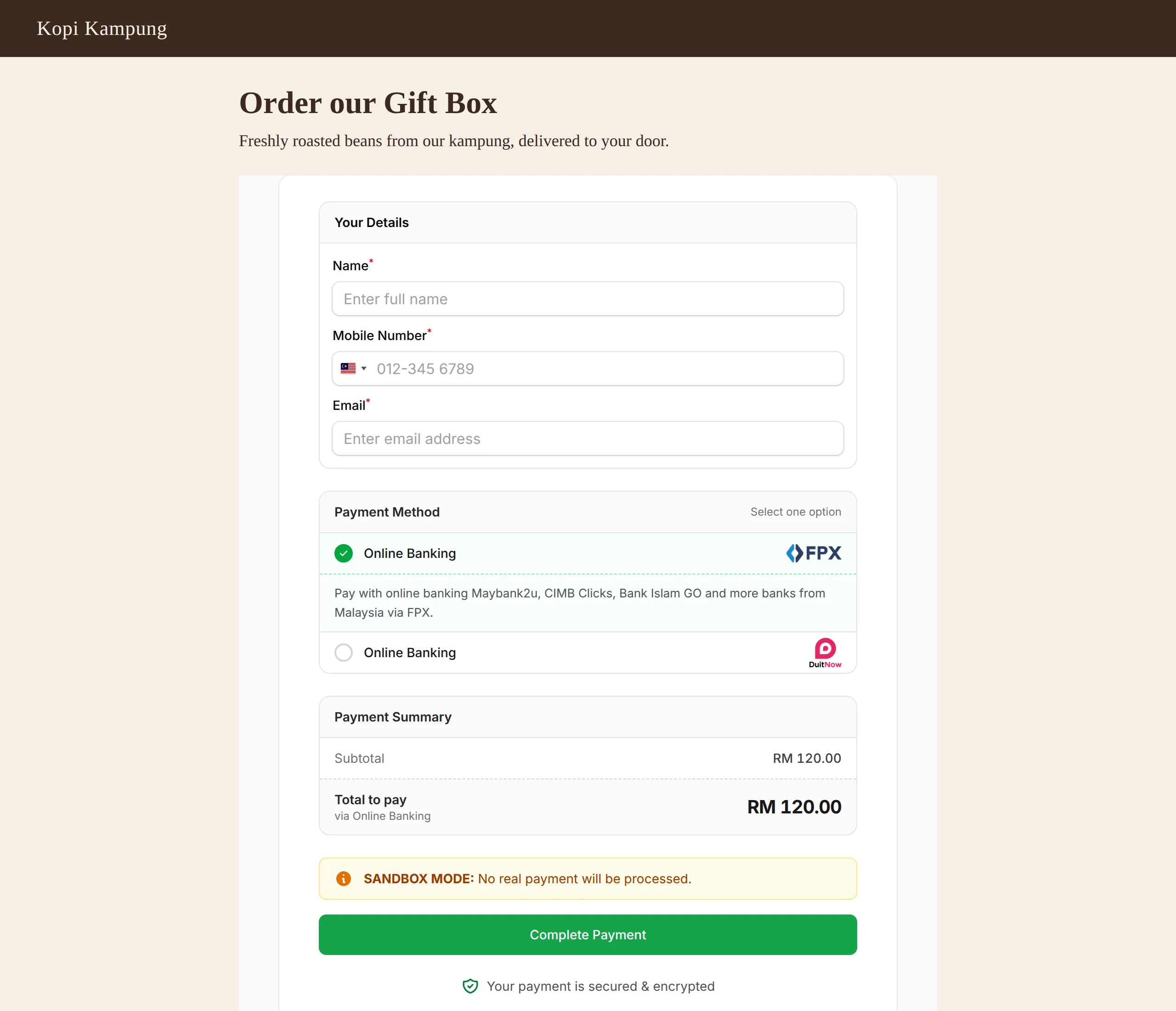
Anything you change in BCL, such as prices, items or the form’s closing date, shows on your website straight away. You do not need to copy the code again.
Embed a form as an affiliate
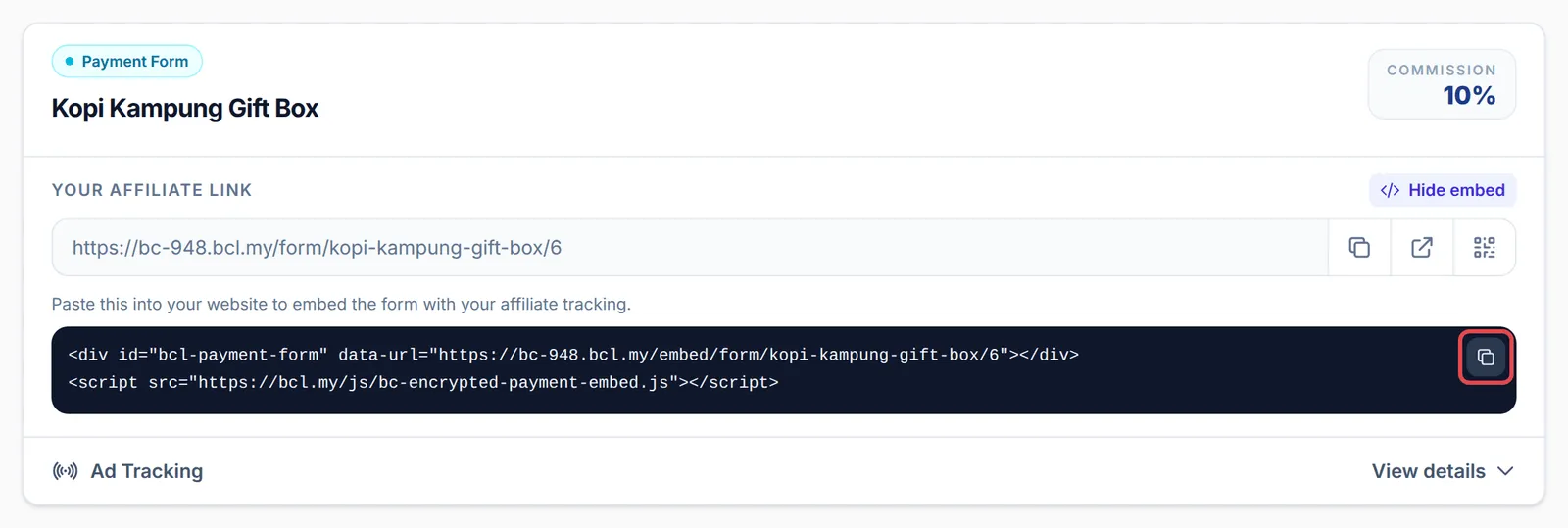
Section titled “Embed a form as an affiliate”Affiliates have their own embed code for each form they promote, with their affiliate ID built in. Sales made through it are credited to them, the same as their affiliate link.
-
In the affiliate account, go to Promotion Links and find the form’s card.
-
Click Embed code, then click the copy button at the right of the code.
-
Paste it into the affiliate’s own website, the same way as above.
Affiliate embed codes are available for payment, event and booking forms. For the rest of what affiliates can do on that page, see Share your affiliate links.
To show a calendar of your bookings on your website instead of a form, see Embed the calendar on your website.
- Put one form on each page. The embed code loads only the first form on a page, so a second code on the same page shows nothing.
- Keep your campaign tags on the page address. Extras such as
?utm_source=facebookon your web page’s address are passed on to the embedded form, the same as on its normal link. - Test the page on your phone before you share it. Most customers open links on a phone, and some website themes add margins that squeeze the form.
Common issues
Should an affiliate share their affiliate link or the embed code?
The affiliate link, on WhatsApp, social media or anywhere else. The embed code is only for pasting into the affiliate's own website. Both carry the affiliate's ID, so sales from either are credited to them.
Can I put two BCL forms on the same web page?
No. The embed code loads one form per page. Put each form on its own page, or link to the second form with its normal link.
Does my Facebook or TikTok pixel still work when the form is embedded?
Yes. The pixels set on the form fire on your website's page too, and so do an affiliate's pixels when the affiliate's embed code is used.
Was this article helpful?
Thanks for your feedback.
Sorry this didn't help. WhatsApp us and we'll sort it out with you.