
Ask an AI about this page
 ChatGPT
 Claude
 Perplexity
 Google AI Mode
 Microsoft Copilot
 Grok
Grok Mistral Le Chat
View bookings on the calendar
Updated

The booking calendar shows every booking on your forms in one place, so you can see your busy days and each employee’s schedule at a glance. For the number of places left in each slot, use the form’s Monitor tab.
Open the calendar
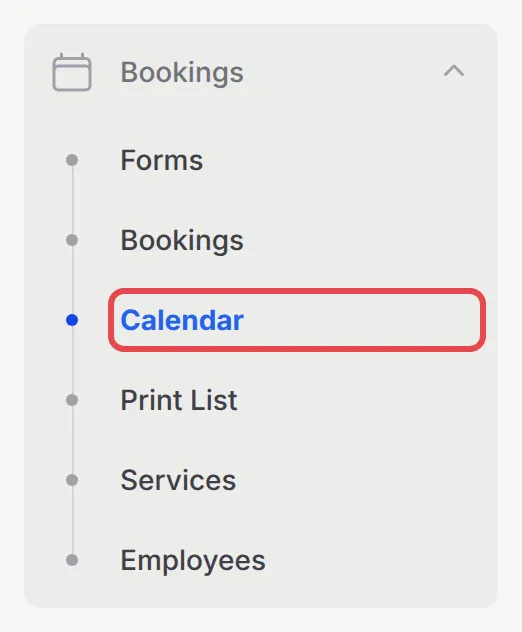
Section titled “Open the calendar”Go to Bookings → Calendar:
The calendar opens on this month. Each booking shows its time, the customer and the service:
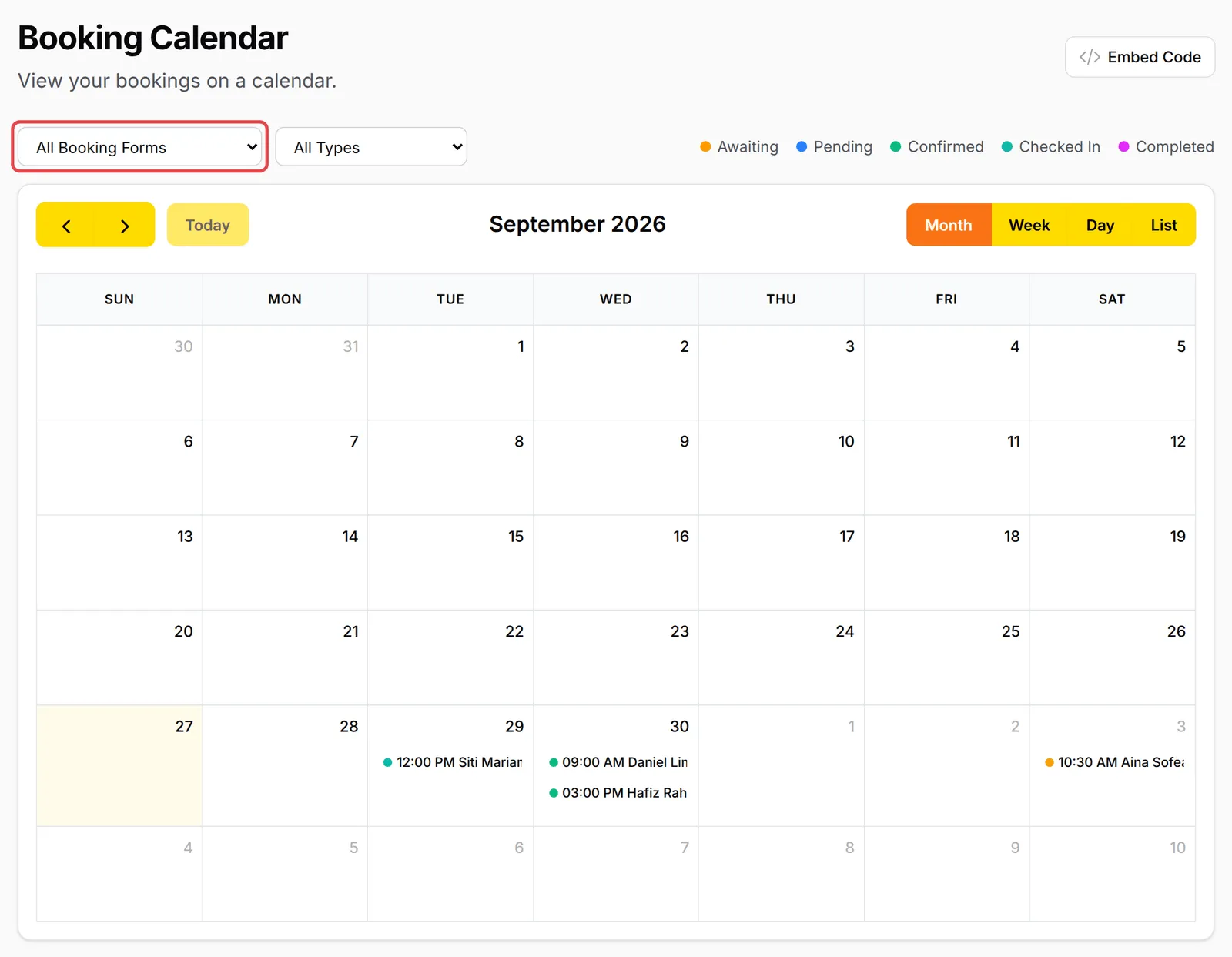
Narrow what you see with the filters at the top:
- All Booking Forms: show one booking form only.
- All Types: show one booking type, such as Appointment or Court.
The coloured dots next to the filters are the status key: Awaiting, Pending, Confirmed, Checked In and Completed.
Switch views
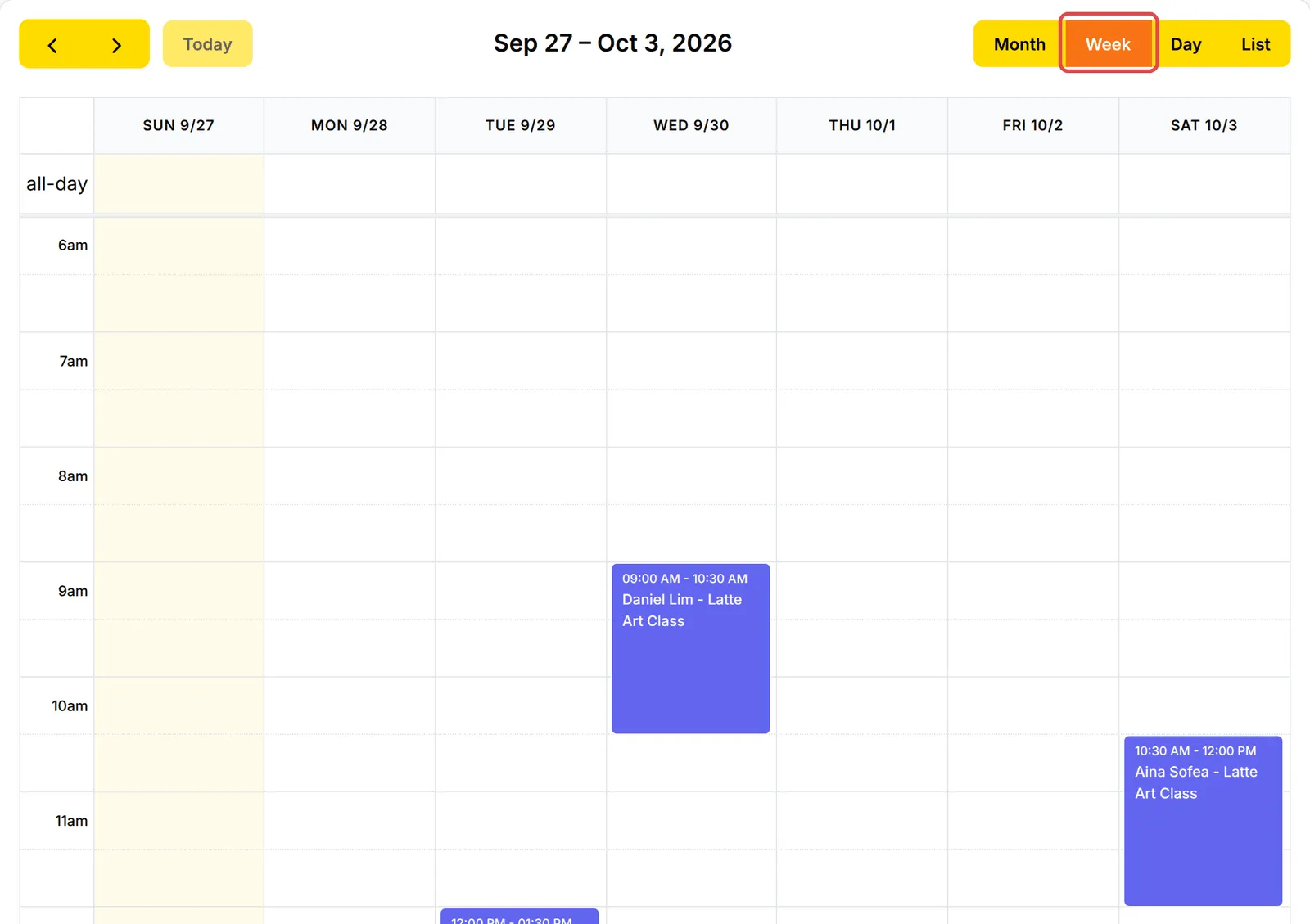
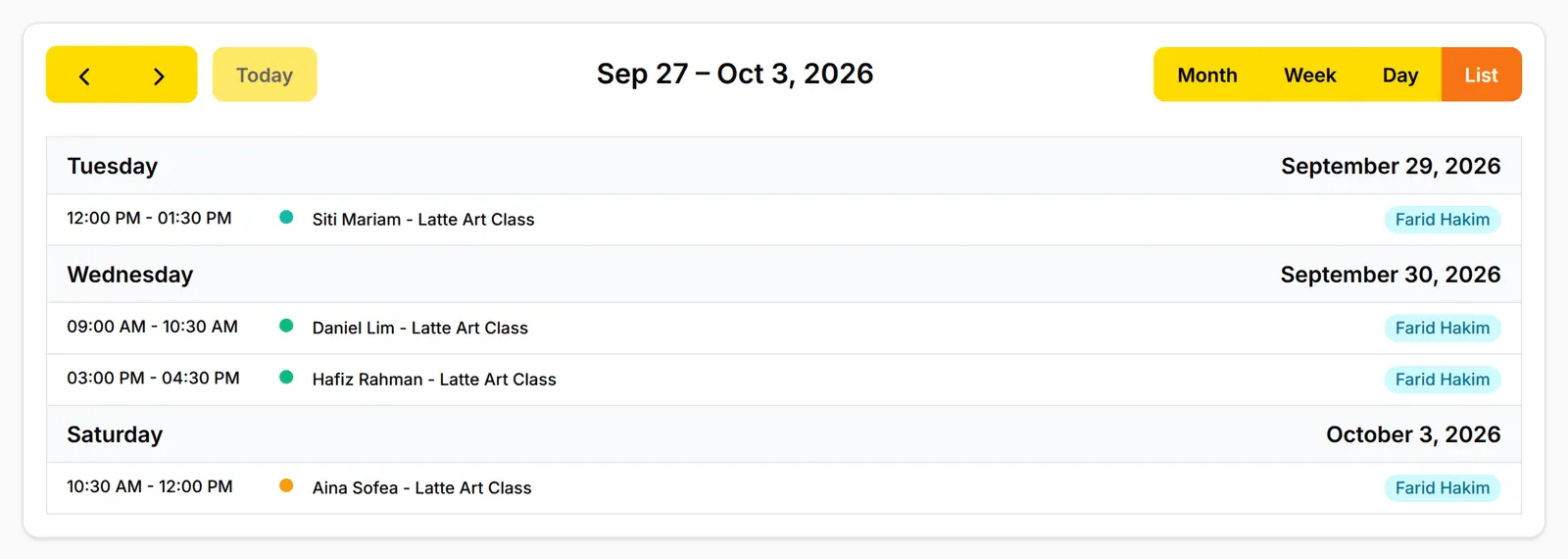
Section titled “Switch views”Use the buttons above the calendar to change the view:
| View | Best for |
|---|---|
| Month | An overview of busy and quiet days. |
| Week | Planning the week and each employee’s schedule. |
| Day | Running today, slot by slot. |
| List | A quick read of upcoming bookings, day by day, with the staff member. |
Use the arrows to move back and forward, and Today to jump back to the current date.
Check how full each slot is
Section titled “Check how full each slot is”The calendar shows bookings, not free places. To see how many places are left, open the booking form:
- Go to Bookings → Forms and click Edit on the form.
- Click the Monitor tab.
- Pick the Date, or use the arrows next to it.
Each service has its own tab showing its Capacity. Every time slot shows the places SOLD, a progress bar and a status. The page refreshes itself every 30 seconds.
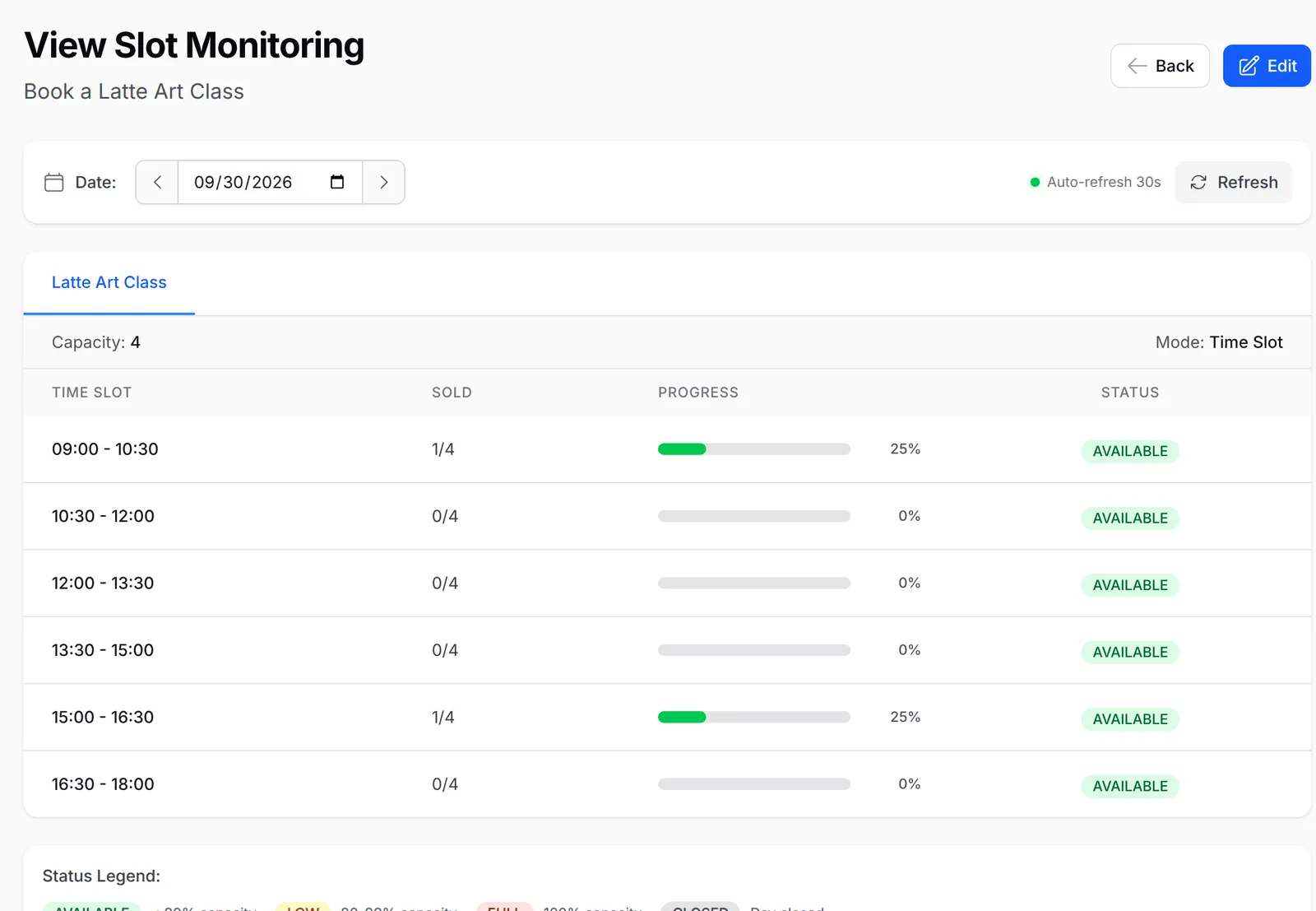
The status tells you how full each slot is:
| Status | Meaning |
|---|---|
| AVAILABLE | Less than 80% of places sold. |
| LOW | 80% to 99% sold. |
| FULL | Every place is sold. |
| CLOSED | The form is closed on that date. |
Embed the calendar on your website
Section titled “Embed the calendar on your website”To show the calendar on your own site:
-
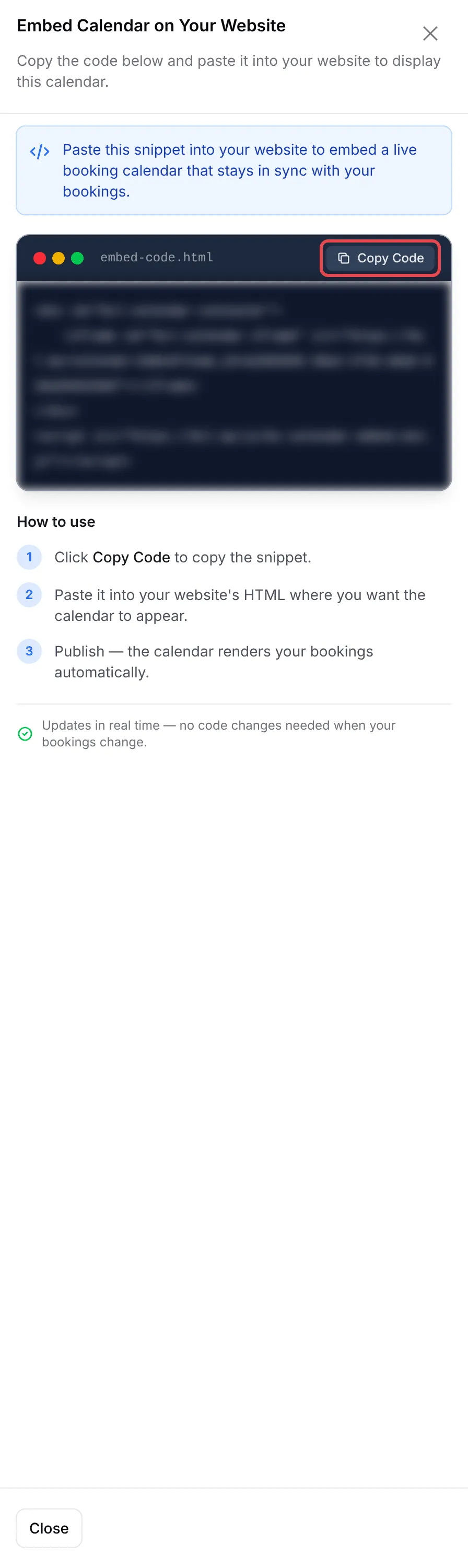
On Bookings → Calendar, click Embed Code.
-
Click Copy Code.
-
Paste the snippet into your website’s HTML where the calendar should appear, and publish the page.
The embedded calendar updates by itself as bookings come in.
Get more out of the calendar:
- Use the List view on your phone. It is easier to read on a small screen than the Month or Week grid.
- Filter by form when you run several businesses. If you have forms for a cafe and a class, All Booking Forms keeps each calendar clear.
- Print the day for the front desk. For a paper copy of one day, use Bookings → Print List. See Manage bookings.
Common issues
Can I see only one booking form's bookings on the calendar?
Yes. On Bookings → Calendar, choose the form in All Booking Forms. Use All Types to show one booking type, such as Appointment.
How do I see how many places are left in each slot today?
Open the booking form, click the Monitor tab and pick the date. Each time slot shows how many places are sold, with AVAILABLE, LOW, FULL or CLOSED.
Can I show the booking calendar on my own website?
Yes. On Bookings → Calendar, click Embed Code, then Copy Code, and paste the snippet into your website's HTML.
Was this article helpful?
Thanks for your feedback.
Sorry this didn't help. WhatsApp us and we'll sort it out with you.