
Ask an AI about this page
 ChatGPT
 Claude
 Perplexity
 Google AI Mode
 Microsoft Copilot
 Grok
Grok Mistral Le Chat
Send the tracking number when an order ships
Updated

Customers who can track a parcel ask “where is my order?” far less often. This automation emails the courier name and tracking number the moment a shipment is created for an order, for every form that ships goods.
What you need
Section titled “What you need”Orders that get their tracking number from BCL: a courier integration such as EasyParcel, with shipments created from Transactions. The trigger does not fire for tracking numbers you send customers by other means.
Build it
Section titled “Build it”Start from a blank automation (see Create an automation):
-
Go to Automations, click New Automation, name it “Shipping Update” and click Create.
-
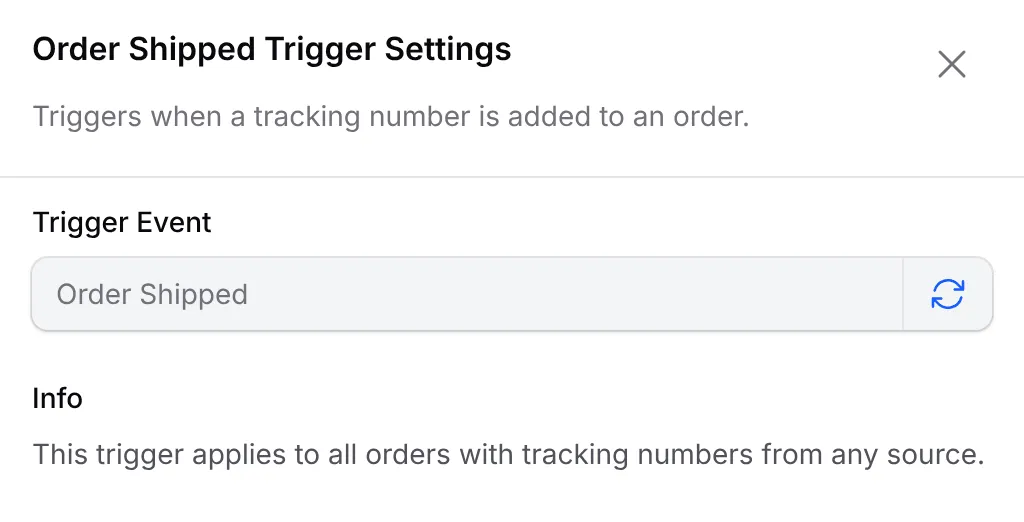
Click Add Node and pick Order Shipped. It has nothing to set: double-click it to read “This trigger applies to all orders with tracking numbers from any source.” and click Save Trigger.
-
Click Add Node and pick Send Email. Double-click it, fill it in as below and click Save Email.
Field Enter Action Name Shipping update Recipient Email {email}Email Subject Your order {order_number} is on the wayEmail Content The message below Hi {name},Good news: your order {order_number} has been shipped.Courier: {courier}Tracking number: {tracking_number}Items: {items_summary}Delivering to: {address}Thank you,{business_name}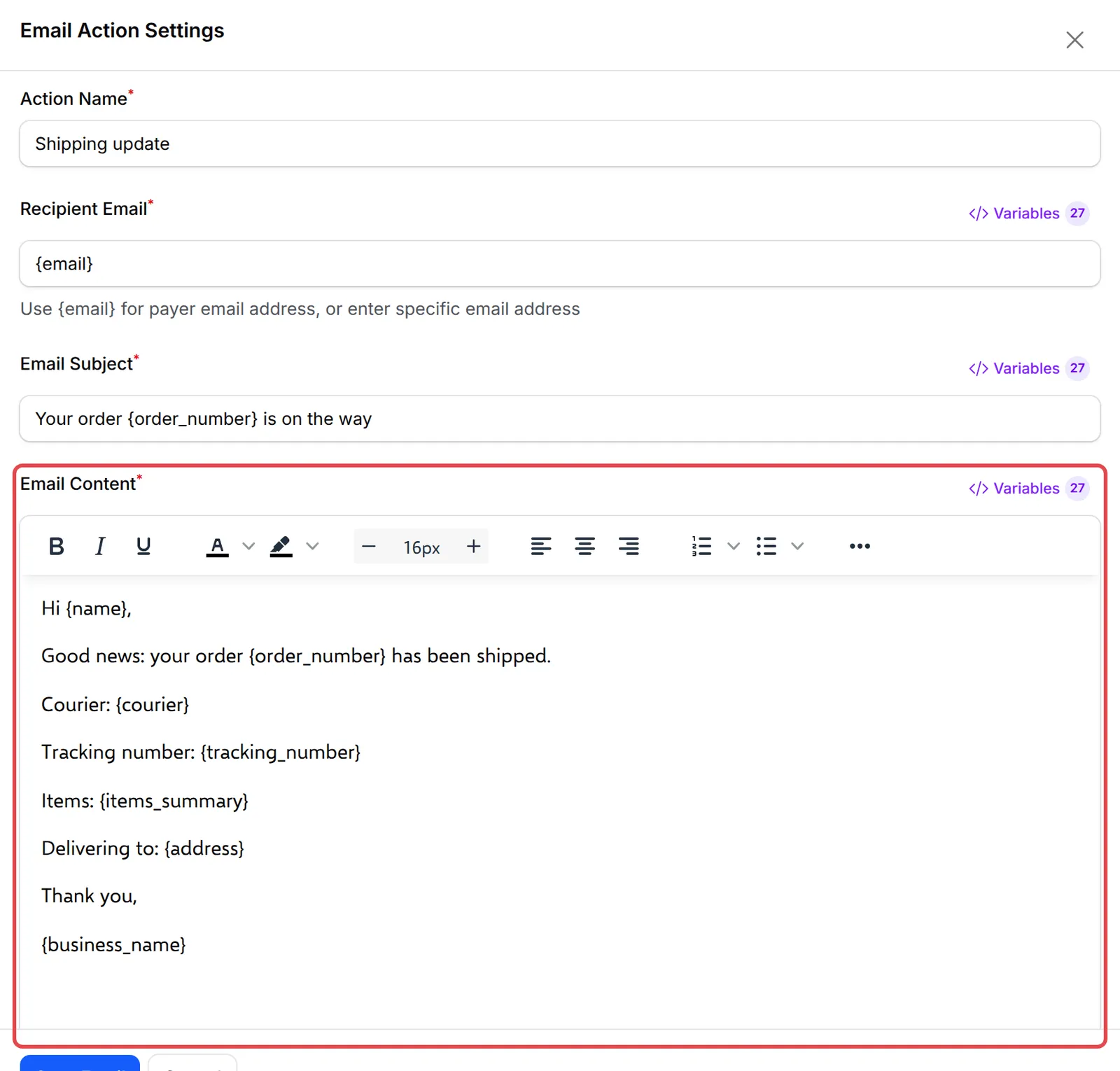
-
Click Update Automation.
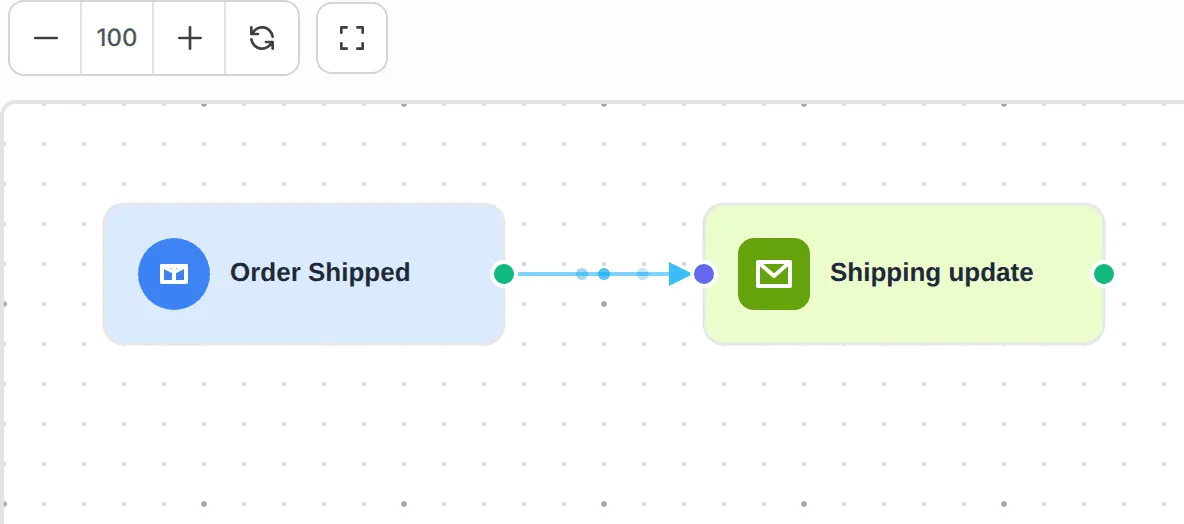
The finished workflow:
Order Shipped has every payment variable plus two of its own:
| Variable | Shows |
|---|---|
{courier} |
The courier’s name |
{tracking_number} |
The tracking number |
{items_summary} |
The items on one line, such as 2x House Blend 250g |
{address} |
The delivery address |
Test it
Section titled “Test it”Check the recipe with a test run before you rely on it:
- Create a shipment for a test order through your courier integration.
- Open the automation and click Overview. The shipment shows as a run in Execution History; a delivered email shows as Completed.
A few ways to get more from this recipe:
- Send it on WhatsApp too. A Send Wabot or Send WasapBot step with
{phone}and a one-line message gets read faster than email. - Add the courier’s tracking page. Type the courier’s tracking address into the message, such as the Poslaju or J&T tracking page, so customers know where to paste the number.
- Check your courier’s own notices. Some courier integrations can also message customers; turn one off so customers do not get the same news twice.
Common issues
When does the Order Shipped trigger fire?
When an order gets a tracking number through a courier integration, for example when you create the shipment in BCL. Changing the tracking number later fires it again.
Can I limit Order Shipped to one form?
The trigger has no form filter. Add a Condition with Form Name (ID) after it to limit the message to certain forms.
Was this article helpful?
Thanks for your feedback.
Sorry this didn't help. WhatsApp us and we'll sort it out with you.