
Ask an AI about this page
 ChatGPT
 Claude
 Perplexity
 Google AI Mode
 Microsoft Copilot
 Grok
Grok Mistral Le Chat
Share your affiliate links
Updated

Every form you can promote has its own affiliate link on Promotion Links. The link ends with your affiliate ID, so each sale made through it is credited to you.
Copy your link
Section titled “Copy your link”Sign in to your affiliate account at bcl.my/affiliate first. Then:
-
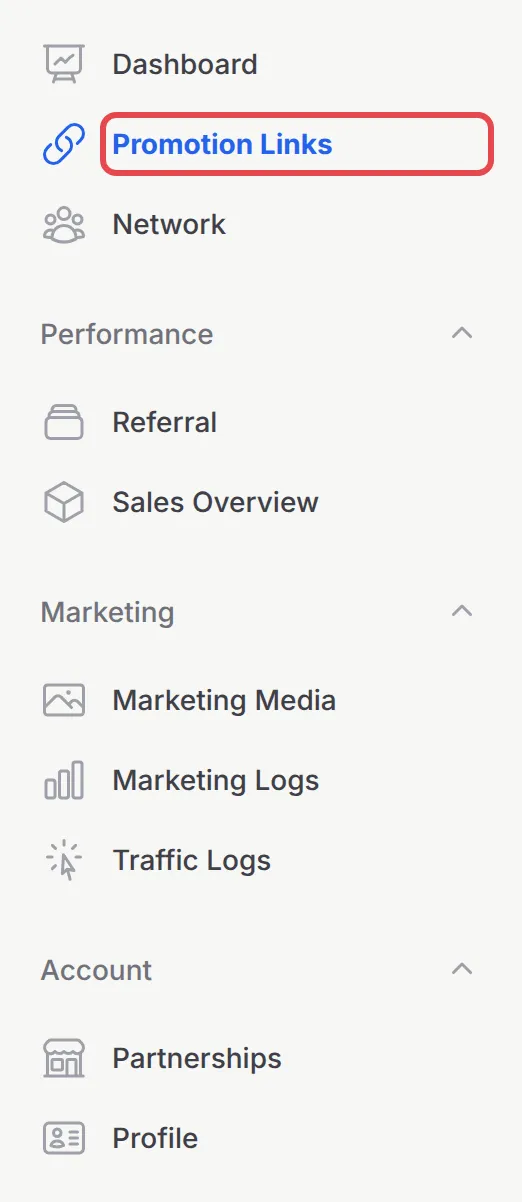
In the menu, click Promotion Links.
-
Use the tabs to narrow the list: All, Payment Forms, Event Forms or Booking Forms. Each card shows the form, its Commission for you, and the prices under View details.
-
Under Your affiliate link, click the copy button (Copy link). Paste the link into WhatsApp, Facebook, Telegram, your Instagram bio or anywhere you promote.
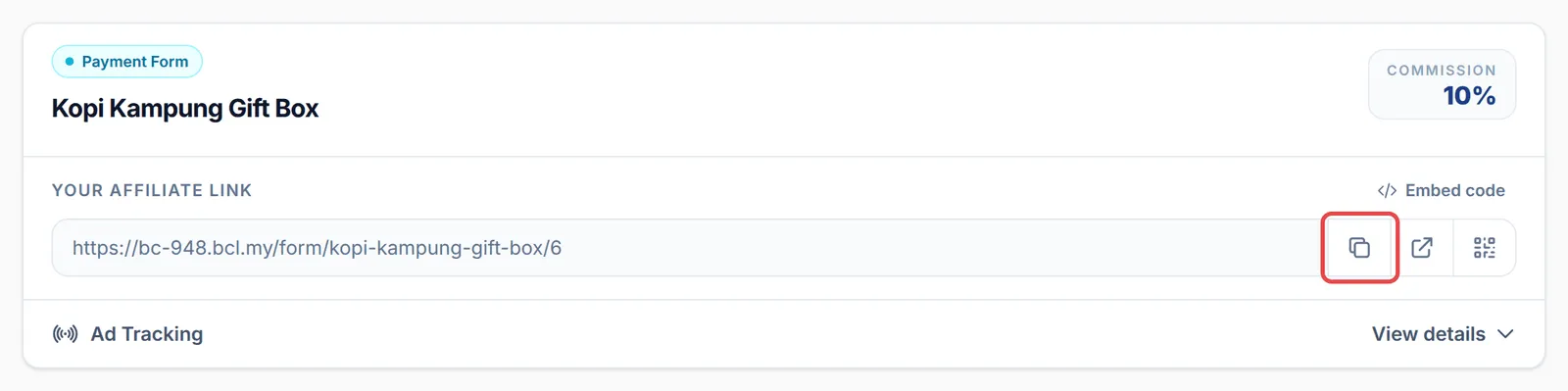
The link looks like https://<merchant>.bcl.my/form/kopi-kampung-gift-box/6. Event links use /event/ and booking links use /booking/. The number at the end is your ID.
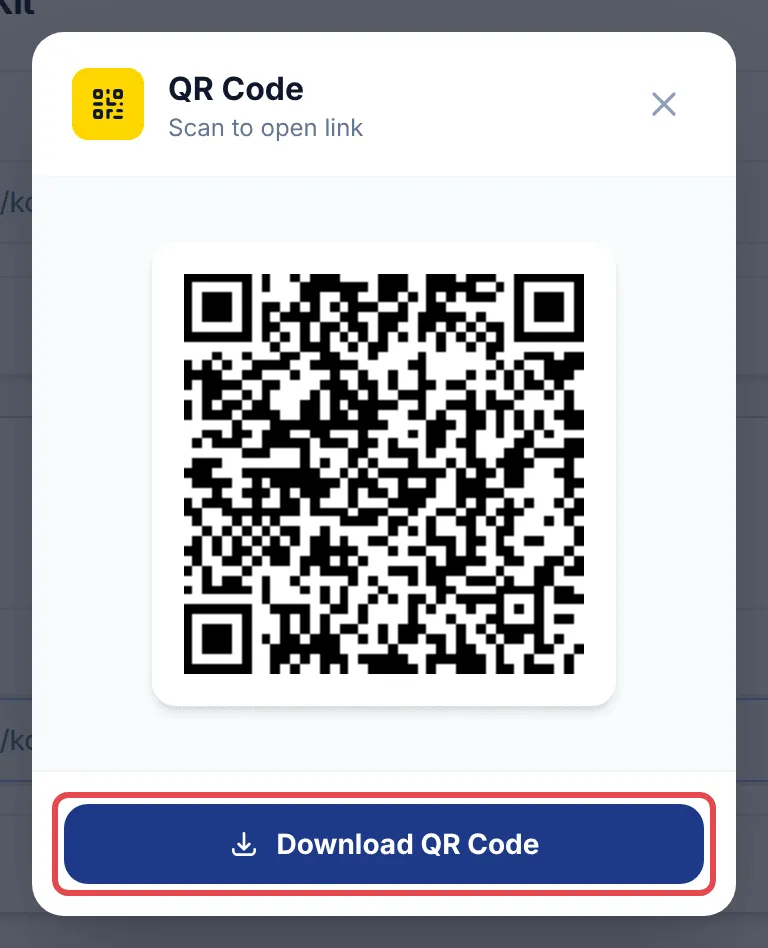
Next to the copy button, Open link opens the form so you can check it, and QR code shows a QR code of your link. Click Download QR Code to save it for posters and flyers.
Put a form on your website
Section titled “Put a form on your website”If you have your own website, you can show the form there with your tracking built in:
-
On the form’s card, click Embed code.
-
Click the copy button (Copy code) at the right of the code, and paste the code into your web page. Hide embed closes it again.
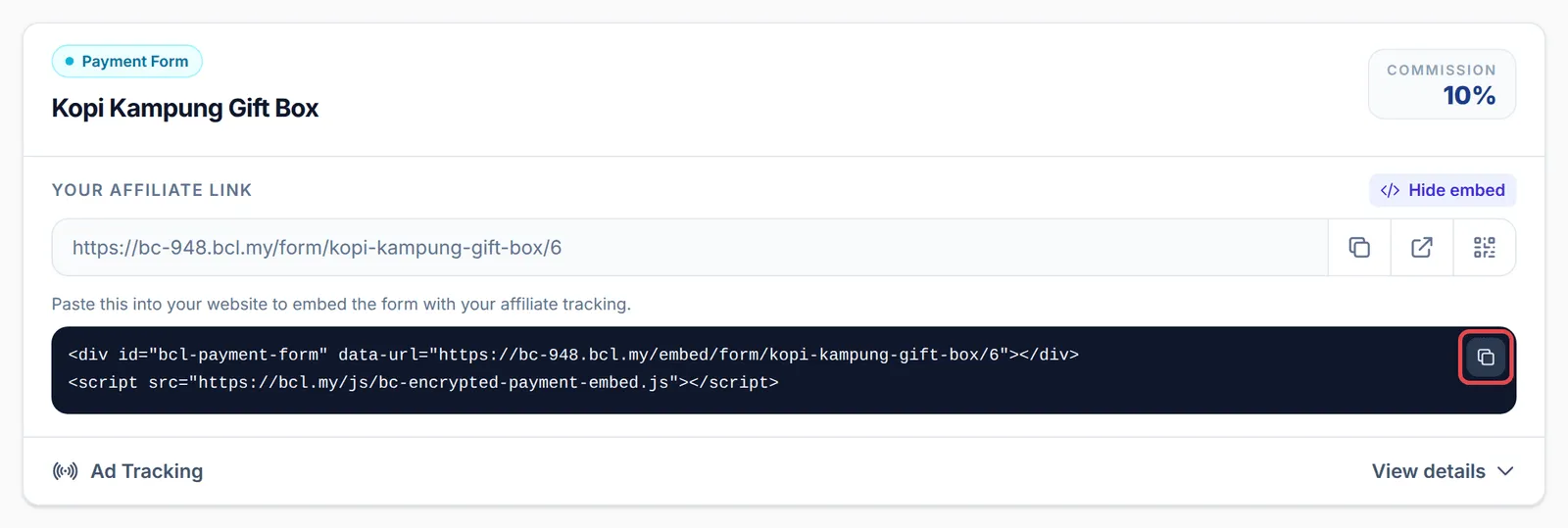
Sales made through the embedded form are credited to you. Do not share the /embed/ address inside the code as a link: use Your affiliate link for that.
Show or hide your name on the form
Section titled “Show or hide your name on the form”Some merchants let you choose whether buyers see who referred them. When that is allowed, the card has a Referred By button showing Shown or Hidden. Click it to switch. If you do not see the button, the merchant decides this for you.
Track your own ads
Section titled “Track your own ads”If you run ads, add your own pixel so your ad account sees the sales:
-
On the form’s card, click Ad Tracking.
-
In Ad Tracking Settings, choose the Facebook Pixel, TikTok Pixel or Google Ads tab.
-
Turn on the pixel and enter its ID, for example Enable Facebook Pixel and Facebook Pixel ID. For Facebook and TikTok you can also turn on the Conversions API or Events API and add the token.
-
Click Save Settings.
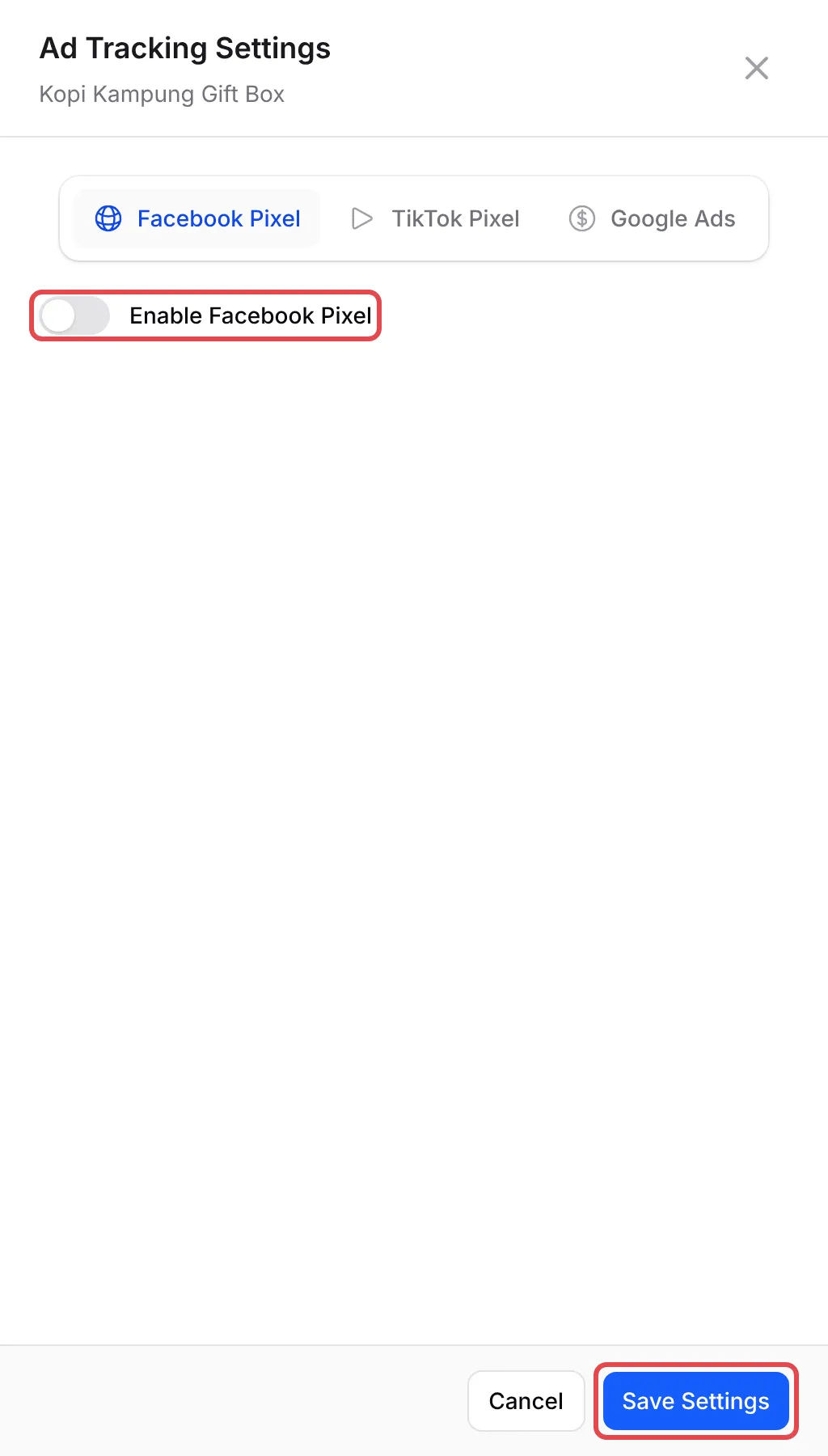
The card then shows Ad Tracking as On. Purchases your pixels recorded appear under Marketing → Marketing Logs.
A few habits make sure every sale is credited to you:
- Always copy from Promotion Links. A link typed from memory or copied from the merchant’s page may miss your ID.
- Test your link once. Click Open link: the form should open, and if the merchant shows affiliate details, your name appears on it.
- A later purchase can still count. Most merchants remember your click for a number of days, so a buyer who clicks your link today and pays next week is still yours. The merchant sets how long.
Common issues
What is the number at the end of my link?
It is your affiliate ID. It is how BCL knows the sale came from you. A link without it is the merchant's normal form link, and the sale does not count for you.
Should I share the affiliate link or the embed code?
Share Your affiliate link on WhatsApp, social media or anywhere else. The Embed code is only for pasting into your own website, so the form shows on your page.
Why don't I see a form the merchant is selling?
The merchant decides which forms affiliates can promote. Only forms with affiliates turned on appear on Promotion Links.
Was this article helpful?
Thanks for your feedback.
Sorry this didn't help. WhatsApp us and we'll sort it out with you.