Skip to content

Ship orders with EasyParcel

Updated

Connect EasyParcel (0:25)

Connect EasyParcel to create shipments straight from your BCL orders. BCL fetches courier rates for each order, you pick one, and the tracking number is saved on the order.

You need three things:

  • The Courier Integration add-on, from Add-ons → Available Add-ons.
  • An EasyParcel account with enough credit to pay for shipments.
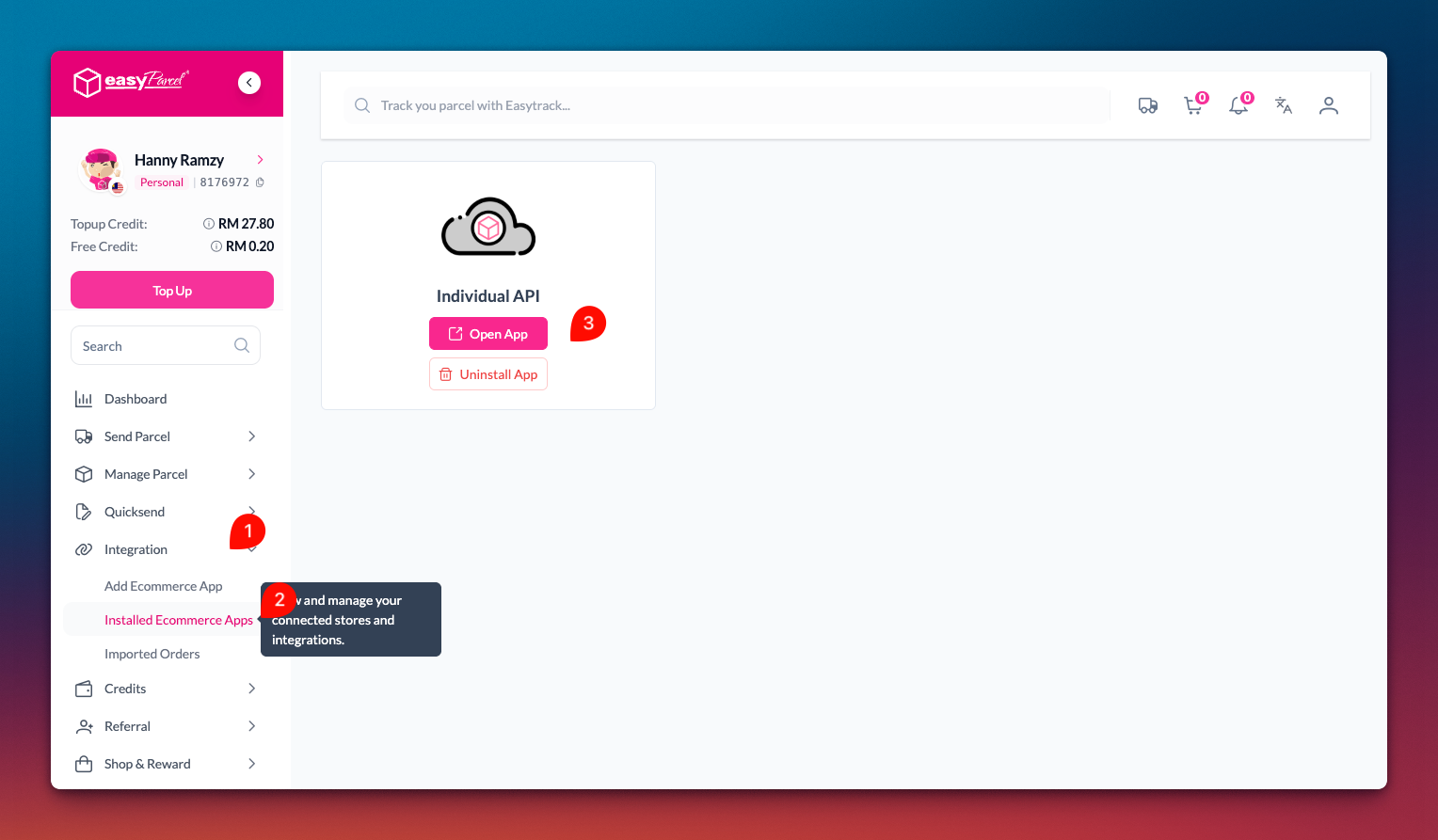
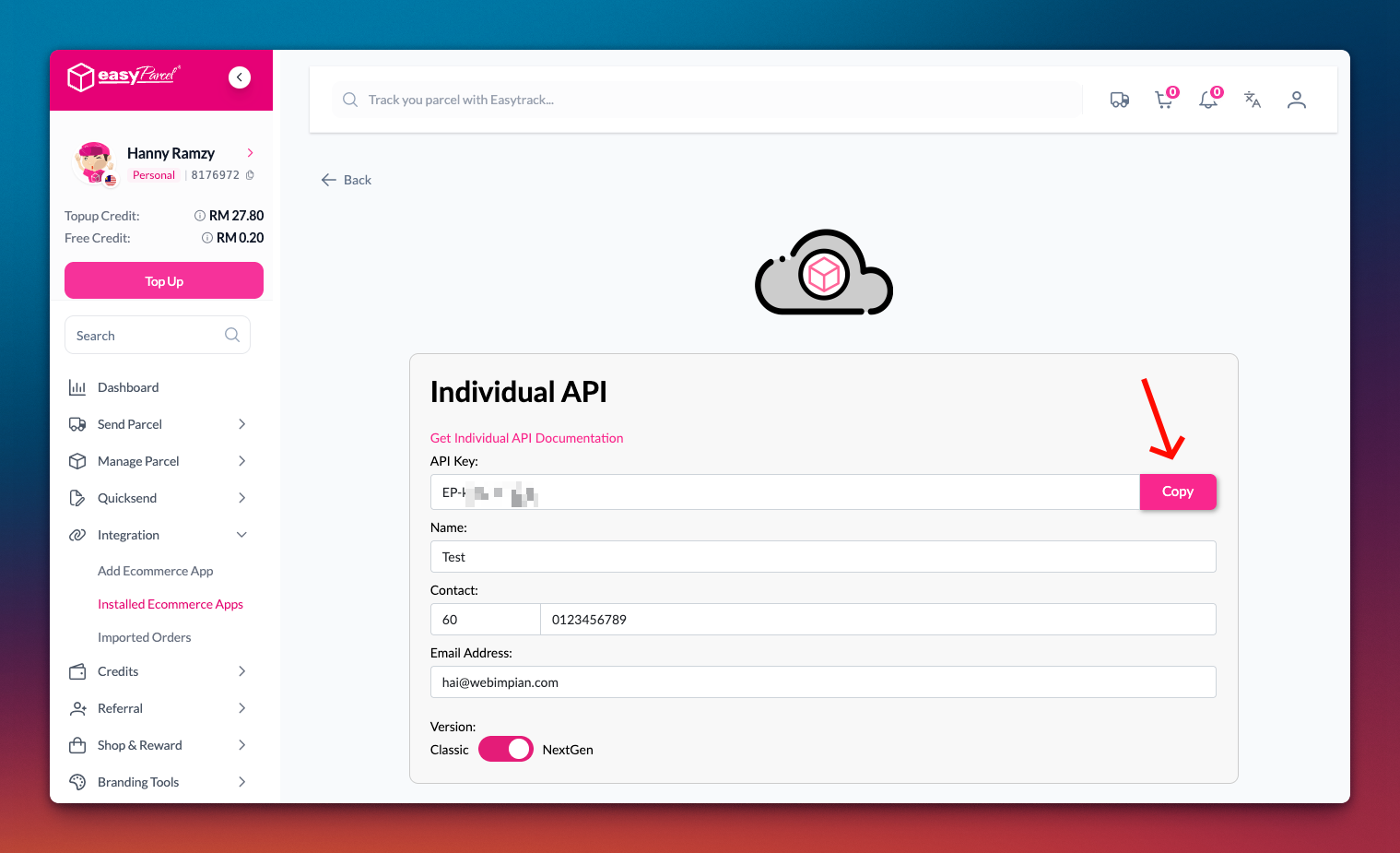
  • Your EasyParcel API key. In your EasyParcel dashboard, go to Integrations → Add New Store, choose API Integration, select Individual API and copy the API key. The Setup guide in the EasyParcel panel in BCL shows the same steps.

With your API key copied, connect it in BCL:

  1. Go to Platform Setup → Courier Integration. Each courier has its own card.

  2. On the EasyParcel card, click Connect. If EasyParcel is already set up, the button says Manage. A side panel opens with the setup guide and the settings.

    The Courier Integration page with a card for each courier, Connect on the EasyParcel card highlighted

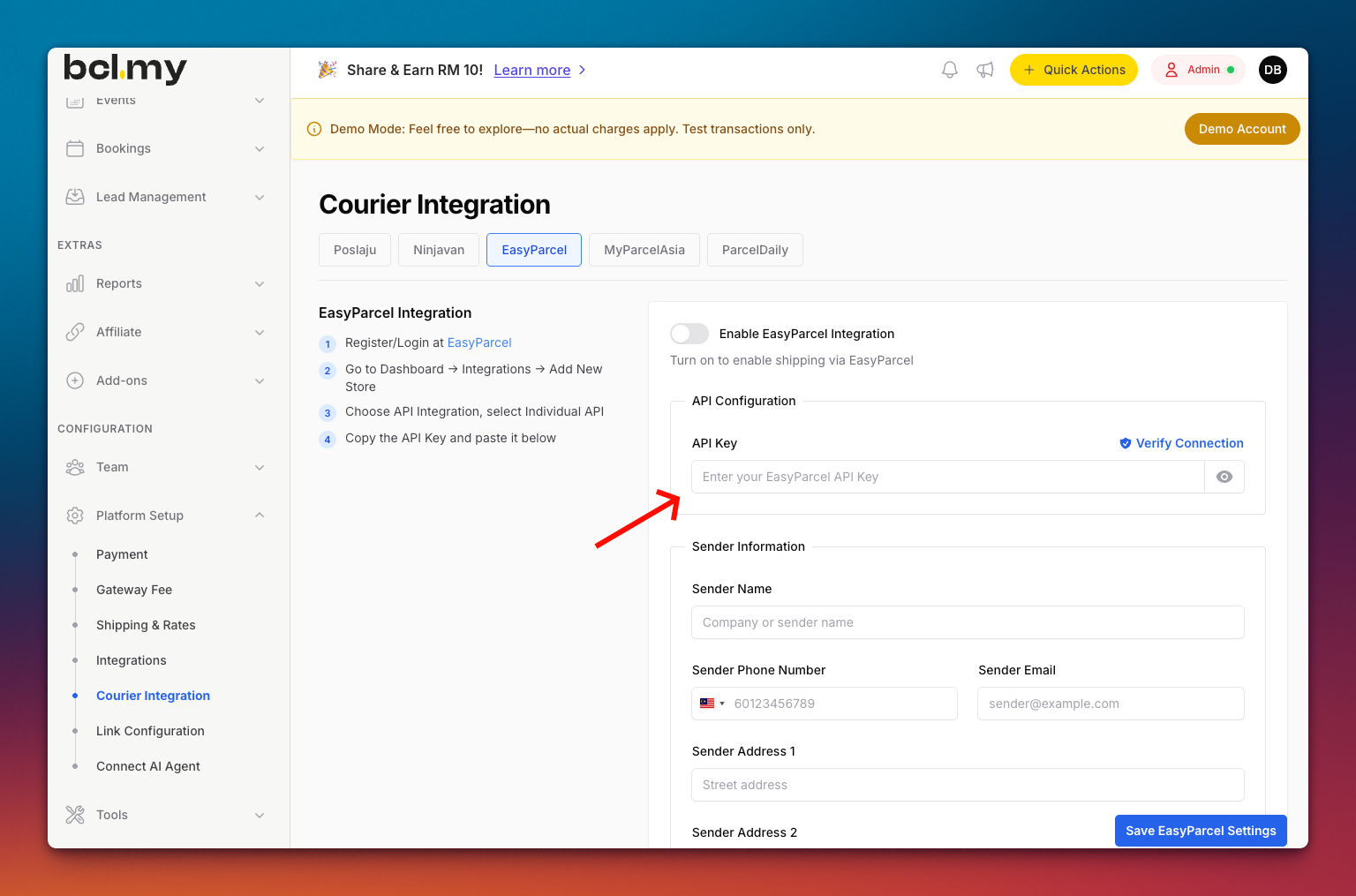
  3. Under API Credentials, turn on Enable EasyParcel.

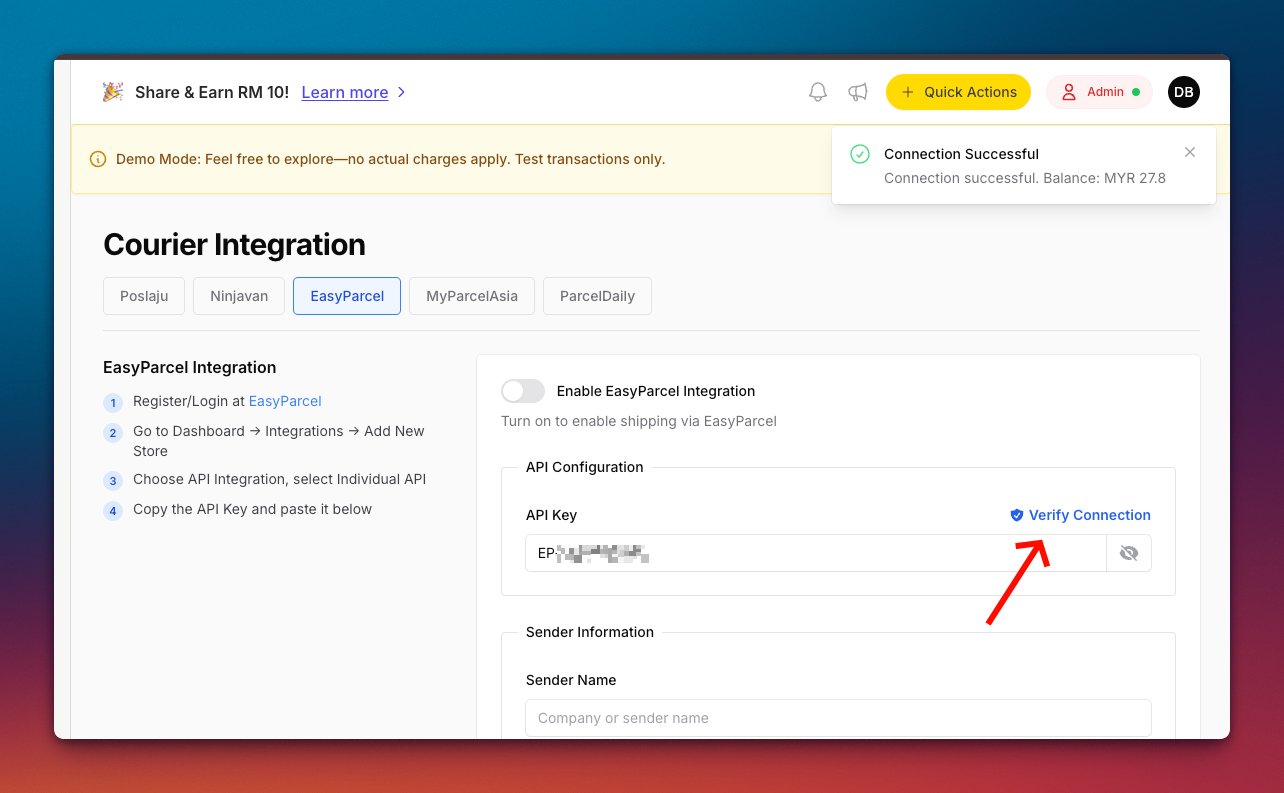
  4. Paste your key into API Key, then click Verify Connection.

    The EasyParcel panel with the setup guide and the API Credentials box highlighted

  5. Optionally, under Parcel Settings, choose what Parcel Content prints on the consignment note: Form Title or each item’s SKU.

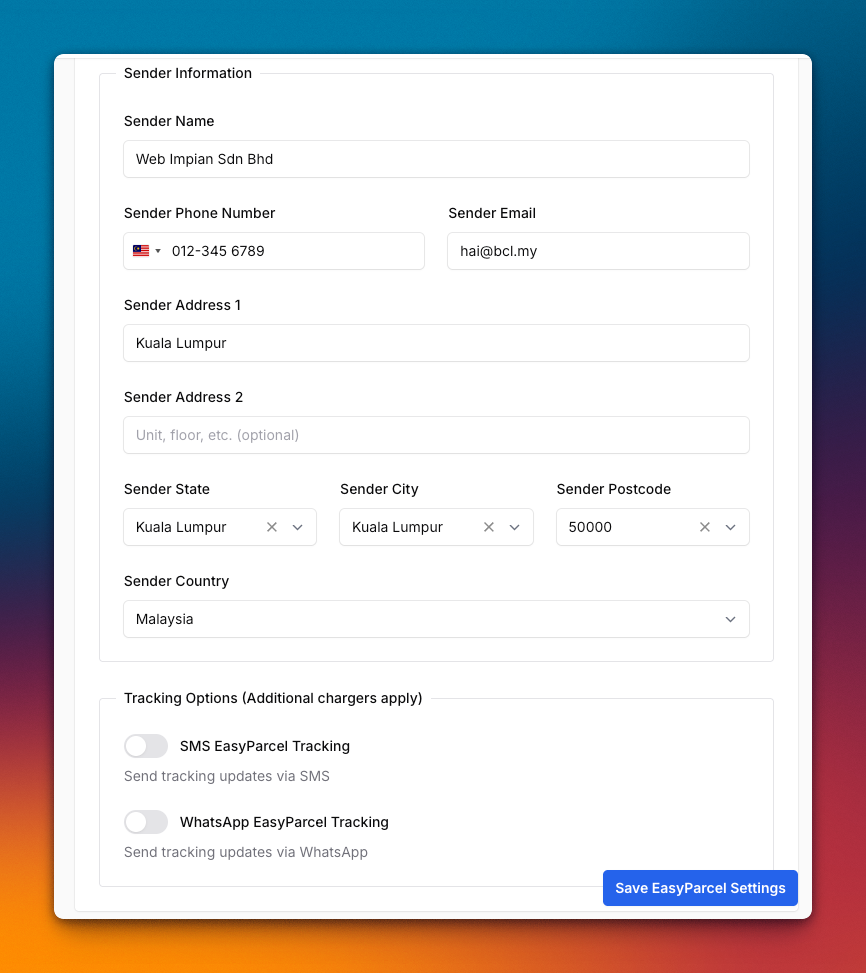
  6. Under Sender Information, fill in your sender name, phone, email and pickup address.

  7. Optionally, under Tracking Options, turn on SMS tracking or WhatsApp tracking. EasyParcel charges extra for these.

  8. Click Save EasyParcel.

    Sender Information and Tracking Options, with the Save EasyParcel button highlighted

The switch on the EasyParcel card turns EasyParcel on or off later without opening the panel. Your settings are kept while it is off.

For each order you want to send:

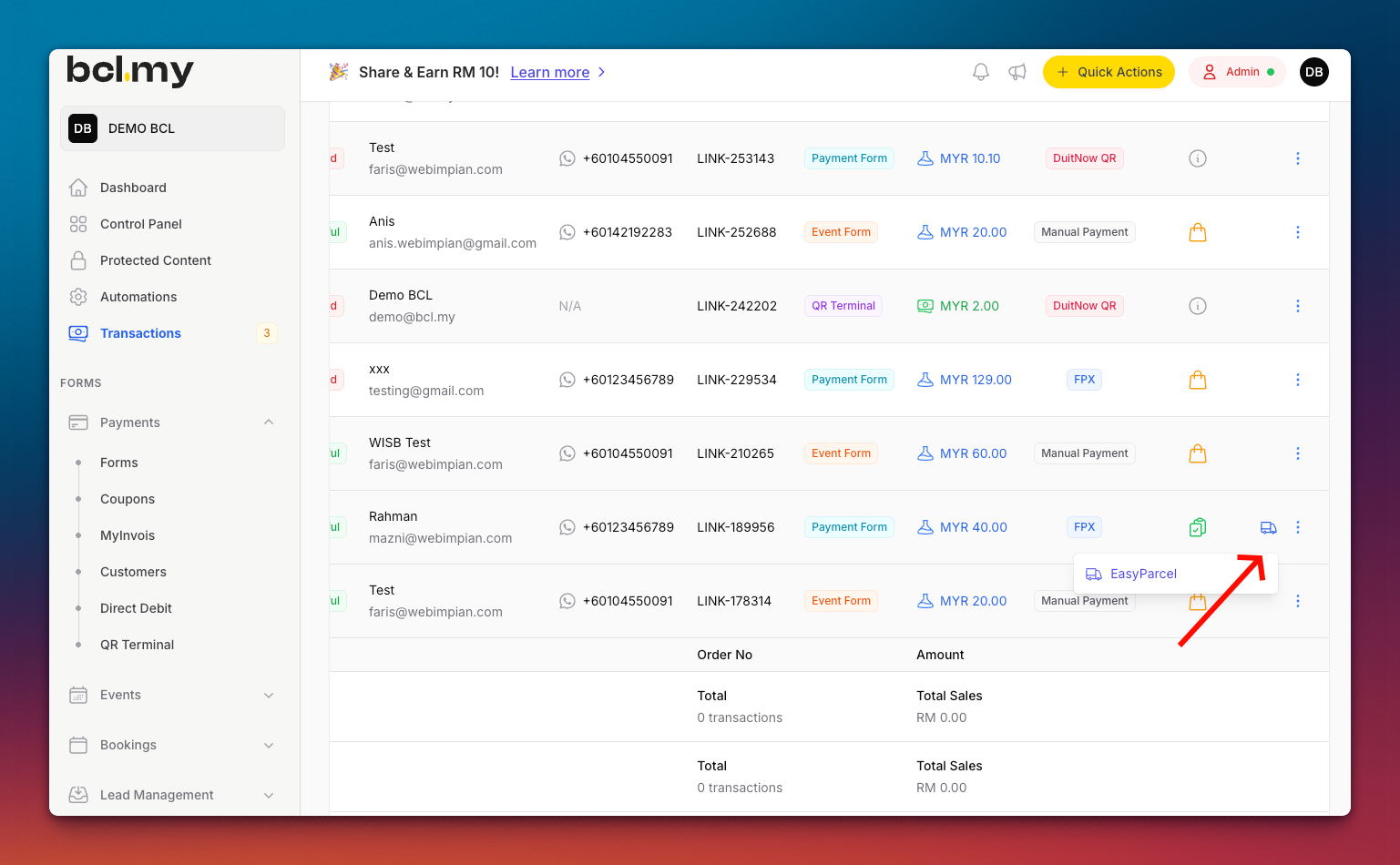
  1. Go to Transactions and find the order.

  2. Click the truck icon (Courier) on the row, then EasyParcel. It only appears once EasyParcel is enabled and the order has a full delivery address.

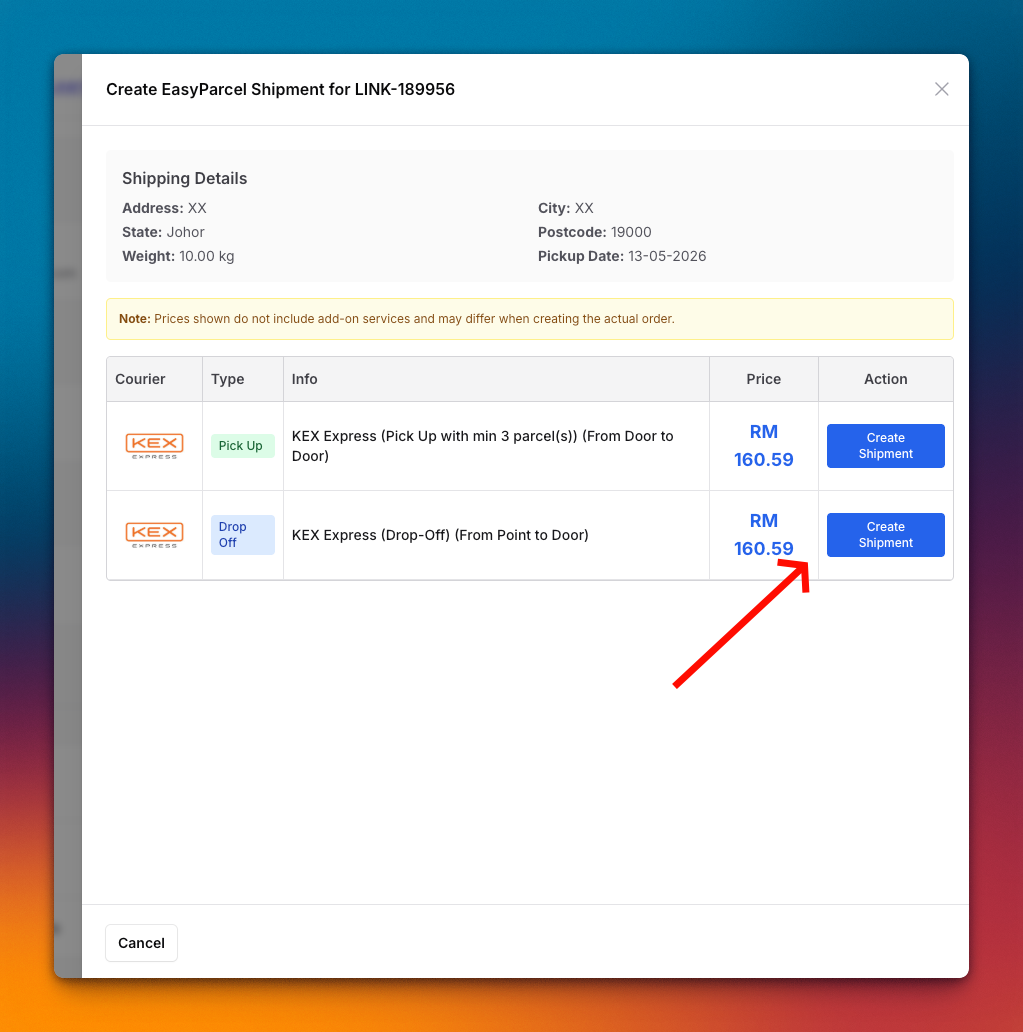
  3. Check the shipping details and the courier rates. Rates shown exclude add-on services and may change when the order is created.

  4. Click Create Shipment on the service you want, then click Yes to confirm.

    Create EasyParcel Shipment window with shipping details and a list of courier services and rates

BCL shows the tracking number once the shipment is created. The shipment cost comes out of your EasyParcel credit.

Once the shipment is created, print the waybill (airway bill) and stick it on the parcel:

  1. Go to Transactions and find the order. The truck icon (Courier) turns green once it has a shipment.
  2. Click the truck icon, then EasyParcel. The shipment details open, with the courier, the tracking number and the delivery address.
  3. Click View Airway Bill. The waybill opens from EasyParcel in a new tab.
  4. Print it from your browser, or save it as a PDF.

Track Shipment in the same window opens the courier’s tracking page. BCL has no bulk print for EasyParcel waybills: open each order in turn.

Common issues

Why don't I see the EasyParcel option on an order?

It only shows when EasyParcel is switched on in Platform Setup → Courier Integration and the order has items and a full delivery address (address, city, state and postcode). The Courier Integration add-on must also be active: without it, the EasyParcel card shows Add-on required.

Shipment creation failed with Insufficient Credit. What now?

EasyParcel charges shipments to your EasyParcel credit. Top up your credit in EasyParcel, then create the shipment again.

Can EasyParcel collect cash for my COD orders?

Yes, when the courier offers COD. For a COD order, services that cannot collect cash show COD Not Available instead of Create Shipment.

How do I print the EasyParcel waybill?

In Transactions, click the green truck icon (Courier) on the order and choose EasyParcel again. The shipment details open: click View Airway Bill to open the waybill from EasyParcel in a new tab, then print it from your browser.

Was this article helpful?

Cookie settings

We use Google Analytics to see which guides help and where readers get stuck. It is on by default; you can turn it off. Your choice is saved on this device.