
Ask an AI about this page
 ChatGPT
 Claude
 Perplexity
 Google AI Mode
 Microsoft Copilot
 Grok
Grok Mistral Le Chat
Ship orders with Ninja Van
Connect your Ninja Van account to create Ninja Van shipments straight from your BCL orders. BCL sends the order and the delivery address to Ninja Van and saves the tracking number on the order.
Before you start
Section titled “Before you start”You need two things:
- The Courier Integration add-on, from Add-ons → Available Add-ons.
- A Ninja Van shipper account.
Connect Ninja Van
Section titled “Connect Ninja Van”The quickest way is to sign in to Ninja Van from BCL:
-
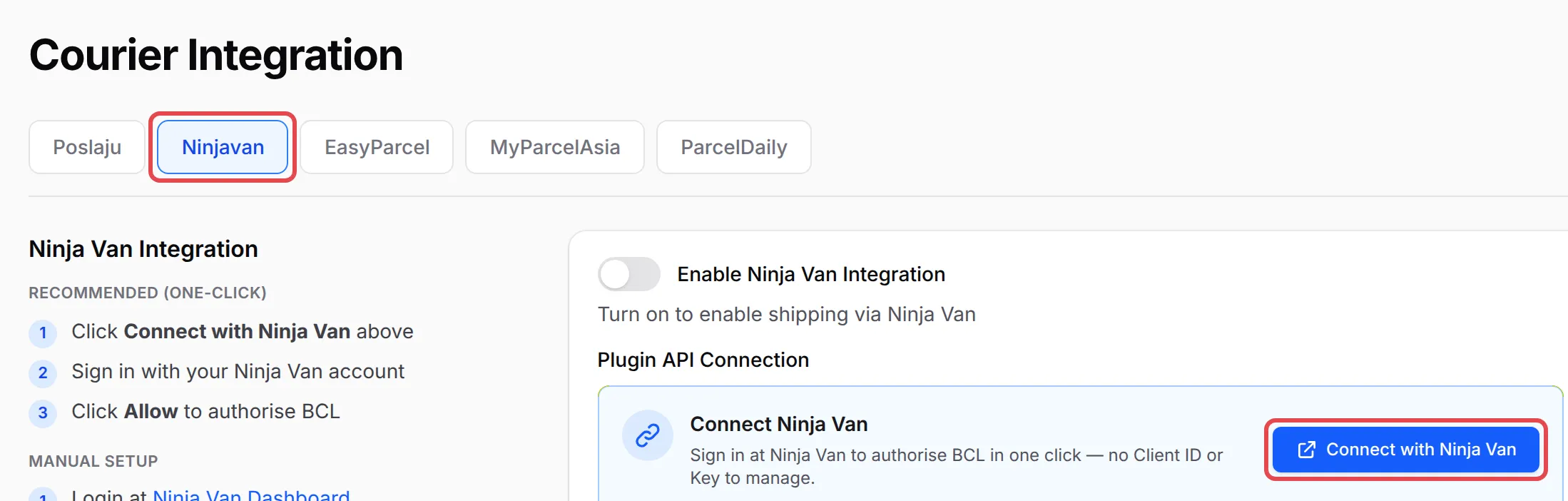
Go to Platform Setup → Courier Integration and open the Ninjavan tab.
-
Turn on Enable Ninja Van Integration.
-
Under Plugin API Connection, click Connect with Ninja Van, sign in with your Ninja Van account and click Allow to authorise BCL.
-
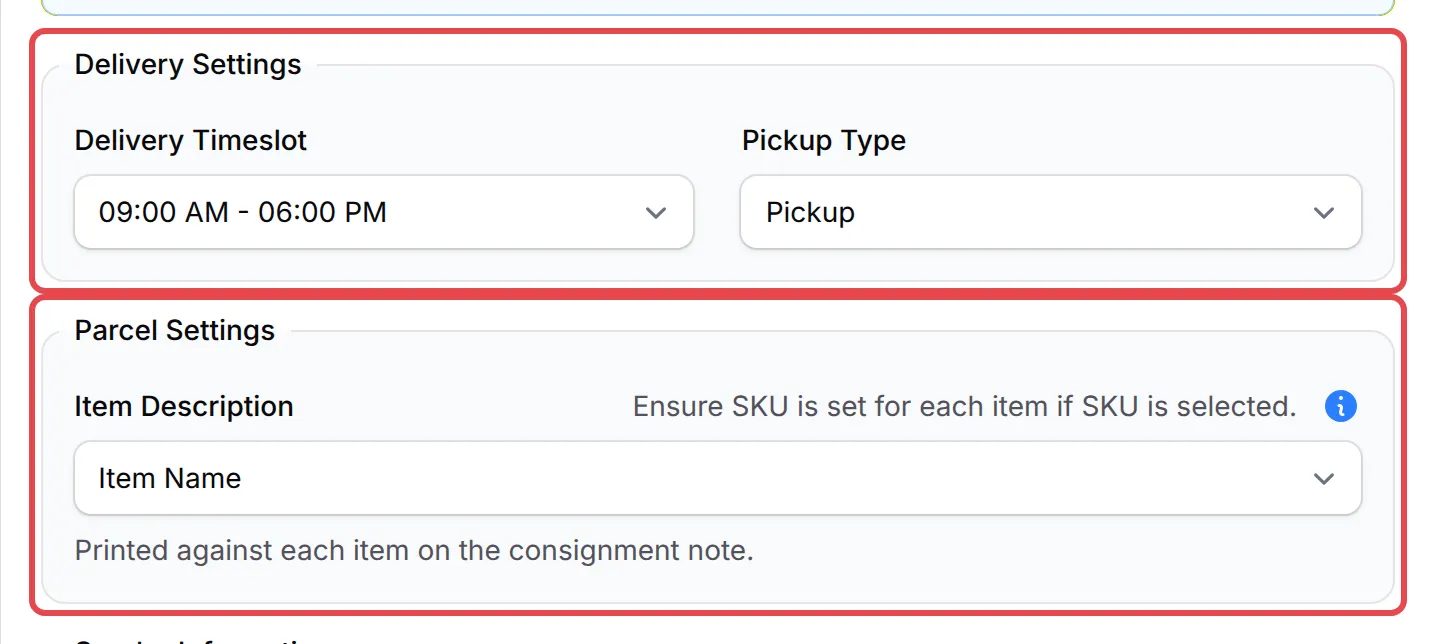
Under Delivery Settings, choose the Delivery Timeslot and the Pickup Type: Pickup from your address, or Drop off at PUDO Outlet.
-
Under Parcel Settings, choose what Item Description prints against each item on the consignment note: Item Name or SKU.
-
Fill in Sender Information: your name, phone, email and pickup address.
-
Click Save Ninjavan Settings.
If you prefer to use API keys, the tab lists the manual setup: in the Ninja Van Dashboard, go to Settings → IT Settings, copy the API Key Name, Client ID and Client Key, and paste them into BCL.
Create a shipment
Section titled “Create a shipment”A Ninja Van shipment needs items with a weight and a full delivery address in Malaysia. For each order:
- Go to Transactions and find the order.
- Click the truck icon (Courier) on the row, then Ninja Van. It only appears once Ninja Van is enabled and the order has items and a full delivery address.
- Check the details and click Create Shipment.
BCL shows Shipment Created Successfully with the tracking number, and the truck icon turns green. If you see Cannot Create Shipment, add a Weight to the form’s items or correct the address.
Add a weight to earlier orders
Section titled “Add a weight to earlier orders”An order keeps the weight its items had when the customer paid. If you add a Weight to an item after orders came in, those orders still have no weight. Copy the new weight into them:
- Open the form, click More on the item, fill in Weight in kg and save. For items with variations, set the weight on each option.
- Go to Transactions and tick the orders.
- Open Shipping in the bulk actions and choose Sync Product Weight, then Update Weights.
BCL copies the form’s weight into every item that has none, and tells you how many items it updated. Items that already have a weight are not changed. If you see No Weights Updated, the items on the form still have no weight: do step 1 first.
To create shipments for many orders at once, tick them in Transactions, open Shipping in the bulk actions and choose Bulk Ninja Van, then Create Shipments. BCL tells you when it has finished.
Print the waybill
Section titled “Print the waybill”Open the shipment again to get its waybill:
- In Transactions, click the green truck icon on the order, then Ninja Van.
- Click View Airway Bill to open the waybill in a new tab, and print it.
Track Shipment opens Ninja Van’s tracking page. If the window shows no View Airway Bill button, Ninja Van has not sent a waybill link to BCL for the order: print the waybill from your Ninja Van Dashboard, where the order has the same tracking number.
Cancel a shipment
Section titled “Cancel a shipment”While the parcel is still in Pending Pickup, open the shipment and click Cancel Shipment, then confirm. A cancelled shipment cannot be restored.
Common issues
How do I set up Ninja Van and get the waybill?
Go to Platform Setup → Courier Integration, open the Ninjavan tab, turn on Enable Ninja Van Integration and click Connect with Ninja Van. Then create the shipment from the order in Transactions (truck icon, Ninja Van). Open the same window again for View Airway Bill.
Ninja Van shipment says Cannot Create Shipment. Why?
BCL needs a weight on the items and a delivery address in Malaysia. Fill in each item's Weight on the form. For orders placed before that, tick them in Transactions and choose Shipping → Sync Product Weight, then try again. See Add a weight to earlier orders.
I clicked Sync Product Weight and got No Weights Updated. What does it mean?
The items on your form have no weight yet, so there was nothing to copy. Sync Product Weight copies the item's Weight from the form into orders that have none. Open the form, click More on the item, fill in Weight in kg and save. Then select the orders again and choose Shipping → Sync Product Weight → Update Weights.
The Ninja Van shipment was created but there is no waybill button.
The View Airway Bill button only shows when Ninja Van sends a waybill link back for the order. If it is missing, print the waybill from your Ninja Van Dashboard, where the order has the same tracking number.
Was this article helpful?
Thanks for your feedback.
Sorry this didn't help. WhatsApp us and we'll sort it out with you.