
Ask an AI about this page
 ChatGPT
 Claude
 Perplexity
 Google AI Mode
 Microsoft Copilot
 Grok
Grok Mistral Le Chat
Get notified of new leads
Updated

Each lead form can tell you about new leads by email, WhatsApp or SMS, and can send the person who filled it in an automatic reply. You set this up per form.
Email your team for each new lead
Section titled “Email your team for each new lead”Email alerts are on by default and go to your own email. To send them to someone else as well:
-
Go to Lead Management → Lead Forms and click Edit on the form.
-
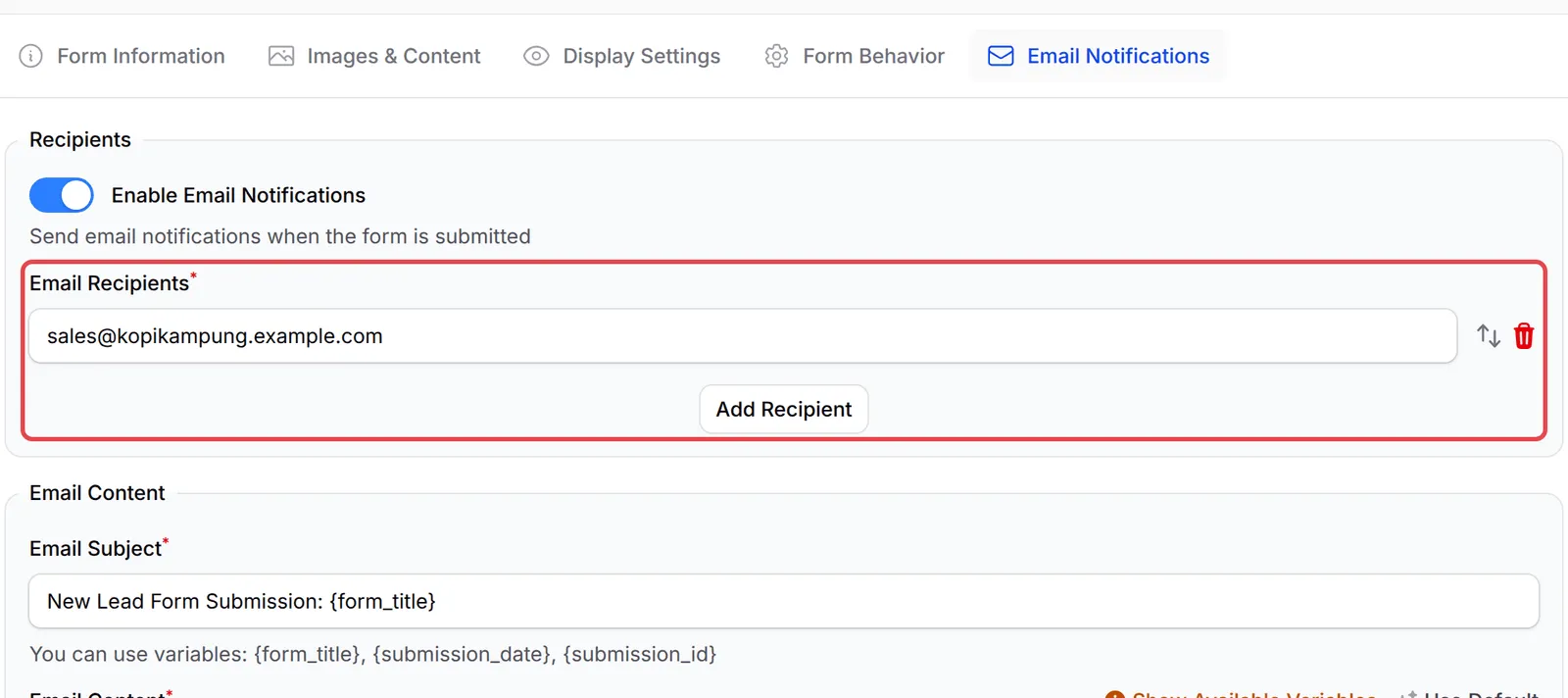
Open the Email Notifications tab. Check that Enable Email Notifications is on.
-
Under Email Recipients, change the address or click Add Recipient to add another one.
-
Optionally, change the Email Subject and Email Content. Click Show Available Variables to see what you can insert, such as
{form_title},{submission_date}or a form field like{business_name:4}. Click Use Default to go back to BCL’s wording. -
Leave Include Submission Data on to put everything the person filled in into the email.
-
Click Update Form.
Send the person an automatic reply
Section titled “Send the person an automatic reply”The autoresponder emails the person who filled in the form, for example to say thank you or to send a free guide:
-
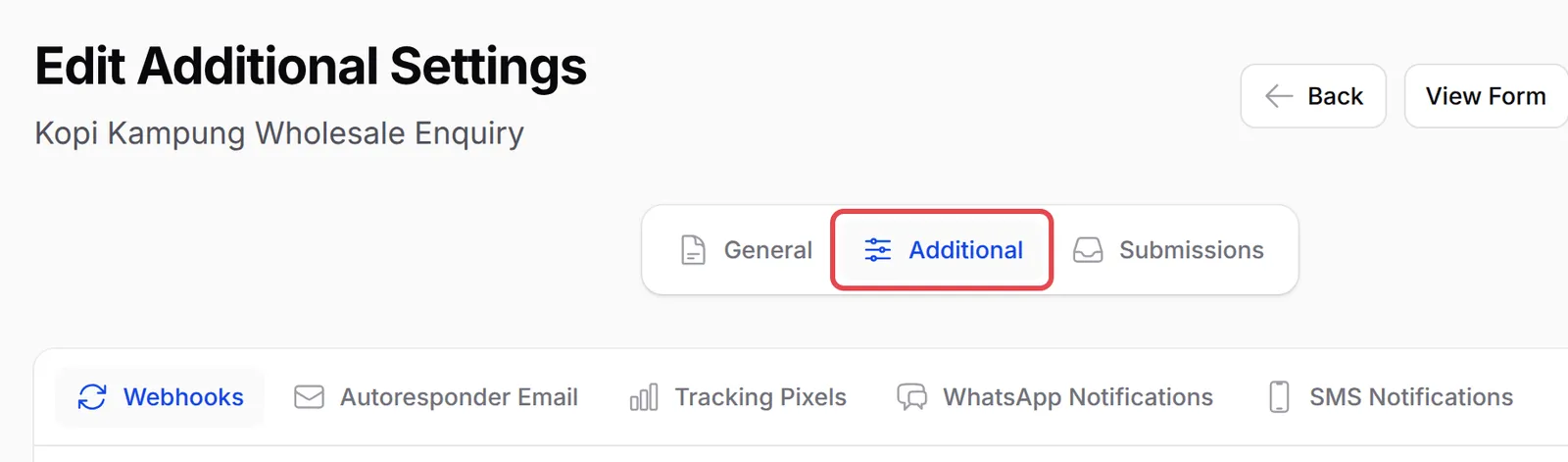
On the form’s edit page, click the Additional tab.
-
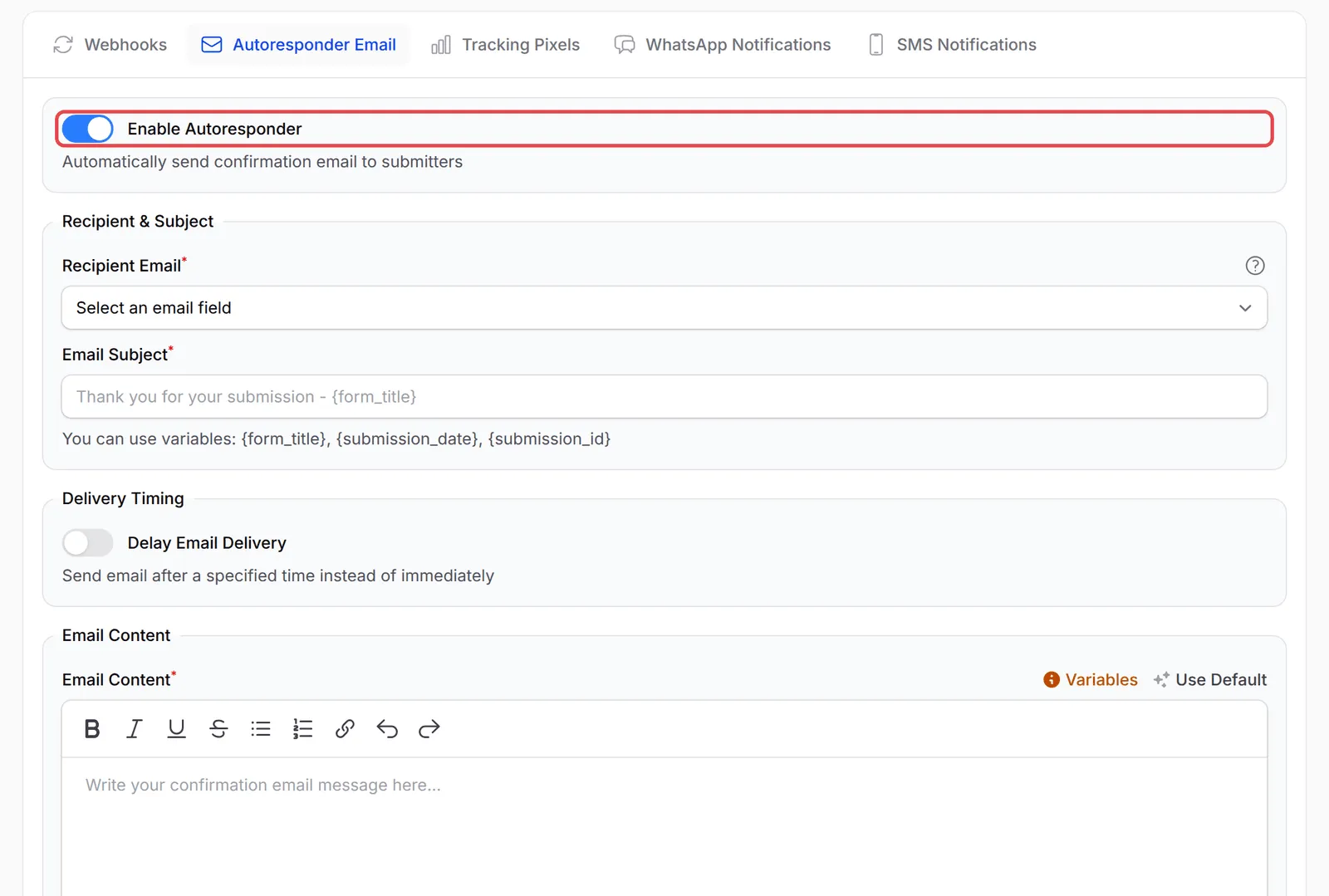
Open Autoresponder Email and turn on Enable Autoresponder.
-
In Recipient Email, choose the email field from your form. Then fill in the Email Subject and Email Content.
-
Optionally, set these:
Setting What it does Delay Email Delivery Sends the reply after the time you set instead of straight away. Include Submission Summary Adds a copy of what the person filled in. Attach File to Email Attaches a file you choose, such as an ebook, brochure or price list (up to 10 MB). -
Click Save Additional Settings.
Add WhatsApp or SMS alerts
Section titled “Add WhatsApp or SMS alerts”WhatsApp alerts are sent through Wabot or Wasapbot, so connect one first under Platform Setup → Integrations → WhatsApp (Automation). SMS alerts use SMS Niaga.
-
On the form’s Additional tab, open WhatsApp Notifications.
-
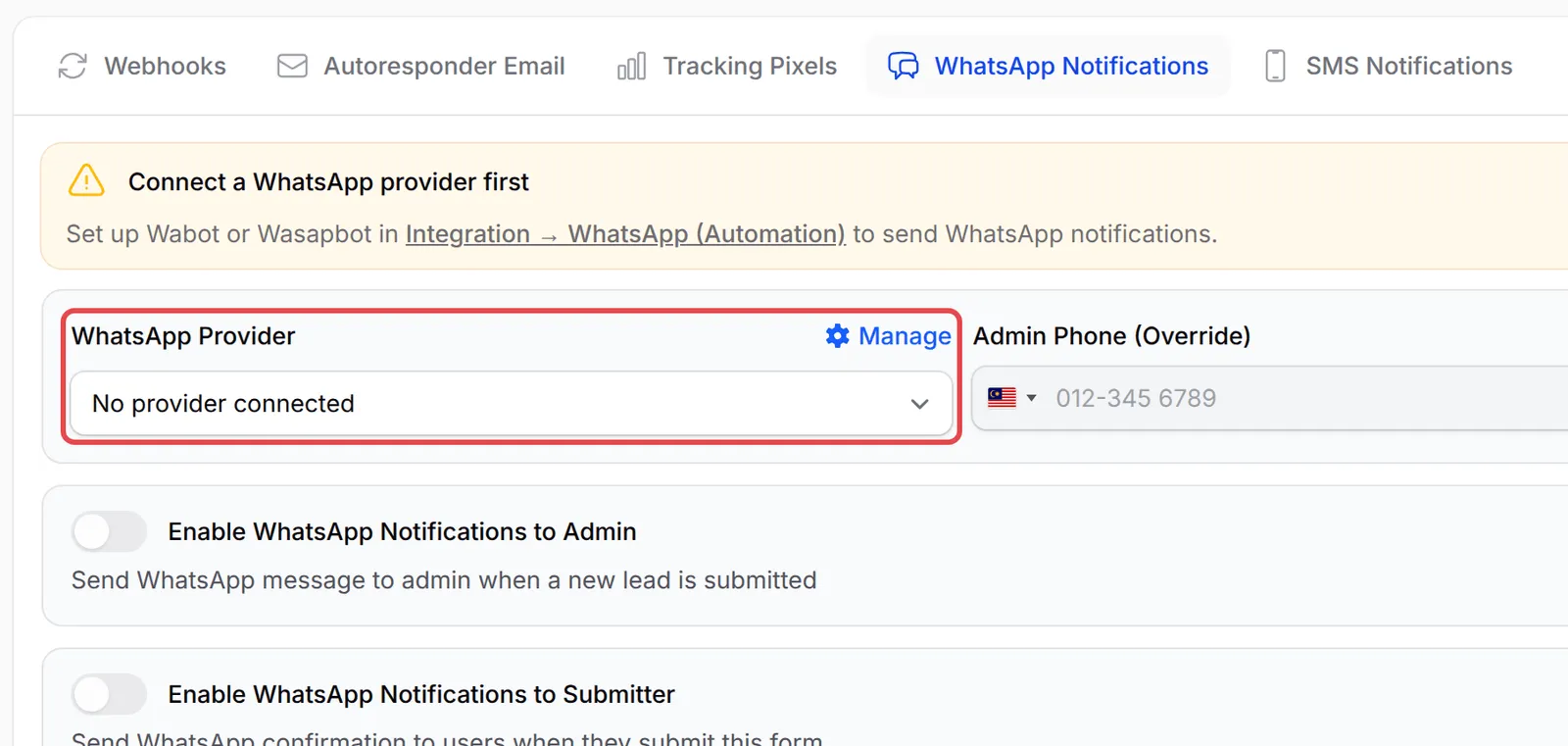
Choose your WhatsApp Provider. Until one is connected, BCL shows Connect a WhatsApp provider first and the list says No provider connected.
-
Turn on Enable WhatsApp Notifications to Admin to message yourself about each lead. Admin Phone (Override) sends these to a different number from your default admin phone.
-
Turn on Enable WhatsApp Notifications to Submitter to message the person, then choose the Phone Number Field from your form and write the message.
-
For SMS, open SMS Notifications and use Enable SMS Notifications to Admin or Enable SMS Notifications to Submitter in the same way. SMS messages are limited to 160 characters.
-
Click Save Additional Settings.
Keep your alerts useful rather than noisy:
- Send alerts to a shared inbox. A sales address that several people read means no lead waits for one person to be back at work.
- Put the key details in the subject. A subject such as
New wholesale enquiry: {business_name:4}lets your team sort leads straight from the inbox. - Use an automation for anything more. To add leads to a mailing list, a Google Sheet or your CRM, use the New Lead Received trigger in Automations.
Common issues
Can my staff get an email every time someone fills in my lead form?
Yes. Open the form, go to the Email Notifications tab and add their addresses under Email Recipients with Add Recipient. Then click Update Form.
Can the person who filled in the form get a confirmation email, with a free ebook attached?
Yes. On the form's Additional tab, open Autoresponder Email, turn on Enable Autoresponder, and turn on Attach File to Email to add the file.
Can I use Wabot for the WhatsApp alerts on my form?
Yes. Connect Wabot or Wasapbot under Platform Setup → Integrations → WhatsApp (Automation) first, then choose it as the WhatsApp Provider on the form's WhatsApp Notifications tab.
Was this article helpful?
Thanks for your feedback.
Sorry this didn't help. WhatsApp us and we'll sort it out with you.