
Ask an AI about this page
 ChatGPT
 Claude
 Perplexity
 Google AI Mode
 Microsoft Copilot
 Grok
Grok Mistral Le Chat
Send class tips after a booking
Updated

BCL already confirms each booking and reminds the customer before it. What it cannot know is what your customers should bring or do beforehand. This automation sends those tips to everyone who books one particular service, right after they pay.
What you need
Section titled “What you need”A booking form and the service the tips are for. The example uses the demo service “Latte Art Class” on the form “Book a Latte Art Class”.
Build it
Section titled “Build it”Start from a blank automation (see Create an automation):
-
Go to Automations, click New Automation, name it “Latte Art Class Prep” and click Create.
-
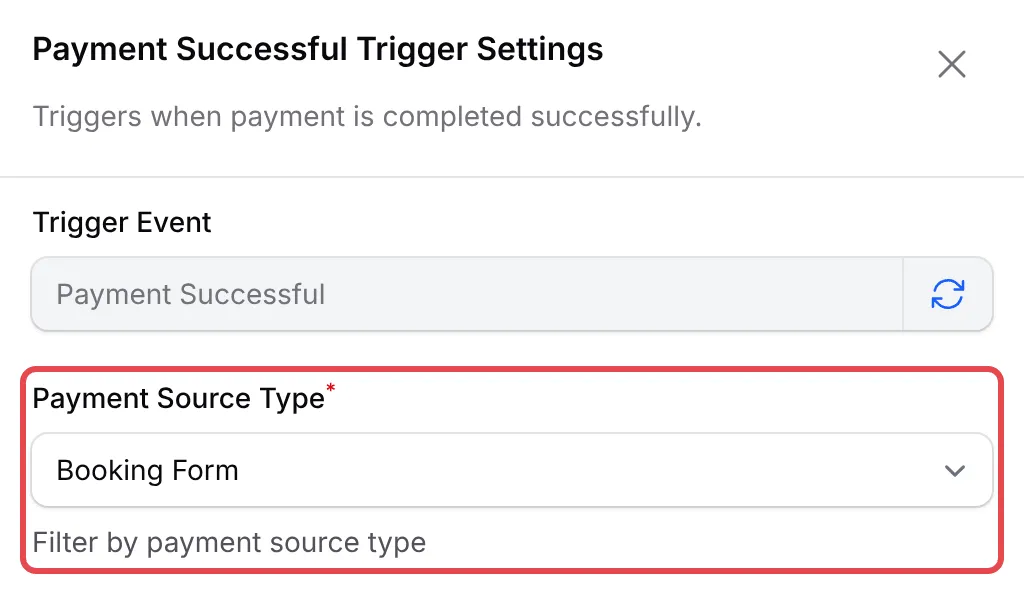
Click Add Node and pick Payment Successful. Double-click the trigger, set Payment Source Type to Booking Form and click Save Trigger.
-
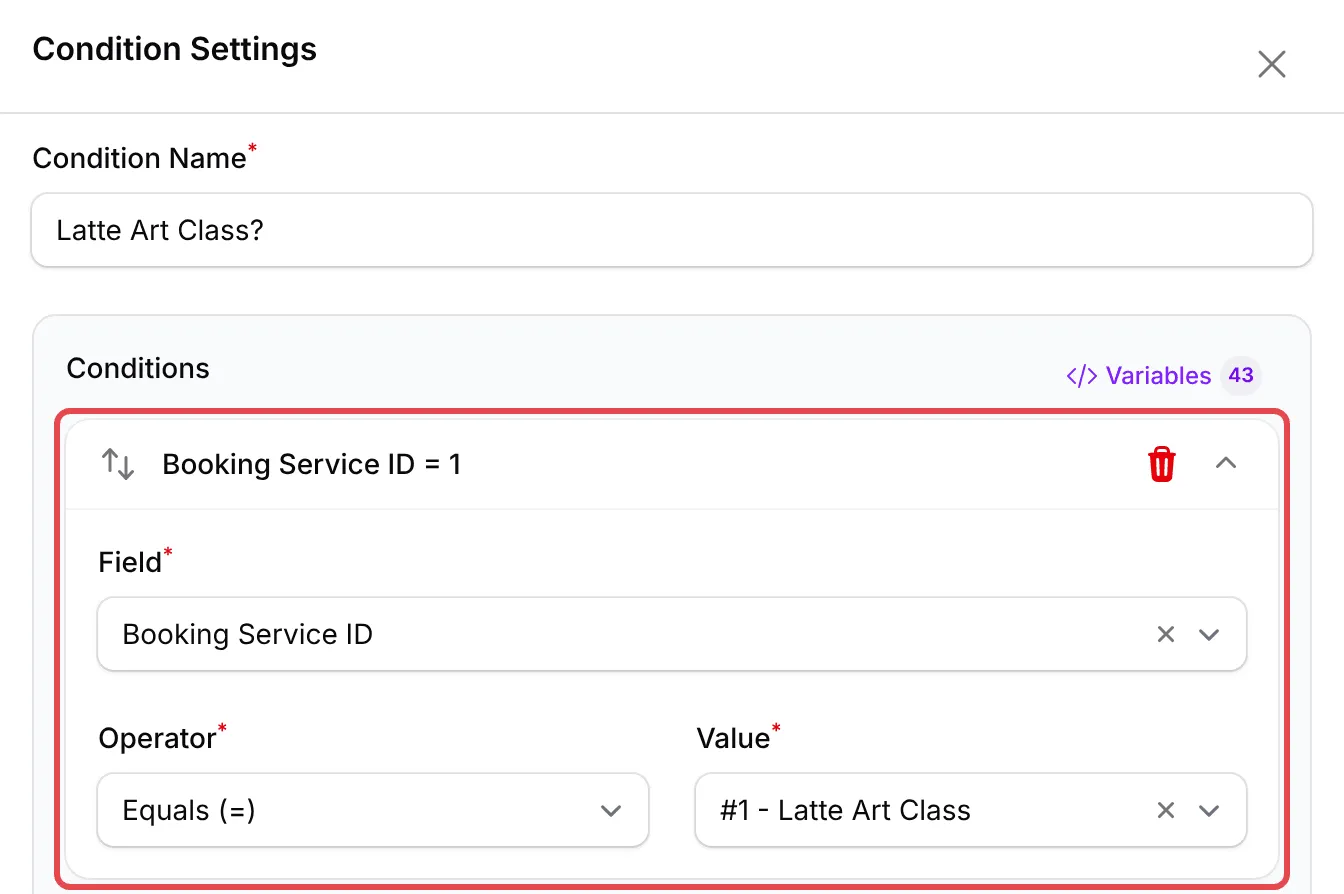
Click Add Node and pick Condition. Double-click it and set:
Field Choose Condition Name Latte Art Class? Field (after Add Condition) Booking Service ID Operator Equals (=) Value Your service, such as #1 - Latte Art Class Click Save Condition.
-
Click Add Node and pick Send Email. Double-click it, fill it in as below and click Save Email.
Field Enter Action Name Class prep tips Recipient Email {email}Email Subject Getting ready for your Latte Art Class Email Content The message below Hi {name},Thank you for booking the Latte Art Class (booking {order_number}).To get the most from the class:Arrive 10 minutes early so we can start on time.Wear something you do not mind getting a little milk on.Your booking details and check-in QR code are in your booking confirmation email.See you at the bar,{business_name}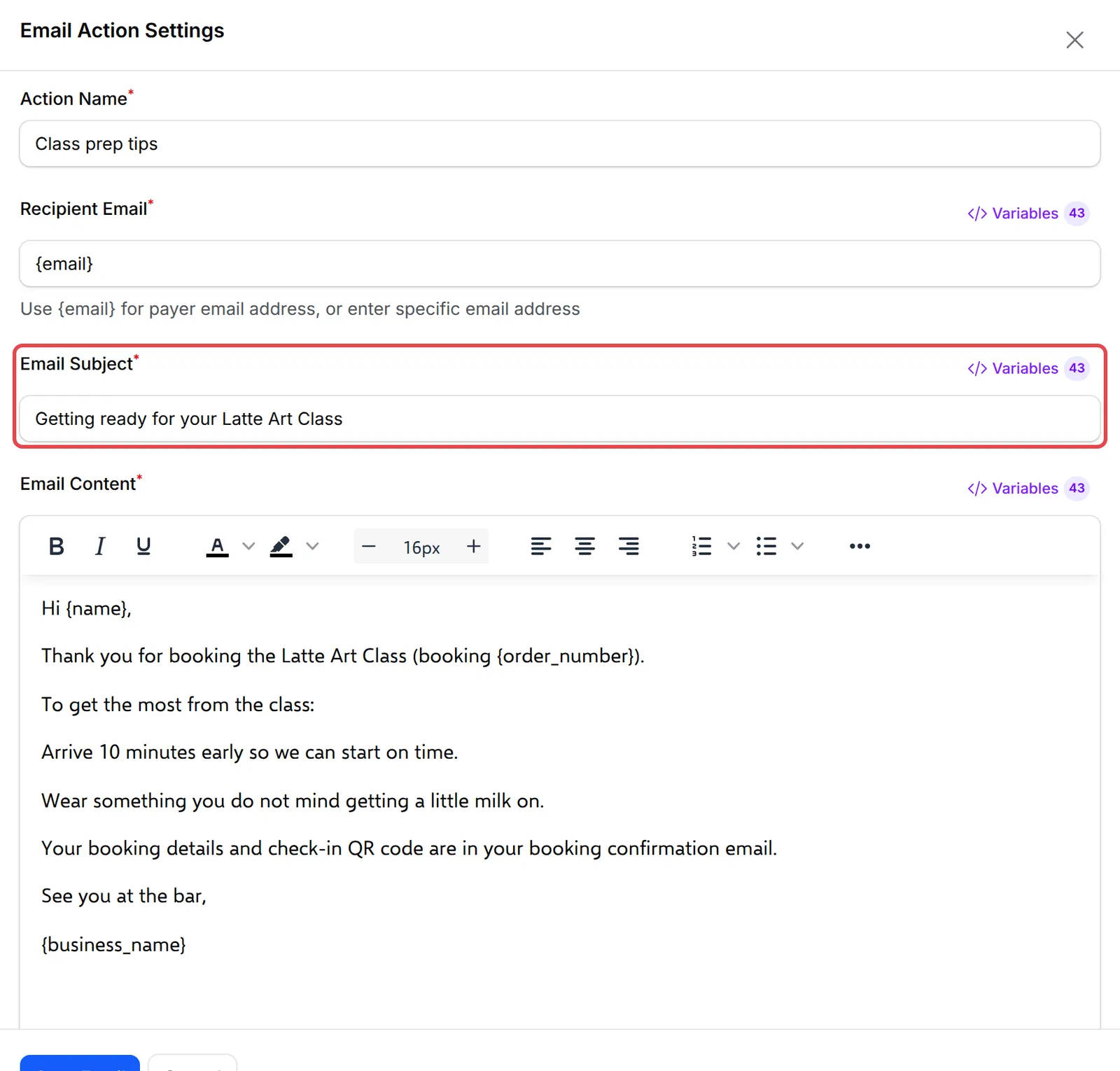
-
Click Update Automation.
The finished workflow:
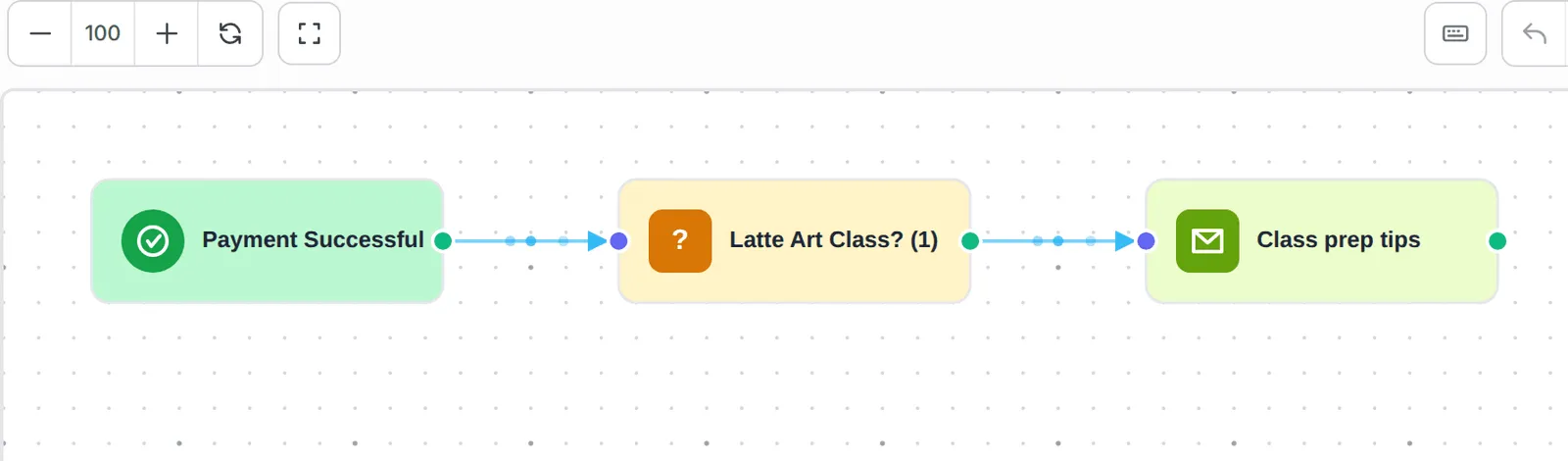
Bookings for other services stop at the condition, so only Latte Art Class customers get this email.
Test it
Section titled “Test it”Check the recipe with a test run before you rely on it:
-
Book the service on your booking form in Test Mode and pay.
-
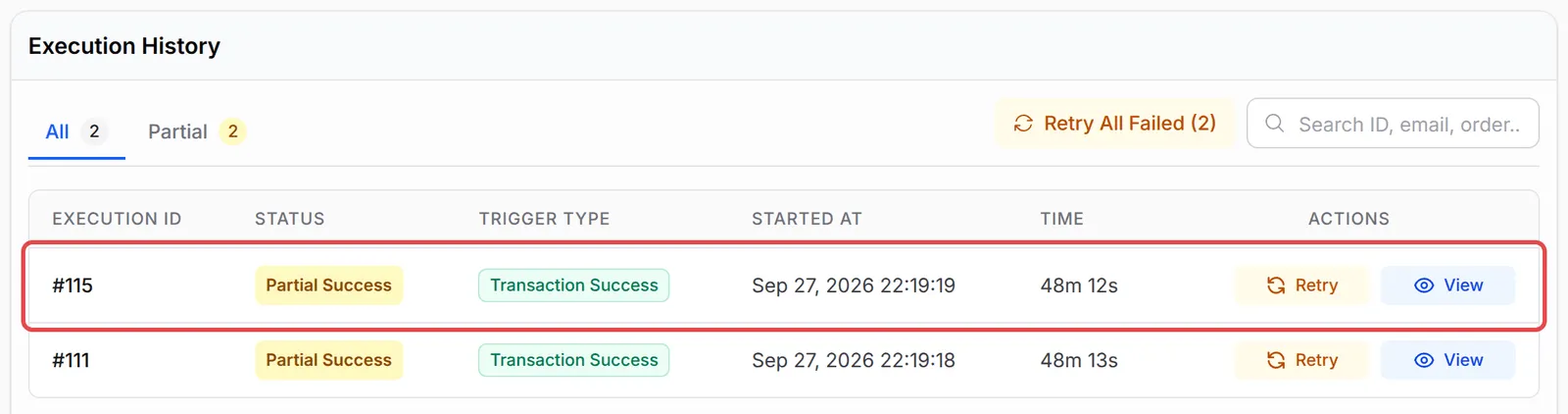
Open the automation and click Overview. The booking shows in Execution History; a delivered email shows as Completed. A booking for another service shows as Skipped.
A few ways to get more from this recipe:
- Use one automation per service. It keeps each message specific. For tips shared by all services, drop the condition.
- The same condition works for products and tickets. Use Product ID or Ticket ID to send item-specific instructions after a payment or event form.
- Leave dates to BCL’s booking emails. They already carry the date, time, staff and QR code.
Common issues
Can an automation remind customers the day before their booking?
No. A delay can only wait a fixed time after the booking or until one fixed date. BCL's booking emails already include reminders 1 day and 1 hour before each booking; check them on your booking form's Notifications page.
Can I show the booking date and time in the automation email?
Not with a variable: the booking date and time are not passed to automations. The booking confirmation email BCL sends already has them, so point the customer to it.
Was this article helpful?
Thanks for your feedback.
Sorry this didn't help. WhatsApp us and we'll sort it out with you.