
Ask an AI about this page
 ChatGPT
 Claude
 Perplexity
 Google AI Mode
 Microsoft Copilot
 Grok
Grok Mistral Le Chat
Ship orders with ParcelDaily
ParcelDaily lets you book many couriers from one ParcelDaily account. Connect it to BCL to compare courier prices for an order and book the courier you want. You also print the airway bill in BCL. ParcelDaily takes the price of each shipment from your ParcelDaily credit.
Before you start
Section titled “Before you start”You need three things:
- The Courier Integration add-on, from Add-ons → Available Add-ons.
- A ParcelDaily account. In ParcelDaily, go to Dashboard → Integration and copy your Merchant ID and Token Key.
- Credit in your ParcelDaily account, to pay for the shipments.
Connect ParcelDaily
Section titled “Connect ParcelDaily”Do this once for your team:
-
Go to Platform Setup → Courier Integration.
-
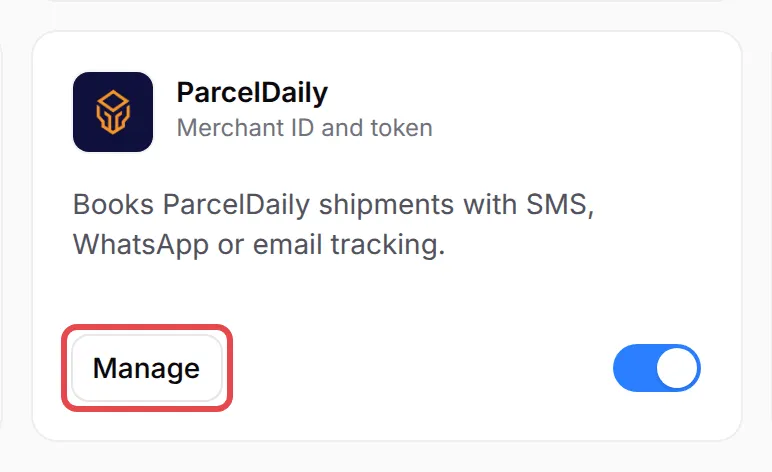
On the ParcelDaily card, click Connect. If ParcelDaily is already set up, the button says Manage. A side panel opens.
-
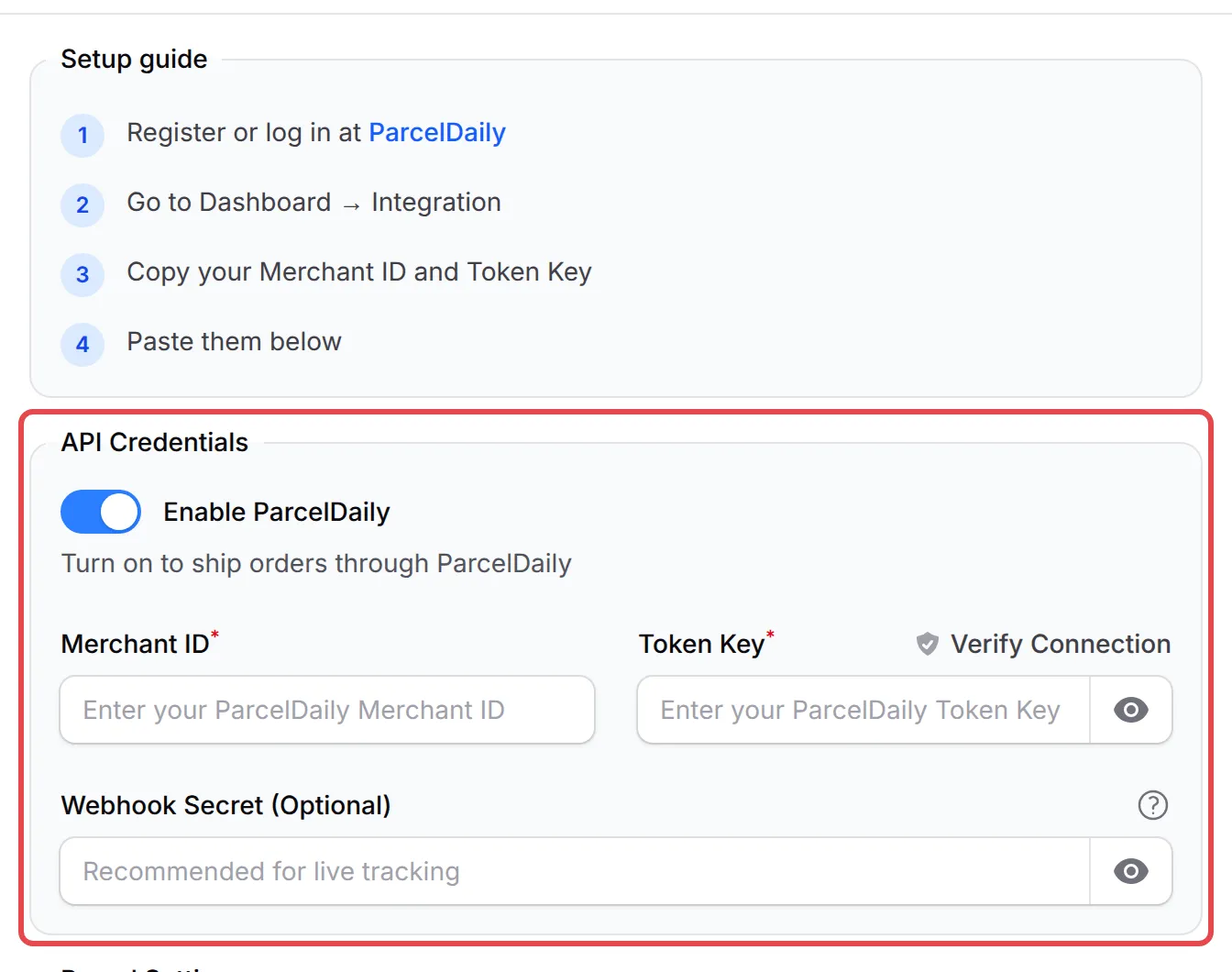
Under API Credentials, turn on Enable ParcelDaily.
-
Paste your Merchant ID and Token Key. Click Verify Connection to check them before you save.
-
For live delivery status, paste the Webhook Secret (Optional) from ParcelDaily (Integrations → External API Details). BCL then accepts only status updates signed with it.
-
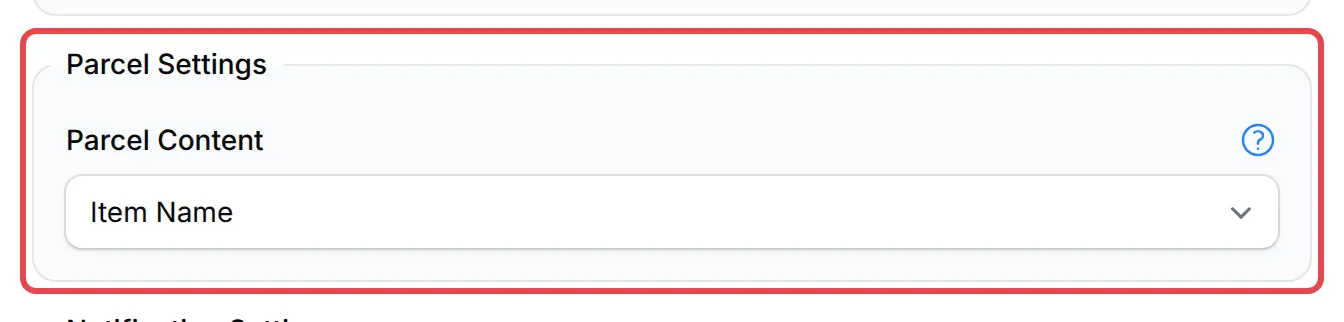
Under Parcel Settings, choose what Parcel Content prints on the label: Item Name, Form Title or SKU. It prints 50 characters at most.
-
Optional: under Notification Settings, choose the Notification Channels that tell the buyer when the parcel is picked up: SMS, WhatsApp or email.
-
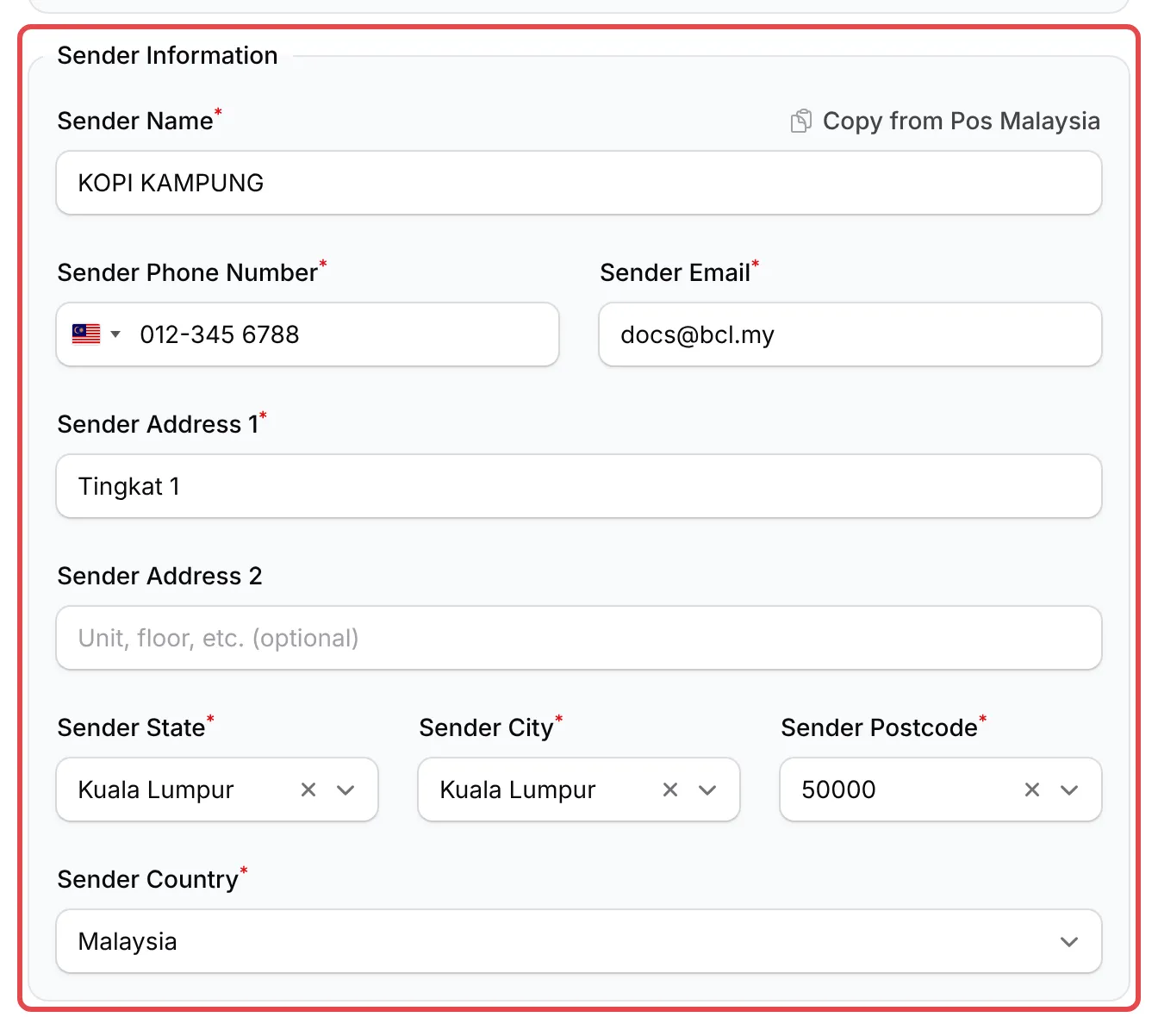
Fill in Sender Information: your name, phone, email and pickup address. If another courier is already set up, Copy from with its name fills in the same details.
-
Click Save ParcelDaily.
Later, use the switch on the card to turn ParcelDaily on or off. You do not have to open the panel.
Create a shipment
Section titled “Create a shipment”The order must be paid (or cash on delivery), and its items must have a weight. The order must also have a full delivery address in Malaysia with the buyer’s phone number. ParcelDaily takes parcels up to 30 kg. For each order:
-
Go to Transactions and find the order.
-
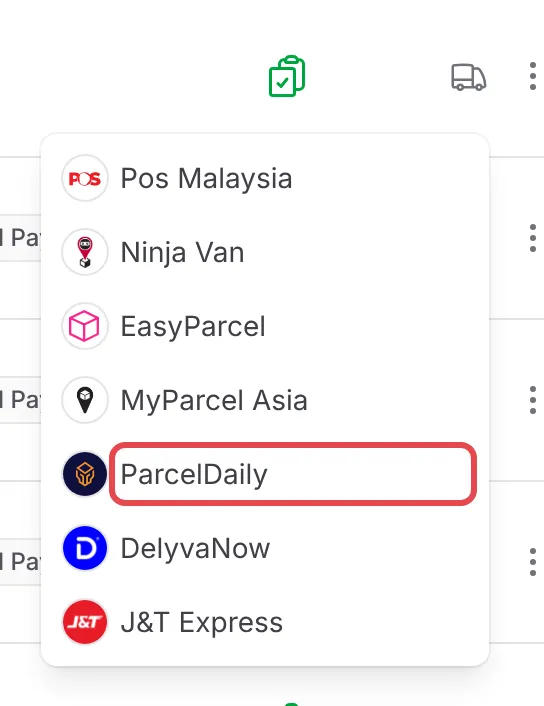
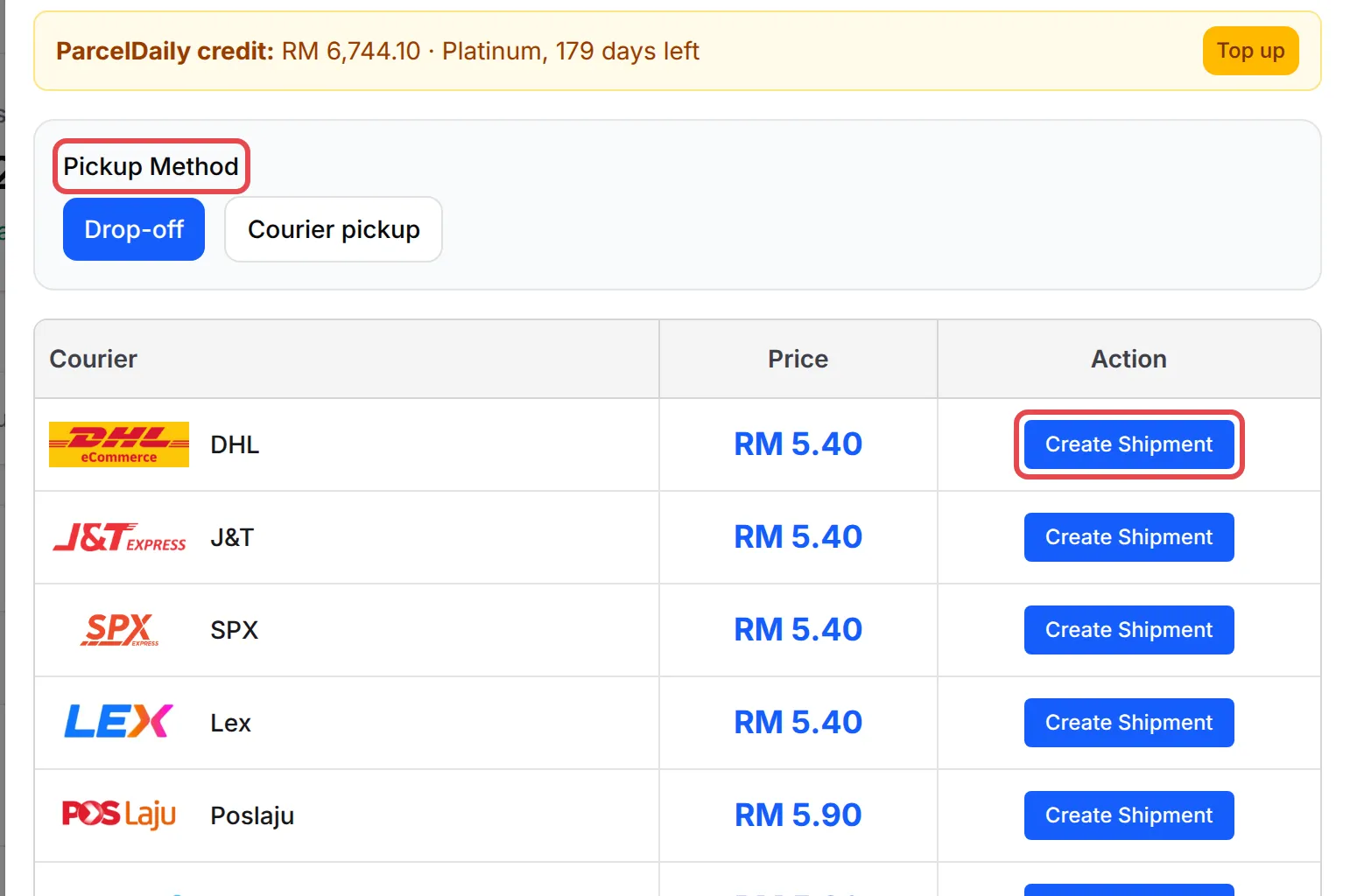
Click the truck icon (Courier) on the row, then ParcelDaily. A panel shows the order, your ParcelDaily credit and a list of couriers with their price.
-
In Pickup Method, choose Drop-off at the courier or Courier pickup from your sender address.
-
Click Create Shipment on the courier you want, then Yes.
BCL shows Shipment created with the tracking number. Sometimes the tracking number takes a few minutes to arrive. For a cash on delivery order, the courier collects the order amount from the buyer. Only DHL, Ninjavan, J&T, Flash, Citylink and Poslaju collect cash through ParcelDaily.
Not enough credit
Section titled “Not enough credit”If your credit does not cover the price, BCL saves the shipment as Pending Checkout. Click Top up to add credit in ParcelDaily. Then open the order again and click Checkout Shipment.
Create shipments in bulk
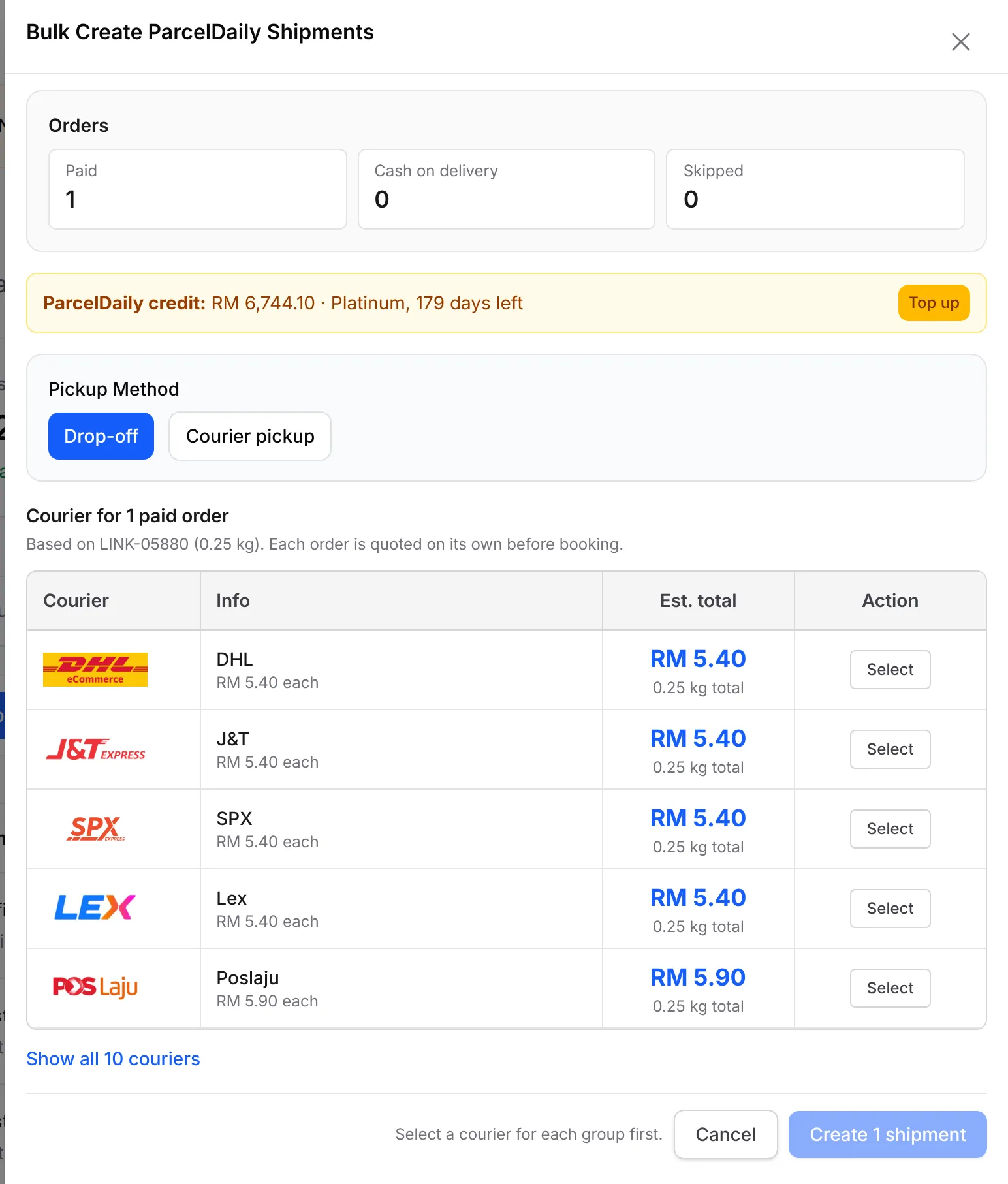
Section titled “Create shipments in bulk”To ship many orders at once, tick them in Transactions, open Shipping in the bulk actions and choose Bulk ParcelDaily. In Bulk Create ParcelDaily Shipments:
- Check the Orders summary. Paid and cash on delivery orders are in separate groups. Click View next to Skipped to see which orders BCL left out, and why.
- In Pickup Method, choose Drop-off or Courier pickup.
- For each group, click Select on a courier. The price is an estimate from one order in the group. ParcelDaily quotes each order again before it books it.
- Click Create with the number of shipments, for example Create 5 shipments.
A progress bar shows at the top of the page. When it is done, BCL sends the notification Bulk ParcelDaily shipments sent, with any orders that it did not send.
Print the airway bills
Section titled “Print the airway bills”For one order, click the green shipment button with the ParcelDaily logo on the order, then View Airway Bill. The label opens in a new tab. If it says Airway bill not ready, ParcelDaily did not finish the label yet. The tab checks again by itself.
To print many labels in one PDF, tick the orders in Transactions, open Shipping and choose Bulk Print Airway Bill. In Bulk Print ParcelDaily Airway Bills, keep the orders you want ticked and click Print with the number of labels. BCL opens one PDF with up to 100 labels. BCL skips orders with no shipment, a cancelled shipment or a shipment that is not checked out.
Follow the delivery status
Section titled “Follow the delivery status”ParcelDaily sends each new status to BCL, and the Tracking No column shows it under the tracking number. To check now, open the shipment and click Refresh Status. The panel also shows a Tracking Log with each step. The statuses are:
| Status | What it means |
|---|---|
| Picked up | The courier collected the parcel. |
| In transit | The parcel is on its way. |
| Out for delivery | The courier delivers it today. |
| Delivered | The buyer received the parcel. |
| Delivery failed | The delivery attempt failed. |
| Returned | The parcel came back to you. |
Cancel a shipment
Section titled “Cancel a shipment”Open the shipment, click Cancel Shipment, then Yes, cancel shipment. ParcelDaily cancels the booking and refunds the credit. Throw away any airway bill you printed for it. You can create a new shipment for the order later.
Cancel Shipment opens 5 minutes after checkout, and only until the courier picks up the parcel. Sometimes ParcelDaily must check with the courier first: BCL then shows Cancellation requested, and sends a notification when the shipment is cancelled.
Common issues
How do I connect ParcelDaily to BCL?
In ParcelDaily, go to Dashboard → Integration and copy your Merchant ID and Token Key.
In BCL, go to Platform Setup → Courier Integration and click Connect on the ParcelDaily card. Turn on Enable ParcelDaily, paste the Merchant ID and Token Key, fill in Sender Information and click Save ParcelDaily.
My ParcelDaily shipment says Pending Checkout. What do I do?
ParcelDaily pays for each shipment from your ParcelDaily credit. If the credit is too low, the shipment waits as Pending Checkout. Click Top up to add credit, then open the order again and click Checkout Shipment.
When can I cancel my ParcelDaily shipment?
Cancel Shipment opens 5 minutes after checkout, and only until the courier picks up the parcel. After pickup, contact ParcelDaily if the parcel must not go out.
Was this article helpful?
Thanks for your feedback.
Sorry this didn't help. WhatsApp us and we'll sort it out with you.