
Ask an AI about this page
 ChatGPT
 Claude
 Perplexity
 Google AI Mode
 Microsoft Copilot
 Grok
Grok Mistral Le Chat
Send paid orders to your CRM
Updated

Typing each order into your CRM by hand is slow and error-prone. This automation sends every paid order to your CRM’s API the moment it is paid, as JSON with the fields you choose. Any system that accepts an HTTP request works: a CRM, an ERP, a spreadsheet tool, or your own server.
What you need
Section titled “What you need”From your CRM’s API documentation, you need three things:
- The URL that creates a record, such as
https://api.yourcrm.com/v1/orders. - How it wants the API key, usually a header such as
AuthorizationorX-Api-Key. - The field names it expects.
Build it
Section titled “Build it”Start from a blank automation (see Create an automation):
-
Go to Automations, click New Automation, name it “Send Orders to CRM” and click Create.
-
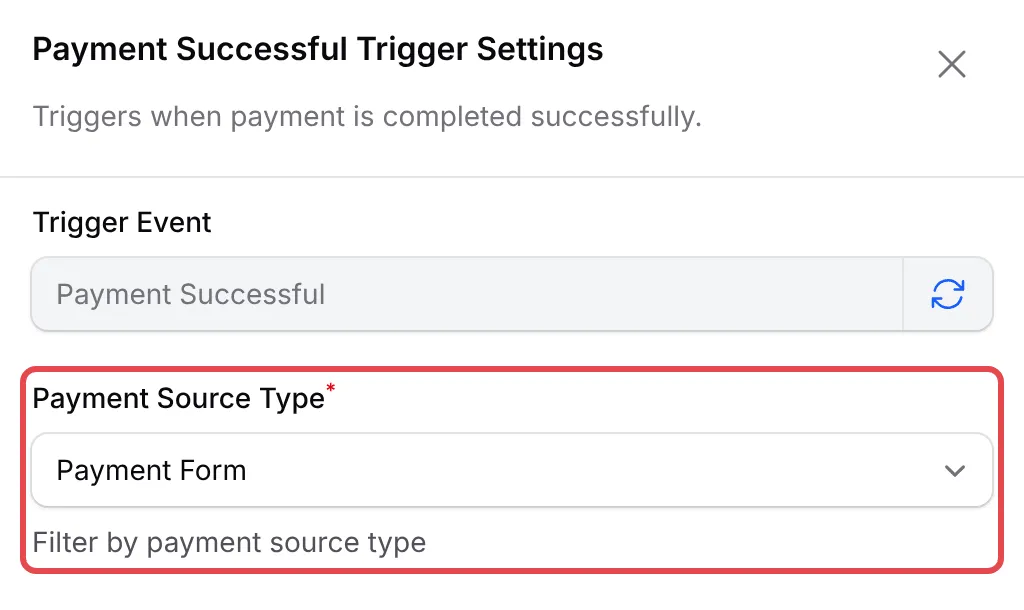
Click Add Node and pick Payment Successful. Double-click the trigger, set Payment Source Type to Payment Form and click Save Trigger.
-
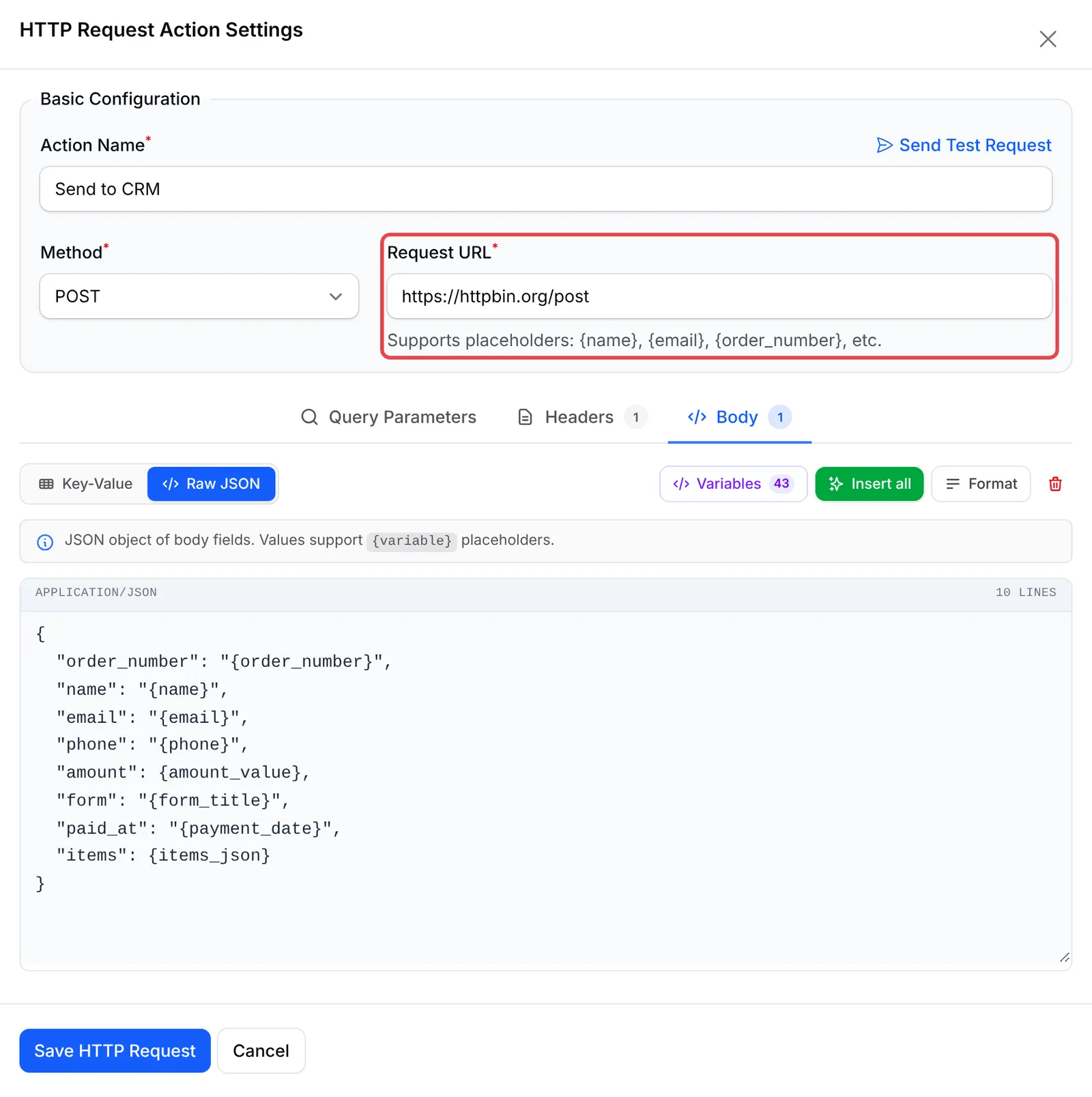
Click Add Node and pick HTTP Request. Double-click it and set:
Field Enter Action Name Send to CRM Method POST Request URL Your CRM’s URL Headers tab, Raw JSON {"X-Api-Key": "your-crm-api-key"}Body tab, Raw JSON The JSON below {"order_number": "{order_number}","name": "{name}","email": "{email}","phone": "{phone}","amount": {amount_value},"form": "{form_title}","paid_at": "{payment_date}","items": {items_json}} -
Click Send Test Request. A green Test Request Successful notice means your CRM accepted the sample. Then click Save HTTP Request.
-
Click Update Automation.
The finished workflow:
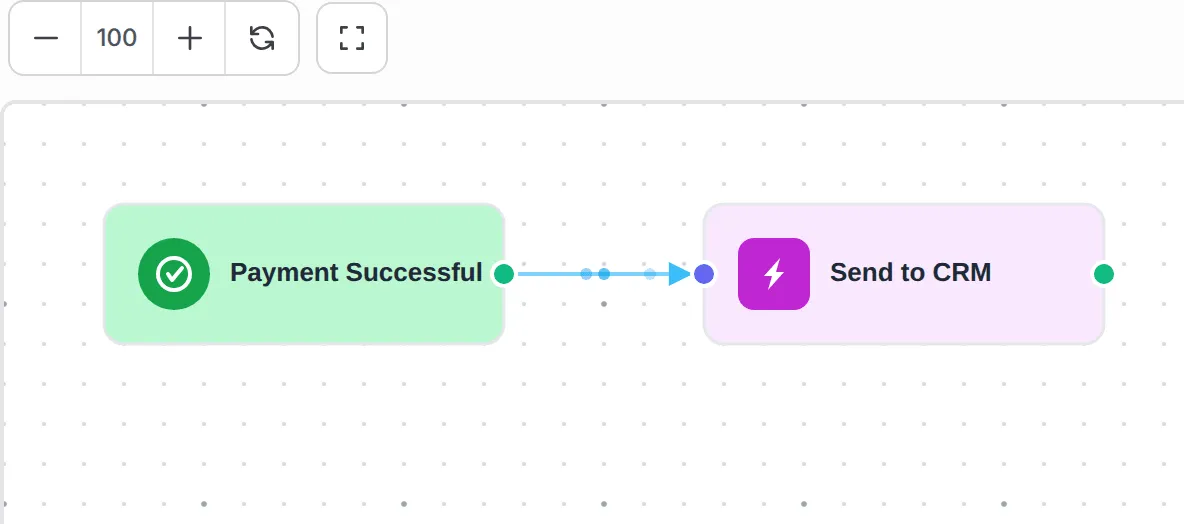
{amount_value} and {items_json} have no quotes on purpose: they become a number and a list. On the demo account, a test purchase arrived as:
{ "order_number": "LINK-05851", "name": "Farah Idris", "email": "farah.idris@example.com", "phone": "+60133456784", "amount": 15, "form": "Kopi Kampung Home Brewing E-Guide", "paid_at": "2026-09-27 22:15:56", "items": [{ "sku": "Home Brewing Guide", "name": "Home Brewing Guide", "quantity": 1, "price": 15 }]}Rename the keys on the left to the field names your CRM expects. See The HTTP Request step for query parameters, key-value mode and other methods.
Test it
Section titled “Test it”Check the recipe with a test run before you rely on it:
-
Make a test purchase on a payment form in Test Mode.
-
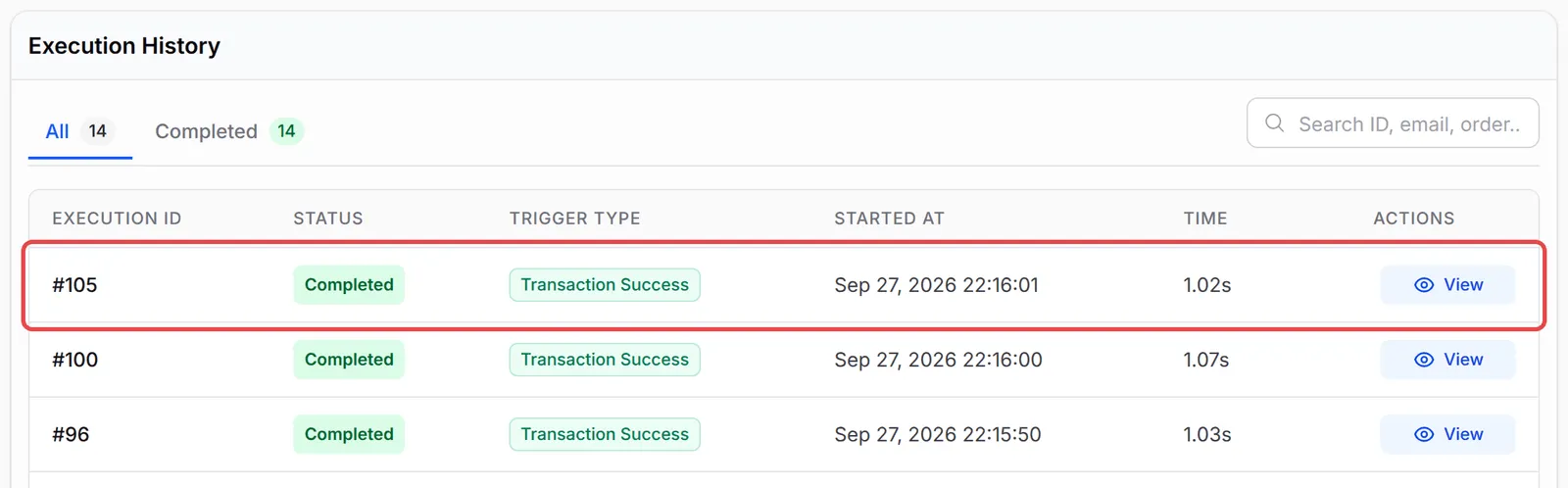
Open the automation and click Overview. The run shows Completed when your CRM replied with a 2xx status code.
-
Click View, then View Response on the step, to see the status code and your CRM’s reply.
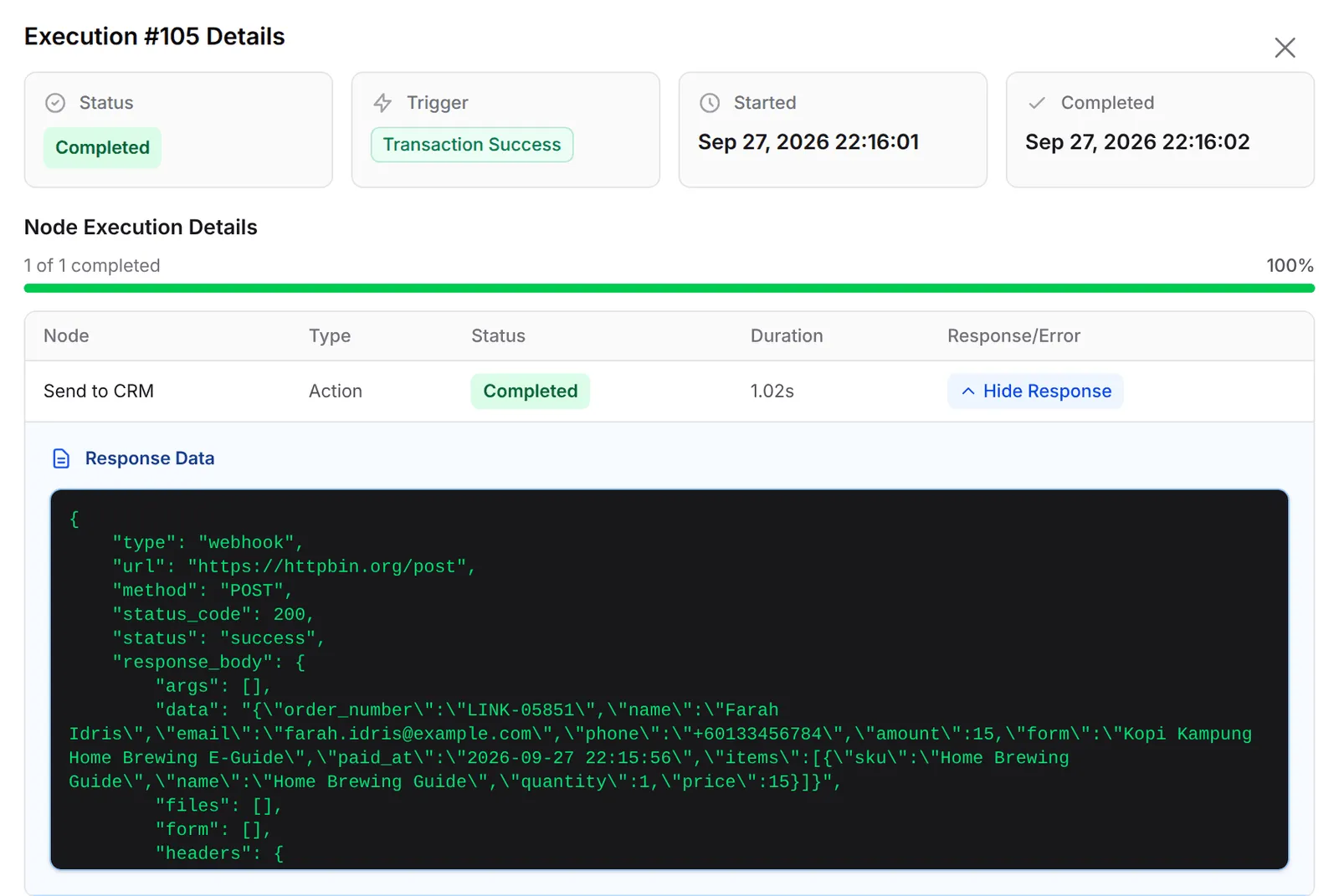
A failed request shows Failed with the status code, such as HTTP 401 for a wrong API key. Fix the step and click Retry on the run.
A few ways to get more from this recipe:
- Send leads the same way. Build the same step on New Lead Received with your lead form’s field keys, such as
{email_address:2}. - Point the test at a sandbox. Send Test Request sends real requests with sample data; use your CRM’s test environment if it would create a record.
- Keep the key out of the URL. Put API keys in Headers: the URL appears in the history.
Common issues
Should I use this or the form's webhook?
The form webhook sends BCL's fixed payload for one form. This automation lets you choose the fields, their names and the headers your CRM expects, for all forms at once. Use whichever format your CRM accepts.
My CRM gets the request but the items are missing. Why?
The body must still be valid JSON after BCL fills in the variables. Put {items_json} and {amount_value} without quotes, and text variables such as {name} inside quotes.
Was this article helpful?
Thanks for your feedback.
Sorry this didn't help. WhatsApp us and we'll sort it out with you.