
Ask an AI about this page
 ChatGPT
 Claude
 Perplexity
 Google AI Mode
 Microsoft Copilot
 Grok
Grok Mistral Le Chat
Control a live stream
Updated

During a pay-per-view stream you can switch every viewer to a second video, such as an ad, a half-time show or a “we’ll be right back” screen, and back again. Viewers do not need to refresh, and anyone in fullscreen stays in fullscreen.
Add the break video
Section titled “Add the break video”Set this up before the stream:
-
Go to Protected Content and click Edit on your stream.
-
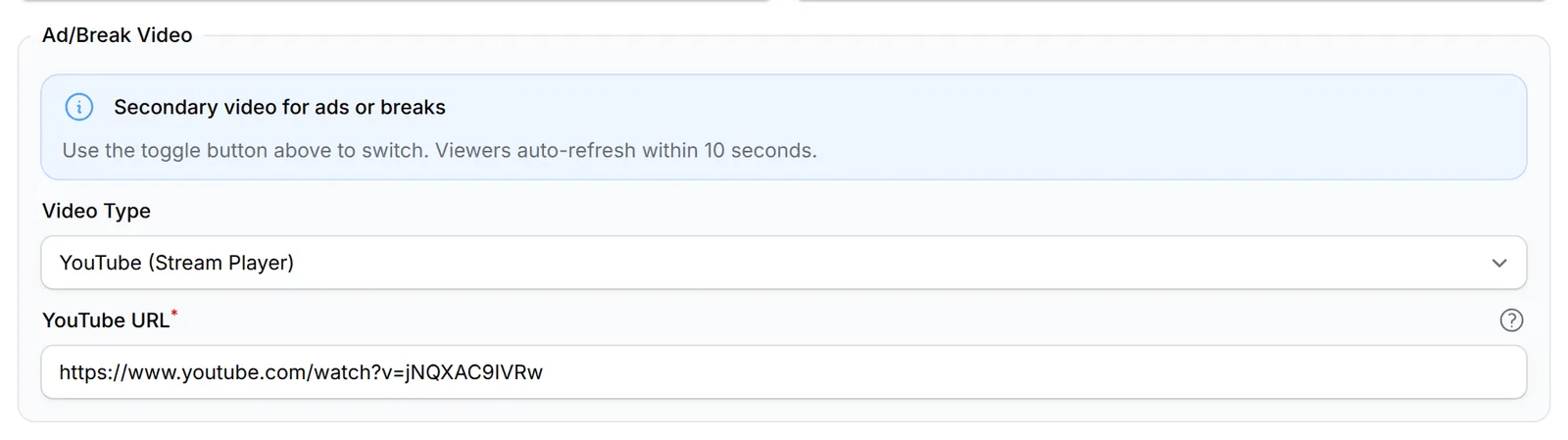
Under Ad/Break Video, set Video Type to YouTube (Stream Player), the same as the main stream, and paste the break video’s link in YouTube URL.
-
Click Save Changes.
A Show Ad/Break button now appears at the top of the edit page.
When both videos use YouTube (Stream Player), viewers switch in place. With another Video Type for the break, their page reloads to change player, or shows a tap-to-reload bar if they are in fullscreen.
Switch during the stream
Section titled “Switch during the stream”When the break starts:
-
On the content’s edit page, click Show Ad/Break.

-
Click Confirm.
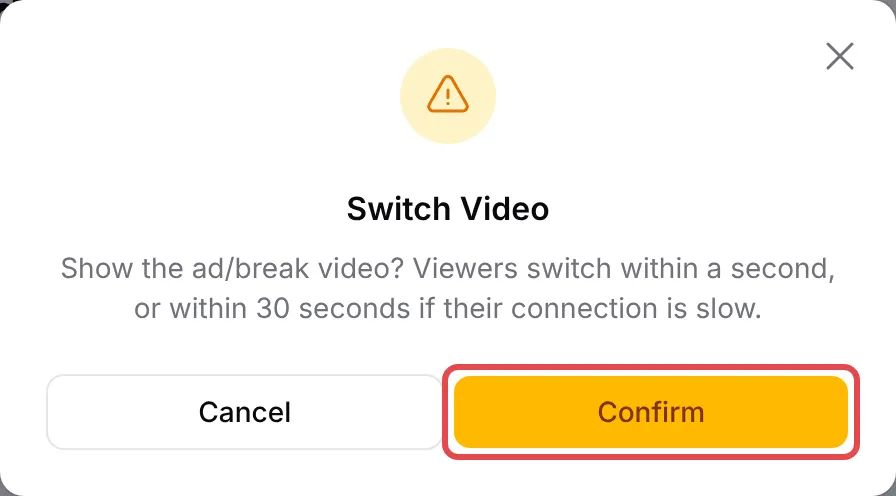
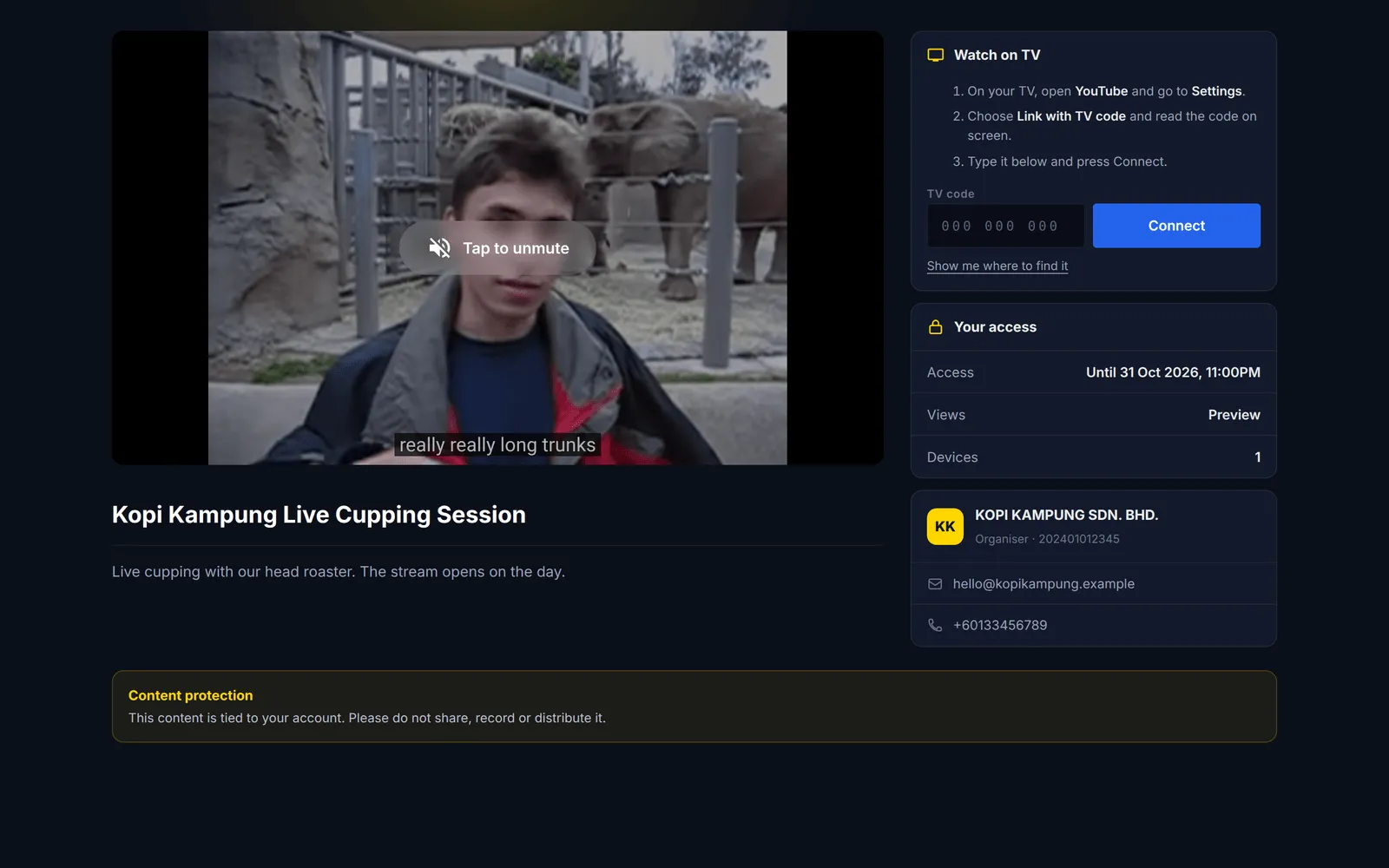
Viewers switch to the break video within a second, or within 30 seconds on a slow connection.
-
When the break ends, click Show Main, then Confirm.

Change the stream itself
Section titled “Change the stream itself”If your YouTube live ends and you start a new one, paste the new link into YouTube URL and click Save Changes. Open pages follow the change the same way. When a change cannot be made in place, for example a new theme, the page reloads by itself. Viewers in fullscreen are not pulled out: they see The stream has changed. Tap to reload and choose the moment.
Help viewers with Watch on TV
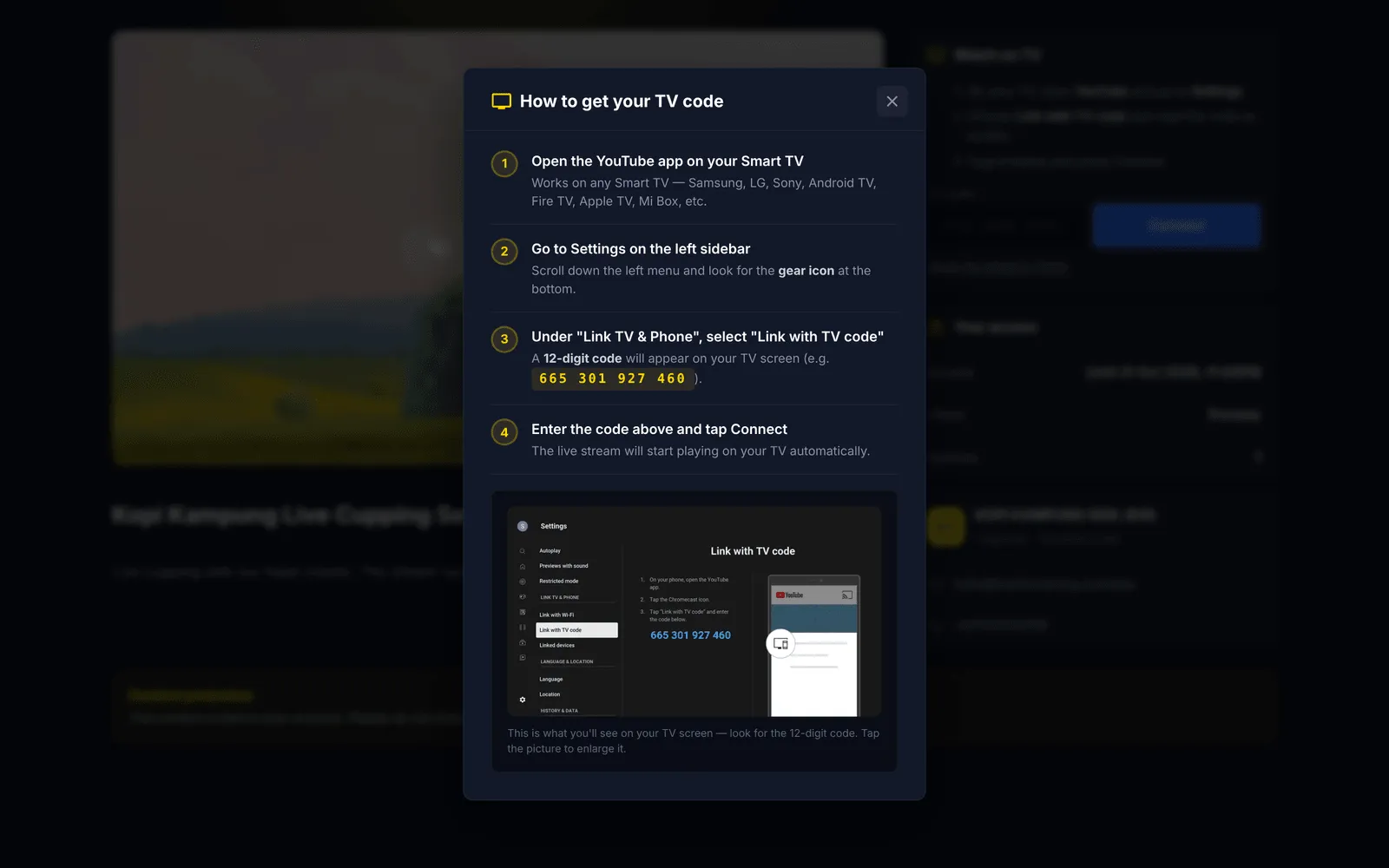
Section titled “Help viewers with Watch on TV”Every stream page has Watch on TV. If a viewer cannot find their TV code, point them to the help link under Connect.
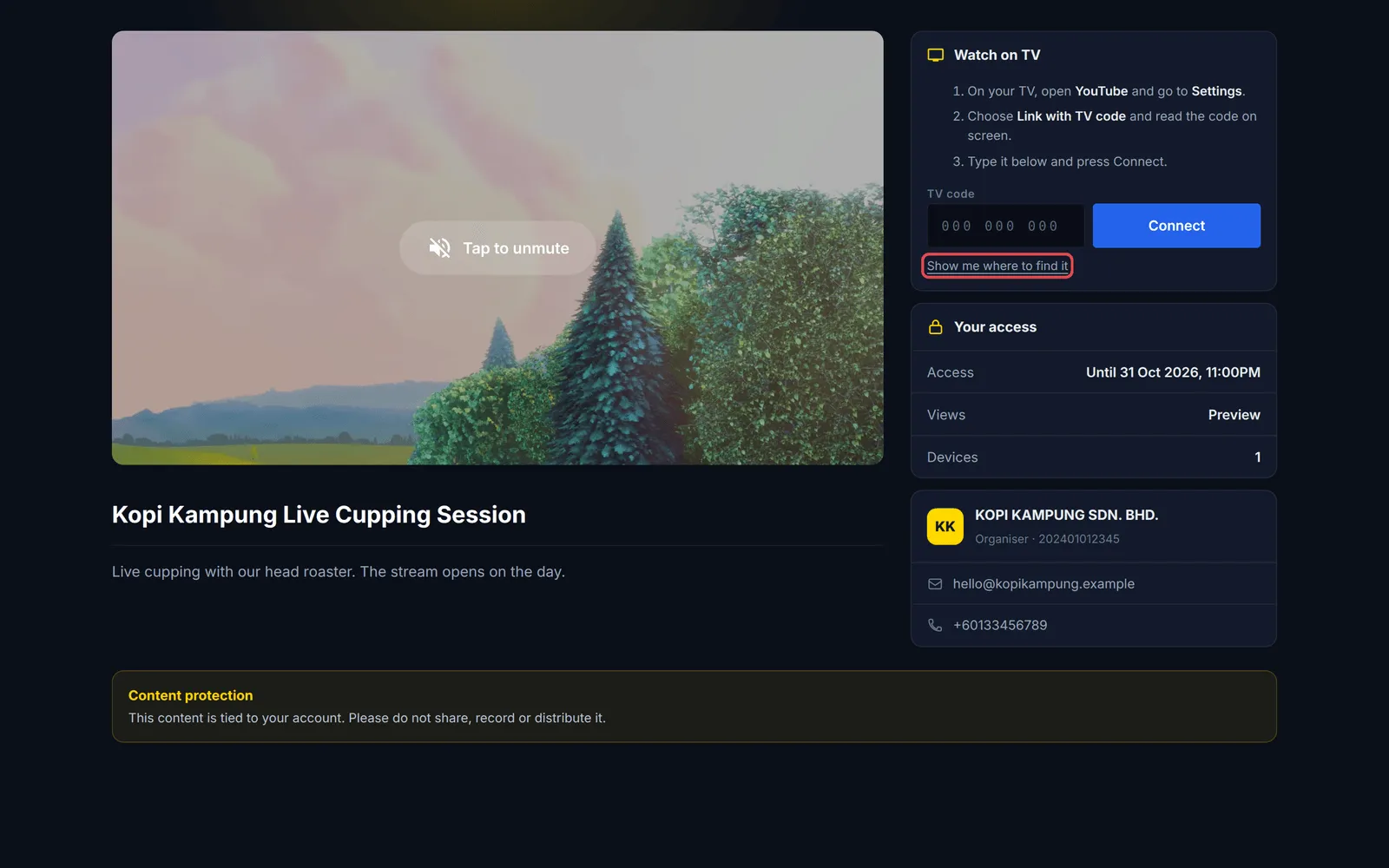
It opens a picture guide: open the YouTube app on the smart TV, go to Settings, choose Link with TV code, and type the 12-digit code on the stream page.
Prepare before the event starts:
- Keep the edit page open during the stream. The Show Ad/Break and Show Main buttons are then one click away.
- Make the break video long enough. Use a clip at least as long as your longest break, so viewers never reach its end.
- Check the switch in Preview. Open Preview in another tab before the event and switch once to see it change.
Common issues
Can I show an ad or a 'we'll be right back' video during half time?
Yes. Add it as the Ad/Break Video on the stream content. During the stream, click Show Ad/Break at the top of the content's edit page; click Show Main to go back.
Do viewers need to refresh when I switch videos?
No. Viewers switch within about a second, or within 30 seconds on a slow connection, and stay in fullscreen. Only when a change needs a new page do they see a bar asking them to tap to reload.
My YouTube live link changed. Do buyers need a new link?
No. Paste the new link in YouTube URL and click Save Changes. Buyers keep their own access links, and open pages move to the new stream.
Was this article helpful?
Thanks for your feedback.
Sorry this didn't help. WhatsApp us and we'll sort it out with you.