
Ask an AI about this page
 ChatGPT
 Claude
 Perplexity
 Google AI Mode
 Microsoft Copilot
 Grok
Grok Mistral Le Chat
Give your event crew check-in access
Crew are the helpers who scan tickets at the door. Give each one their own login with the Crew Event role: they see only Express Check-in and the participant list, never your sales or settings. Then send them a magic login link so they can sign in on their phone without a password.
Add a crew member
Section titled “Add a crew member”Only the account owner and admins can add crew. Have the helper’s name and email address ready:
-
Click your company name at the bottom of the sidebar and choose Team Member, then click Add Team Member. See Add a team member.
-
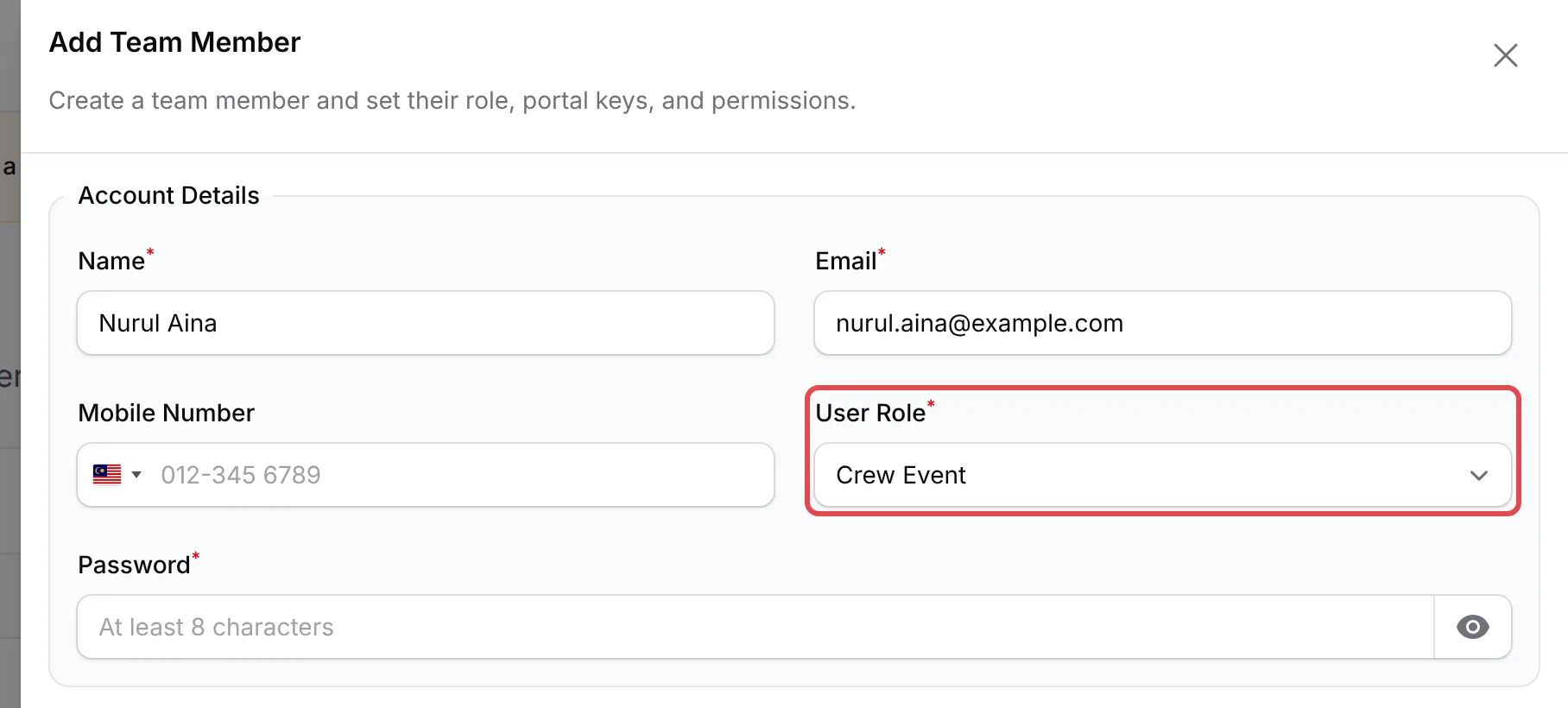
Fill in Name and Email, and choose Crew Event in User Role.
-
Set a Password of at least 8 characters. Your crew can sign in with a magic link instead, so they do not need to know it.
-
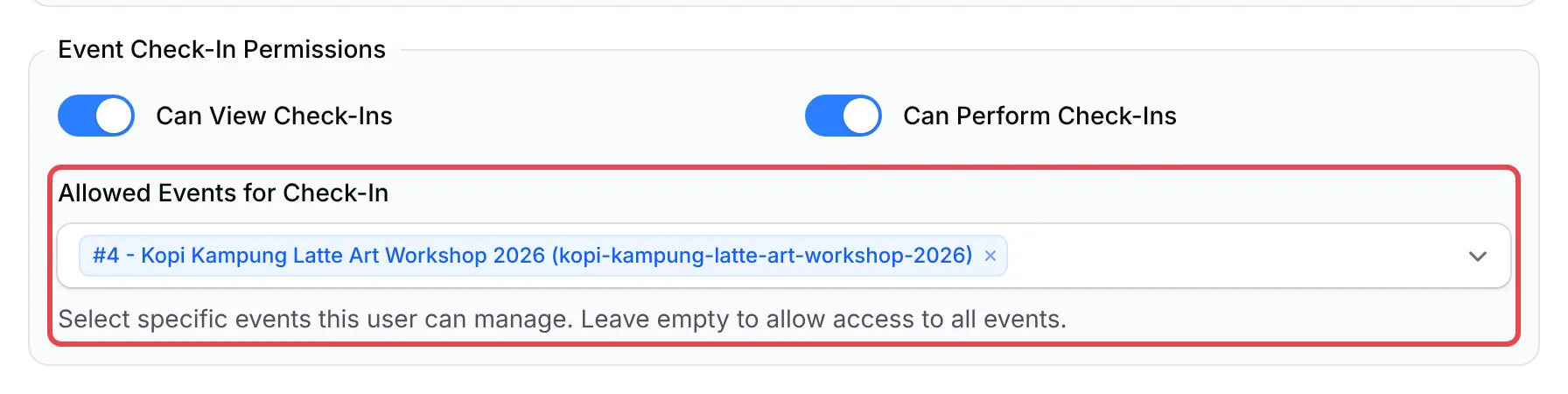
Under Event Check-In Permissions, turn on Can View Check-Ins and Can Perform Check-Ins.
-
In Allowed Events for Check-In, choose the events this person works at. Leave it empty to allow all your events.
-
Click Create.
Send a magic login link
Section titled “Send a magic login link”A magic login link signs the crew member straight in, with no password and no two-factor code. To create one:
-
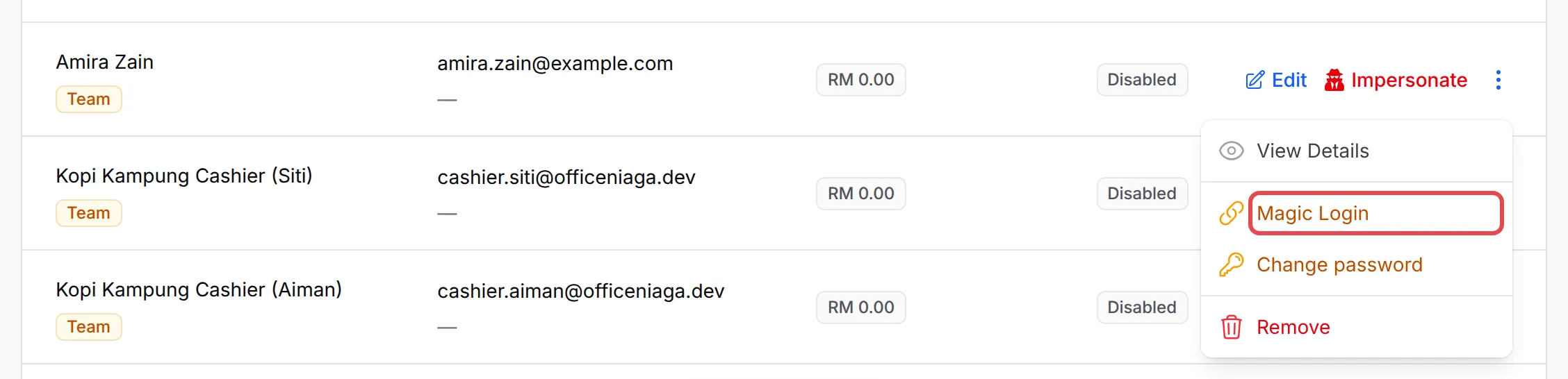
On Team Members, open the actions menu at the end of the crew member’s row and choose Magic Login.
-
Click Generate magic login link.
-
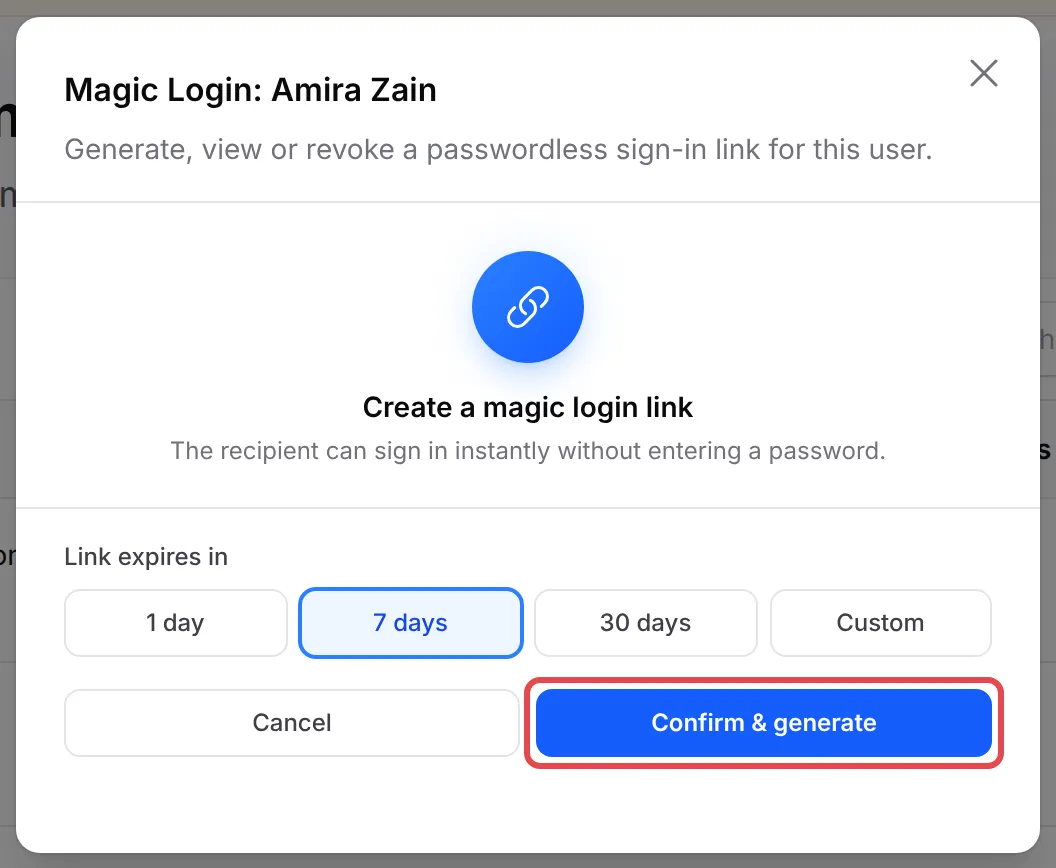
Under Link expires in, choose 1 day, 7 days, 30 days or Custom (1 to 365 days), then click Confirm & generate.
-
The link appears with its expiry date. Click the copy button next to it and send the link to the crew member in a private message.
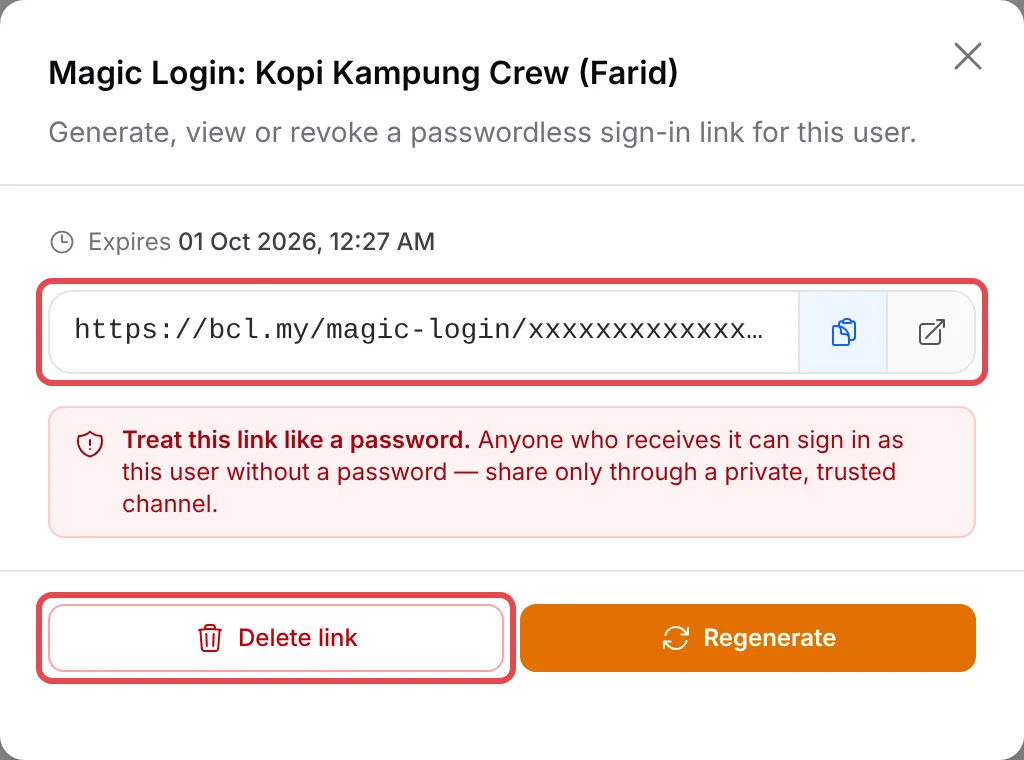
When they open the link, BCL signs them in and they can start checking in attendees.
What your crew sees
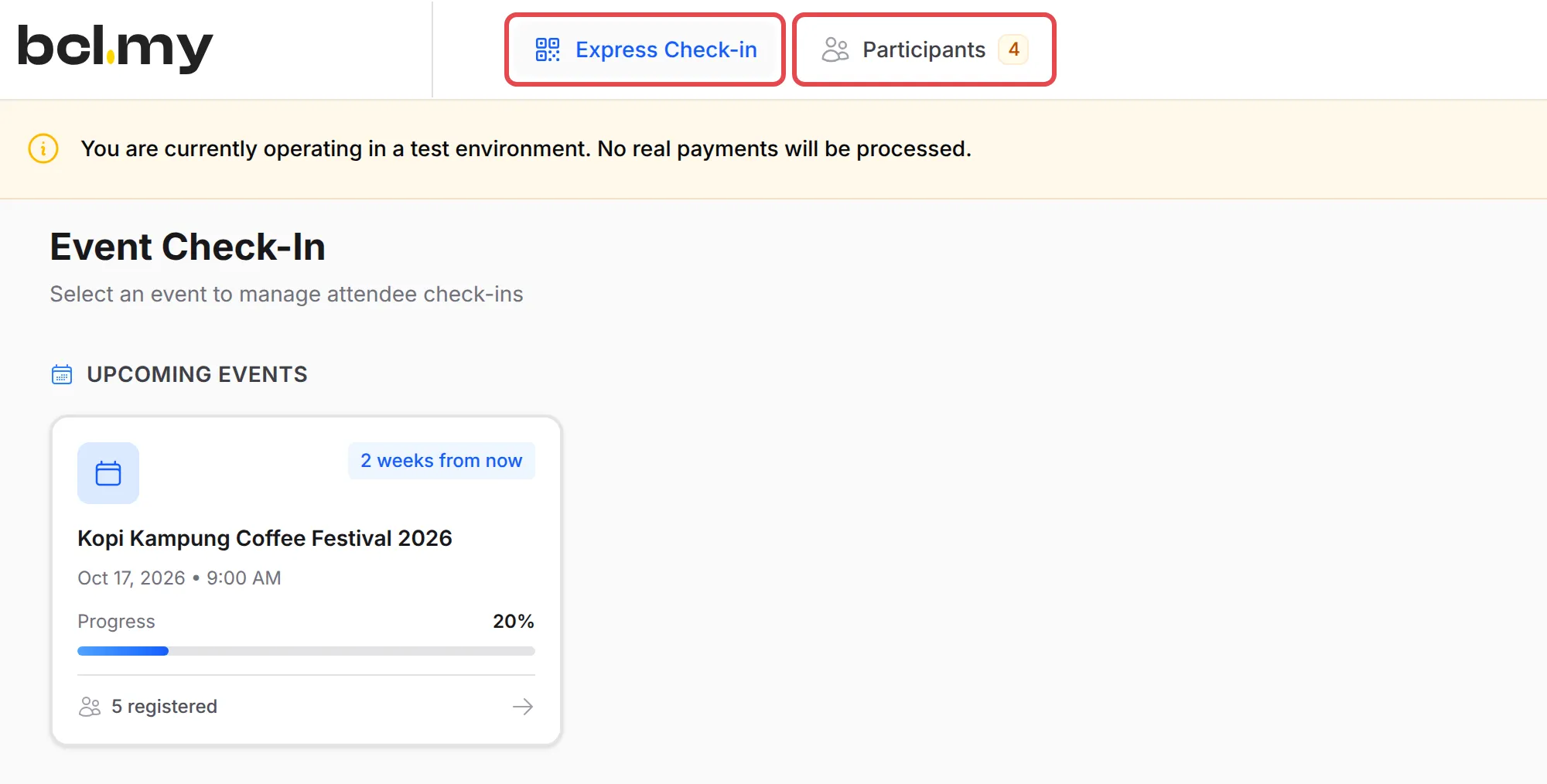
Section titled “What your crew sees”A crew member signs in with the magic link, or with their email and password at the normal sign-in page. They land on Event Check-In, which lists only the events you allowed. The top bar has just two items: Express Check-in and Participants.
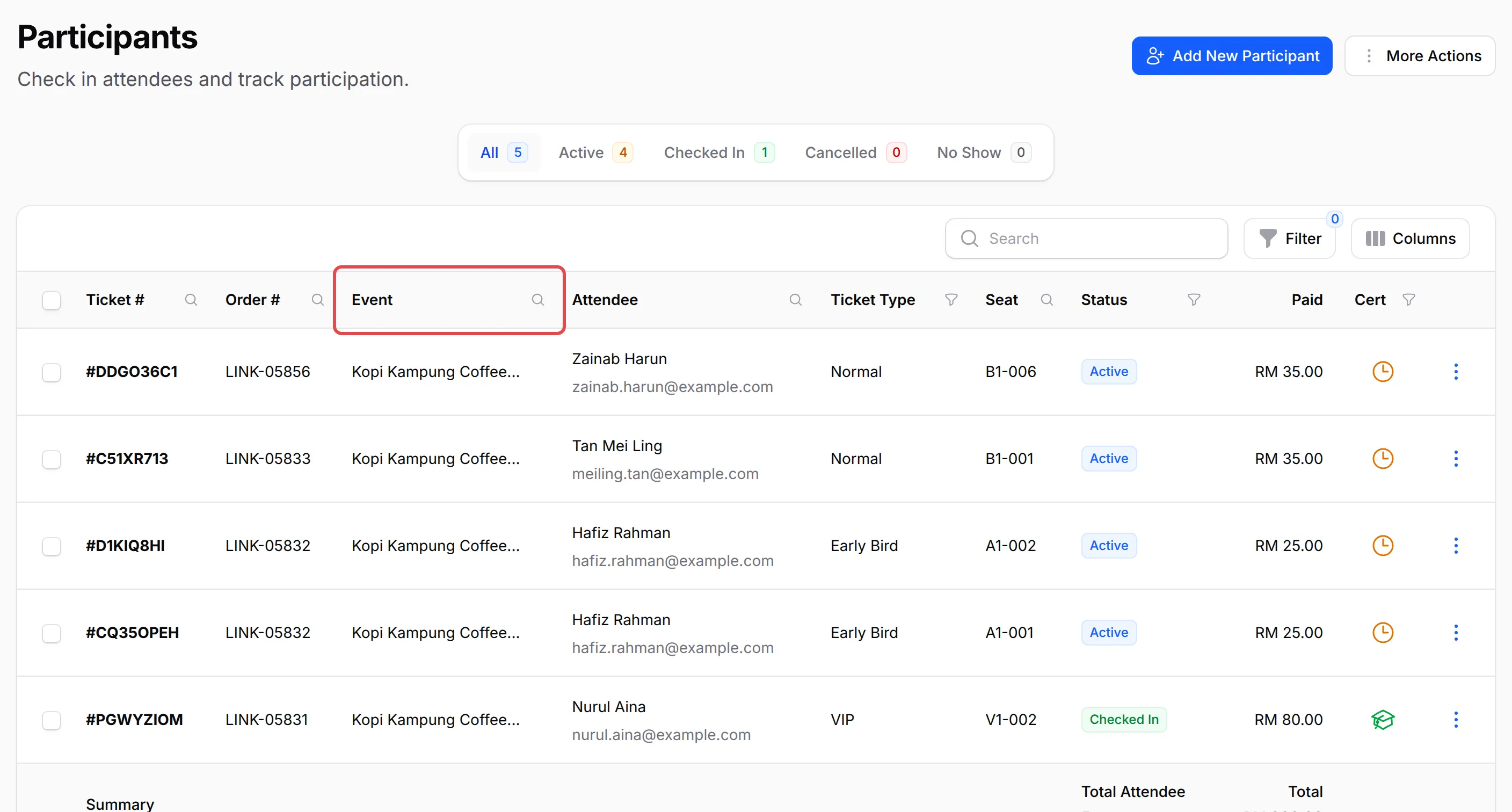
Participants lists the attendees of their allowed events only, with the ticket, seat and check-in status of each.
Change or stop a link
Section titled “Change or stop a link”Each crew member has one link at a time. Open Magic Login on their row to see it and when it expires:
| Button | What it does |
|---|---|
| Regenerate | Makes a new link with a new expiry. The old link stops working straight away. |
| Delete link | Deletes the link after you click Confirm delete. The link then opens the sign-in page instead. |
A few habits keep the door secure:
- Give every helper their own login. Check-ins record who did them, so you can see which door or person checked in each attendee.
- Choose the shortest expiry that covers the event. A 1-day link for a one-day event cannot be misused next month.
- Delete links after the event. Click Delete link for each crew member, or Remove them if they will not help again.
Common issues
How do I let my crew check in attendees without giving them my login?
Add each helper on Team Members with the Crew Event role, turn on Can View Check-Ins and Can Perform Check-Ins, and choose the event in Allowed Events for Check-In. They only see the check-in pages.
Can I send my crew a link instead of a password?
Yes. On their row in Team Members, open the actions menu, choose Magic Login and click Generate magic login link. Pick how long it works, click Confirm & generate and copy the link to them.
The event is over. How do I stop the crew from signing in?
Open Magic Login on their row again, click Delete link, then Confirm delete. The link then opens the sign-in page instead. To remove their access completely, choose Remove in the same menu.
Was this article helpful?
Thanks for your feedback.
Sorry this didn't help. WhatsApp us and we'll sort it out with you.