
Ask an AI about this page
 ChatGPT
 Claude
 Perplexity
 Google AI Mode
 Microsoft Copilot
 Grok
Grok Mistral Le Chat
Deliver a digital product by email
Updated

When someone buys a digital product, they want it now. This automation emails the buyer their link as soon as the payment succeeds, whether you deliver through BCL’s protected content or a plain download link. It runs for the one form that sells the product.
What you need
Section titled “What you need”A payment form with Multiple Items whose item has either:
- protected content linked to it, see Deliver digital products securely, or
- a Download Link, see Sell digital products.
The example uses the demo form “Kopi Kampung Home Brewing E-Guide”, whose item “Home Brewing Guide” is linked to protected content.
Build it
Section titled “Build it”Start from a blank automation (see Create an automation):
-
Go to Automations, click New Automation, name it “E-Guide Delivery” and click Create.
-
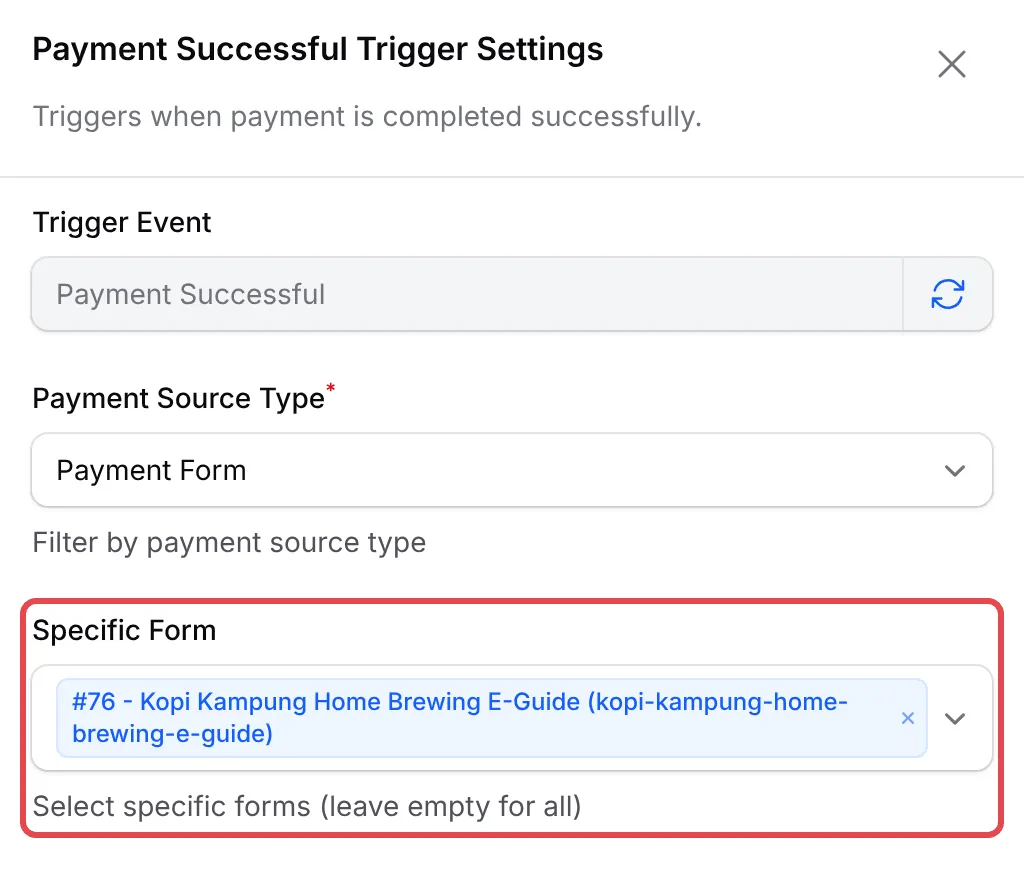
Click Add Node and pick Payment Successful. Double-click the trigger, set Payment Source Type to Payment Form, pick your form in Specific Form and click Save Trigger.
-
Click Add Node and pick Send Email. Double-click it, fill it in as below and click Save Email.
Field Enter Action Name Send the e-guide Recipient Email {email}Email Subject Your {product_name_1} is readyEmail Content The message below Hi {name},Thank you for buying {product_name_1}. Open it here:{protected_content_url_1_1}The page asks for a one-time code, which we send to this email address.Lost this email? Get a new link here: {access_finder_url_1_1}Happy brewing,{business_name}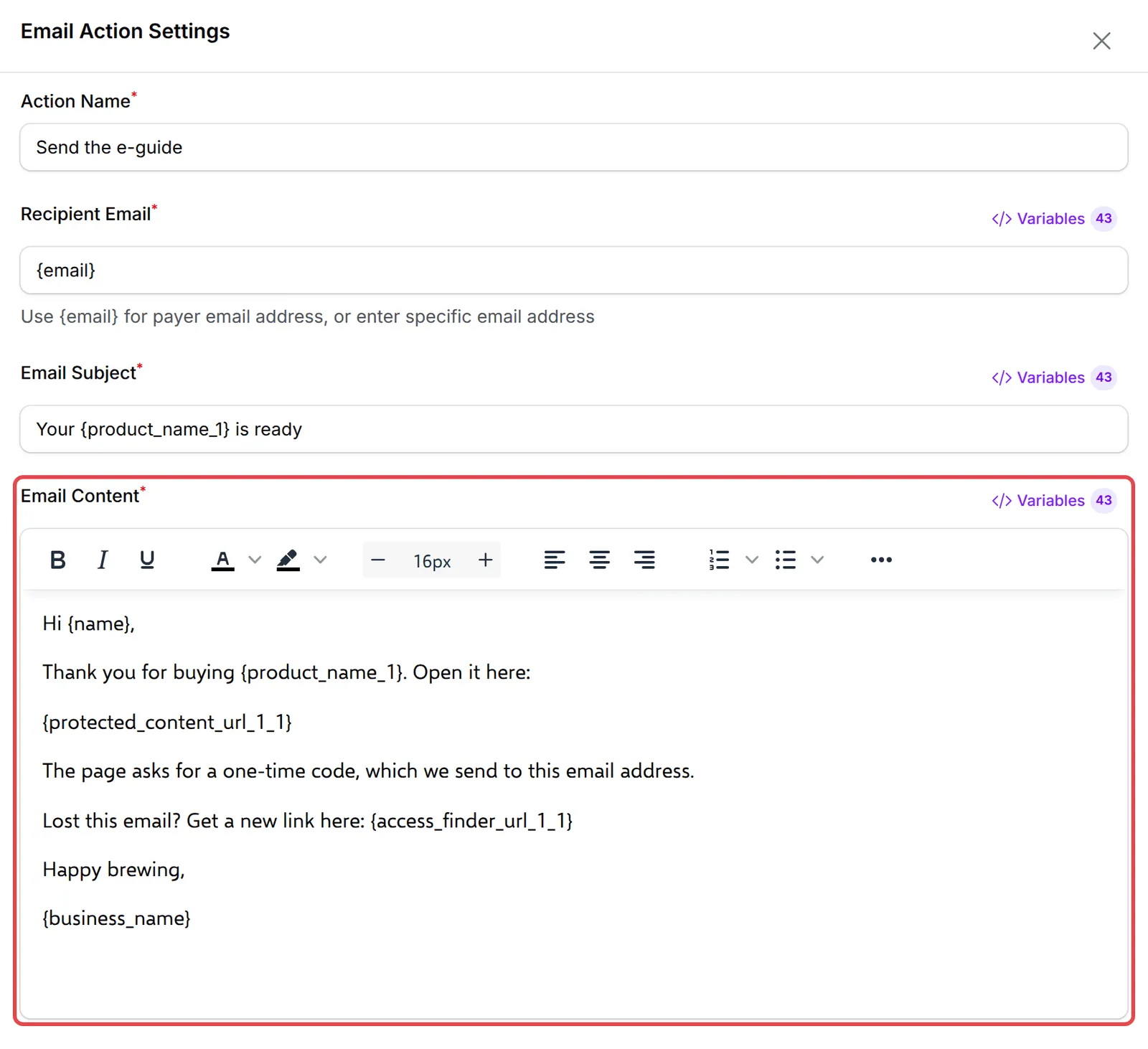
-
Click Update Automation.
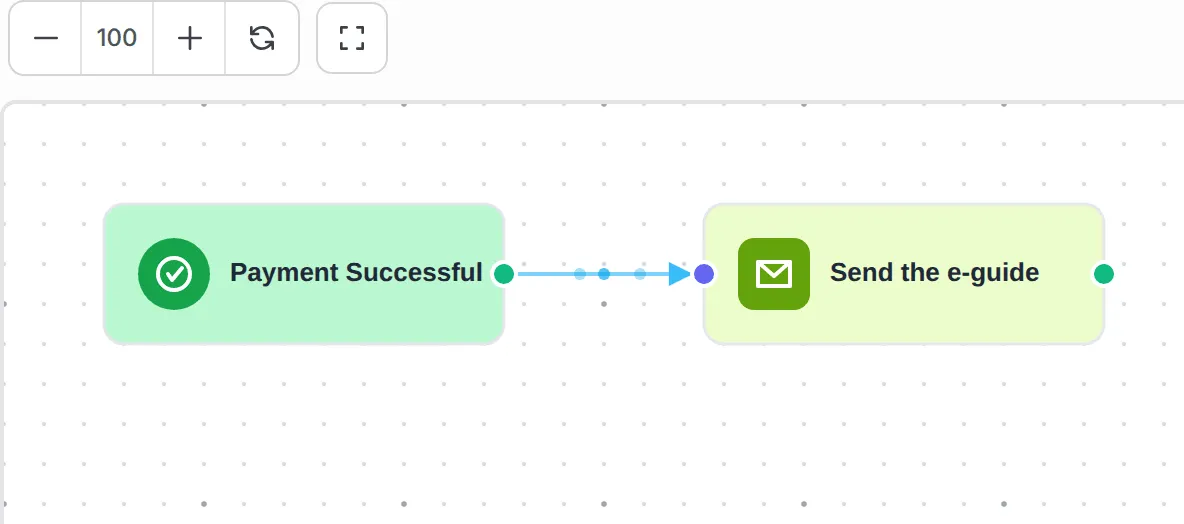
The finished workflow:
Pick the variables that match how you deliver. The number after the name is the item’s position in the order; for protected content, the second number is the content’s position on that item.
| Variable | Use it for | Value in the demo run |
|---|---|---|
{protected_content_url_1_1} |
The buyer’s private link to the first content of item 1 | https://<your-subdomain>.bcl.my/content/KLxu9odA... |
{access_finder_url_1_1} |
A page where the buyer requests their link again | https://<your-subdomain>.bcl.my/content/O6FYW1GU/access |
{protected_content_title_1_1} |
The content’s title | Kopi Kampung Home Brewing Guide |
{download_link_1} |
The Download Link of item 1 | Empty: this item uses protected content |
{product_table} |
All items with an Access button each | A table |
For a form that sells several products, {product_table} is simpler: it lists every item bought with its own Access button.
Test it
Section titled “Test it”Check the recipe with a test run before you rely on it:
-
Buy the product on your form in Test Mode, with your own email.
-
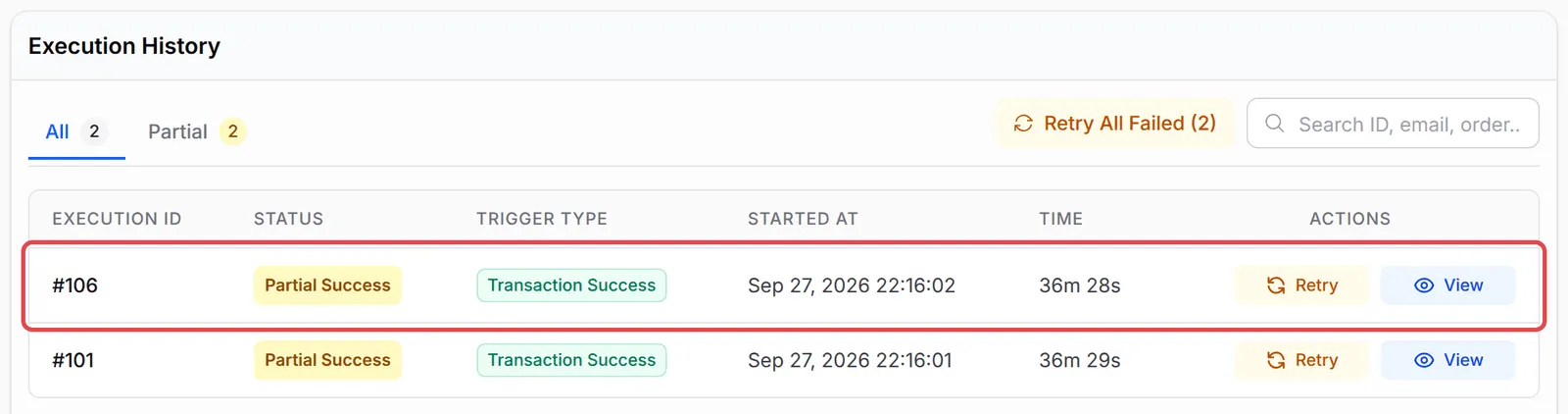
Open the automation and click Overview. The purchase shows in Execution History, and a delivered email shows as Completed.
-
Click View: Execution Data lists
protected_content_url_1_1and the other item variables with the values the email used.
A few ways to get more from this recipe:
- Use the trigger’s form filter. Without it, buyers of other forms get an email with empty links.
- Keep BCL’s own emails in mind. If the form’s custom email already sends
{product_table}, the buyer gets both; turn one of them off. - Link the access finder page. Buyers lose emails;
{access_finder_url_1_1}lets them get a fresh link without contacting you.
Common issues
My customer paid but got no download link. Why?
The standard payment email does not include download links. Send them with an automation like this one, or with a custom email in the form's Notification Settings that contains {product_table}.
What is the difference between {download_link_1} and {protected_content_url_1_1}?
{download_link_1} is the Download Link you typed on the item, the same for every buyer. {protected_content_url_1_1} is a private link for this buyer to your protected content, opened with a one-time code.
Was this article helpful?
Thanks for your feedback.
Sorry this didn't help. WhatsApp us and we'll sort it out with you.