
Ask an AI about this page
 ChatGPT
 Claude
 Perplexity
 Google AI Mode
 Microsoft Copilot
 Grok
Grok Mistral Le Chat
Manage who has access
Updated

Each protected content has a Customer Access page listing everyone who can open it. From there you can see how they use it, send them their link again, sign out their devices, and revoke or restore access. Buyers also have their own ways to find their content again.
Open Customer Access
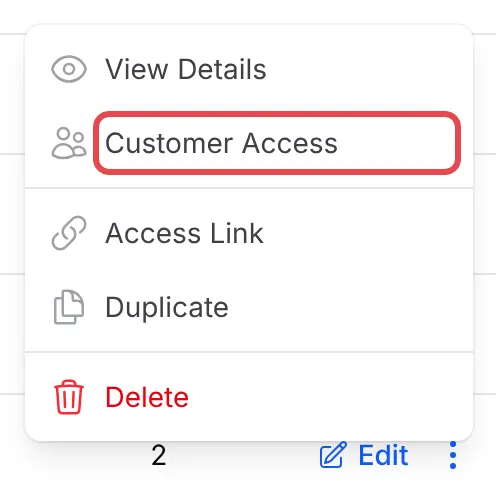
Section titled “Open Customer Access”Go to Protected Content, open the menu next to Edit on the content and click Customer Access. On the content’s edit page, it is the Customer Access tab at the top.
The page shows Access Overview (Total Access, Active, Total Views and Active Devices) and a row for each buyer.
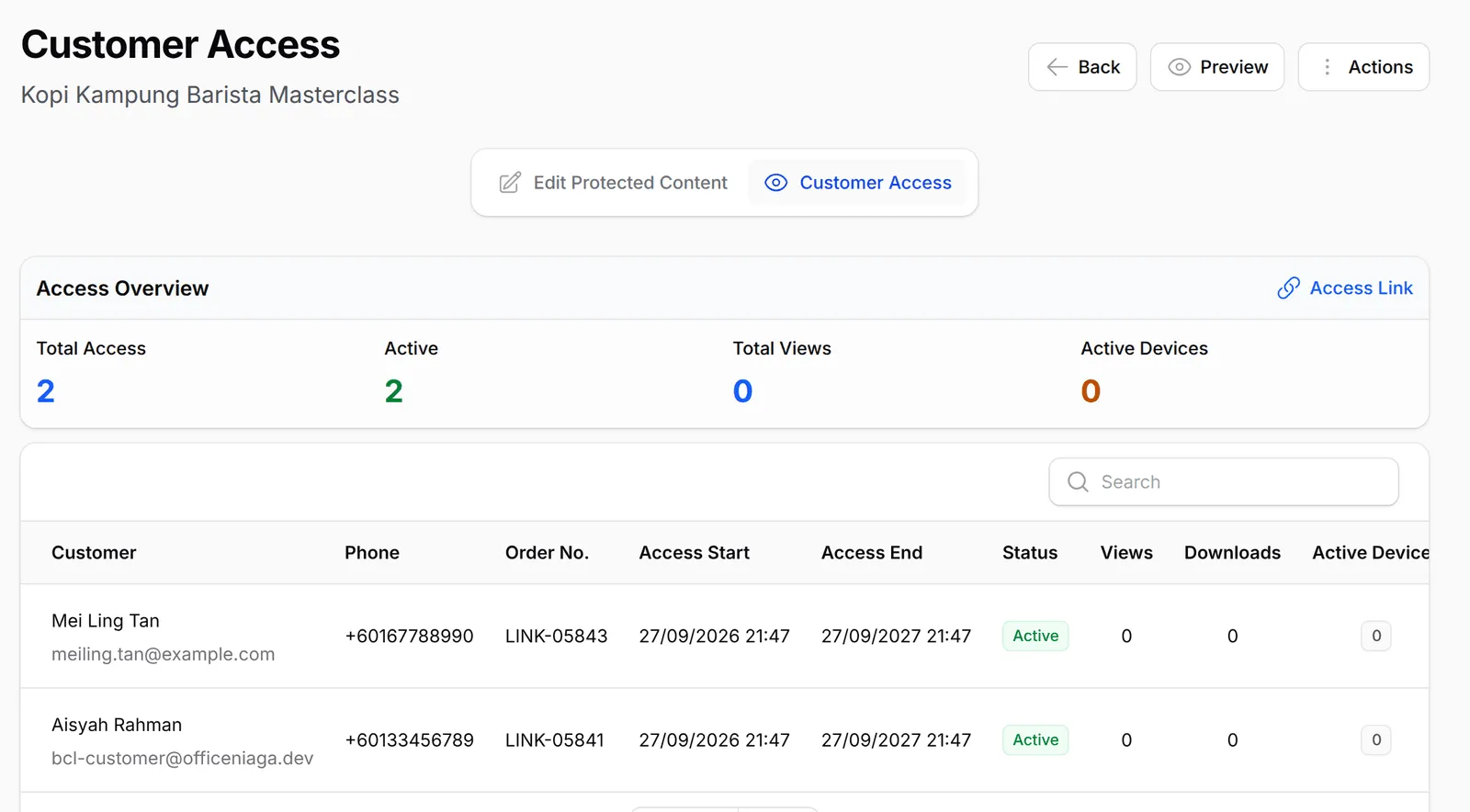
Each row shows:
| Column | Shows |
|---|---|
| Customer | Name and email |
| Phone | Their phone number |
| Order No. | The order that gave access |
| Access Start, Access End | Their access period; Lifetime when it has no end |
| Status | Active or Expired |
| Views, Downloads | How often they opened the content and downloaded files |
| Active Devices | Devices used in the last 24 hours |
Use Search to find a buyer by name, email, phone or order number. The list refreshes every 10 seconds.
Help one buyer
Section titled “Help one buyer”Open the menu at the end of the buyer’s row:

| Action | What it does |
|---|---|
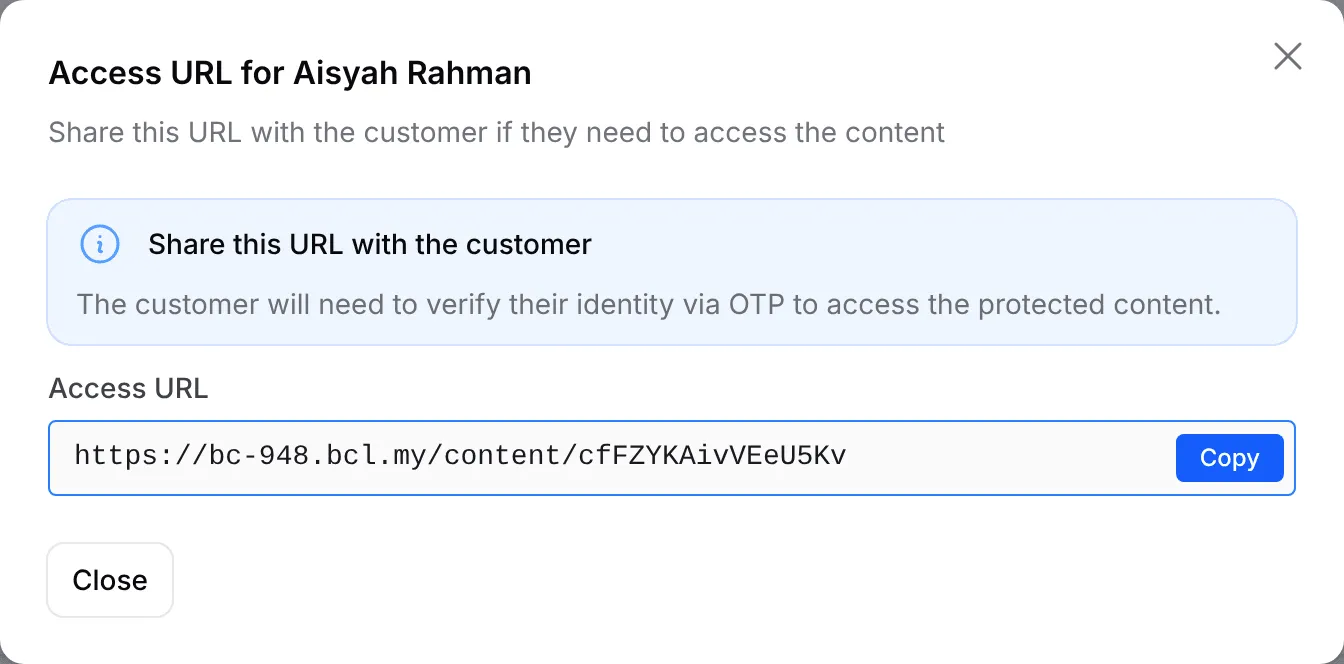
| Access URL | Shows their personal access link to copy and send. They still confirm a one-time code. |
| Sessions | Lists the devices signed in to this access |
| Resend Email | Sends the access email again. You can change the address in Send to Email first. |
| Logout All Devices | Signs out every device, so they must confirm a new code. Shown when they have active devices. |
Actions for all buyers
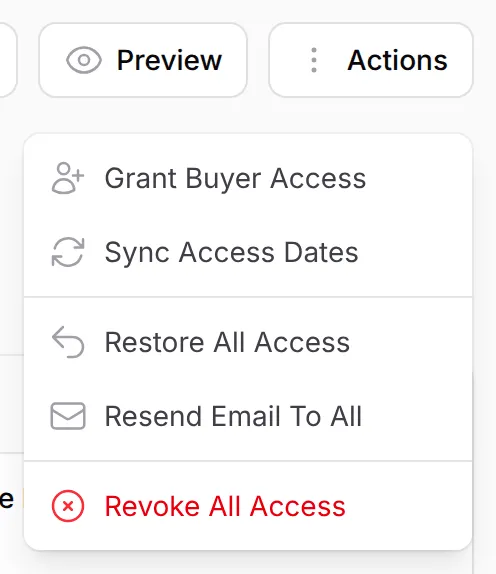
Section titled “Actions for all buyers”Actions at the top of the page works on every buyer at once:
| Action | What it does |
|---|---|
| Grant Buyer Access | Gives access to everyone who already paid for the linked items or tickets. See Give buyers access. |
| Sync Access Dates | Recalculates everyone’s dates after you change the access settings |
| Restore All Access | Brings back revoked and expired access. Access whose end date has passed stays expired. |
| Resend Email To All | Sends the access email to every buyer with active access |
| Revoke All Access | Removes access for every buyer at once. Revoked buyers disappear from the list until you restore them. |
How buyers find their content again
Section titled “How buyers find their content again”Buyers do not need to keep the email. They can reach their content in four ways:
-
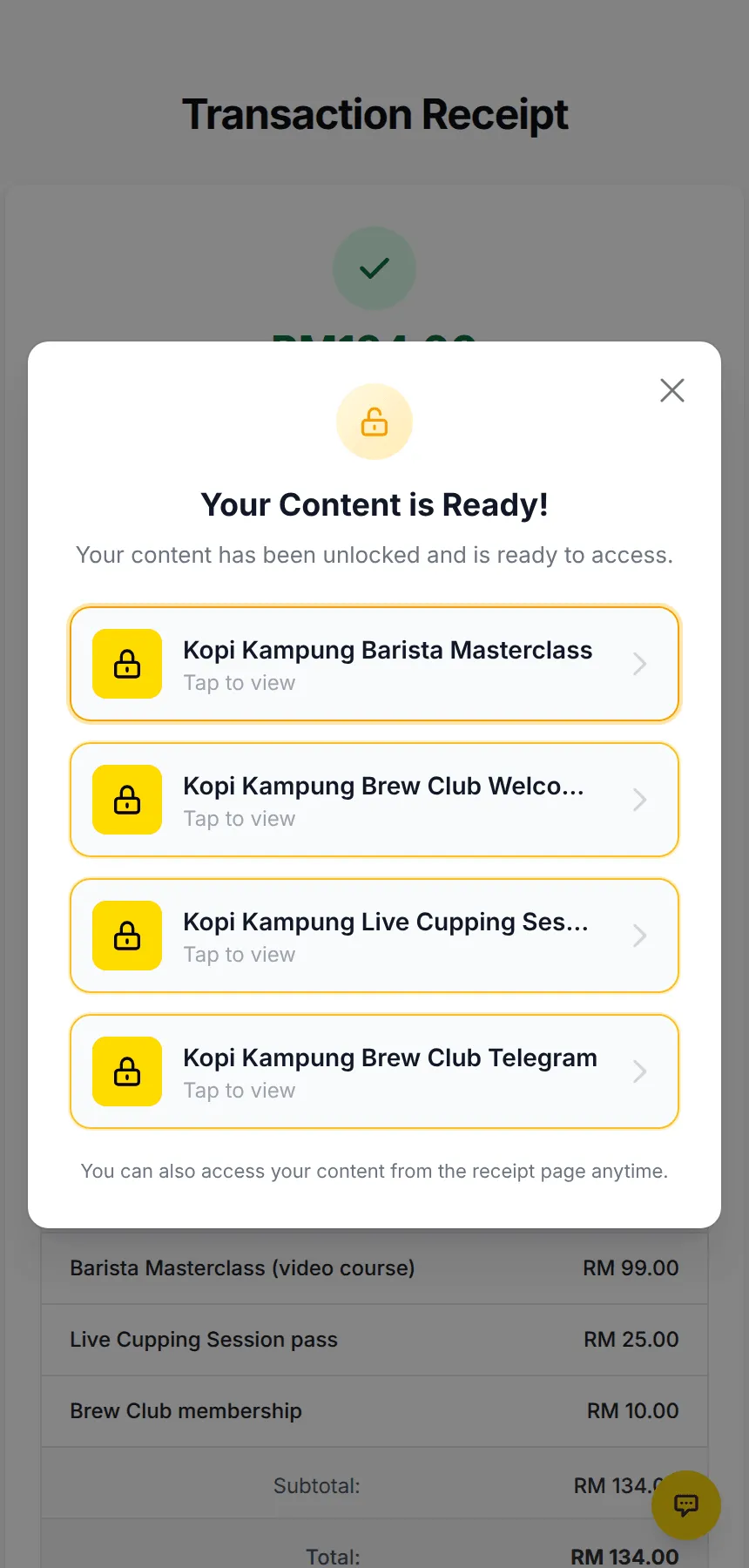
The receipt page. It keeps a button for each content with Show on Receipt on.
-
The access email, Your Protected Content is Now Available, with a button for each content.
-
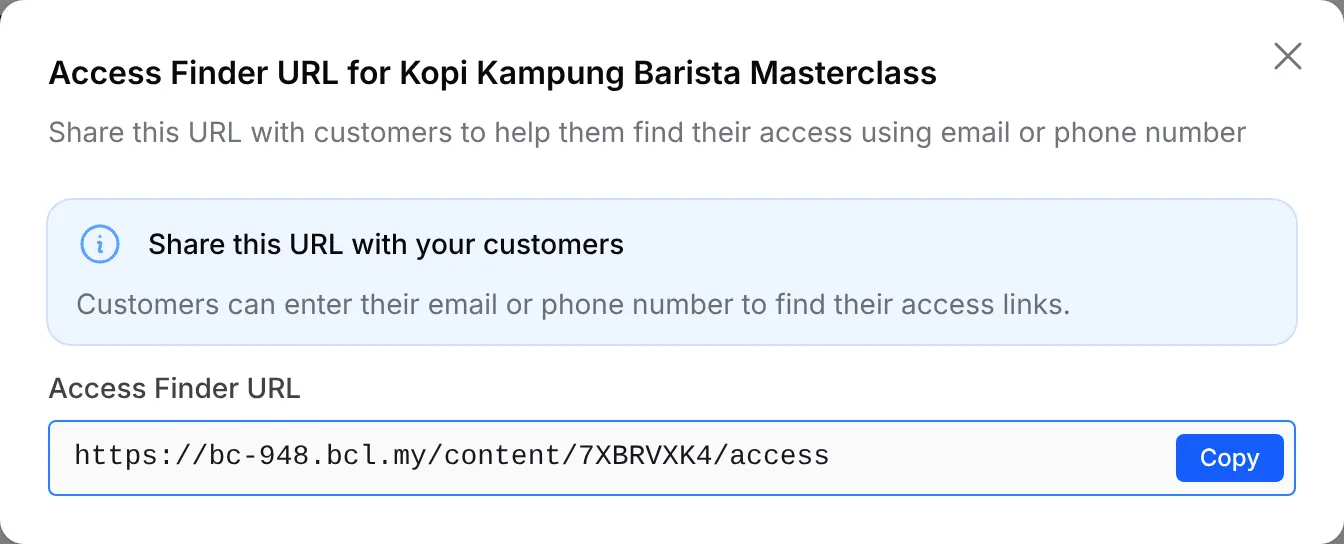
The Access Link page. Click Access Link in Access Overview to get one link for the content that you can share anywhere, for example in your WhatsApp channel.

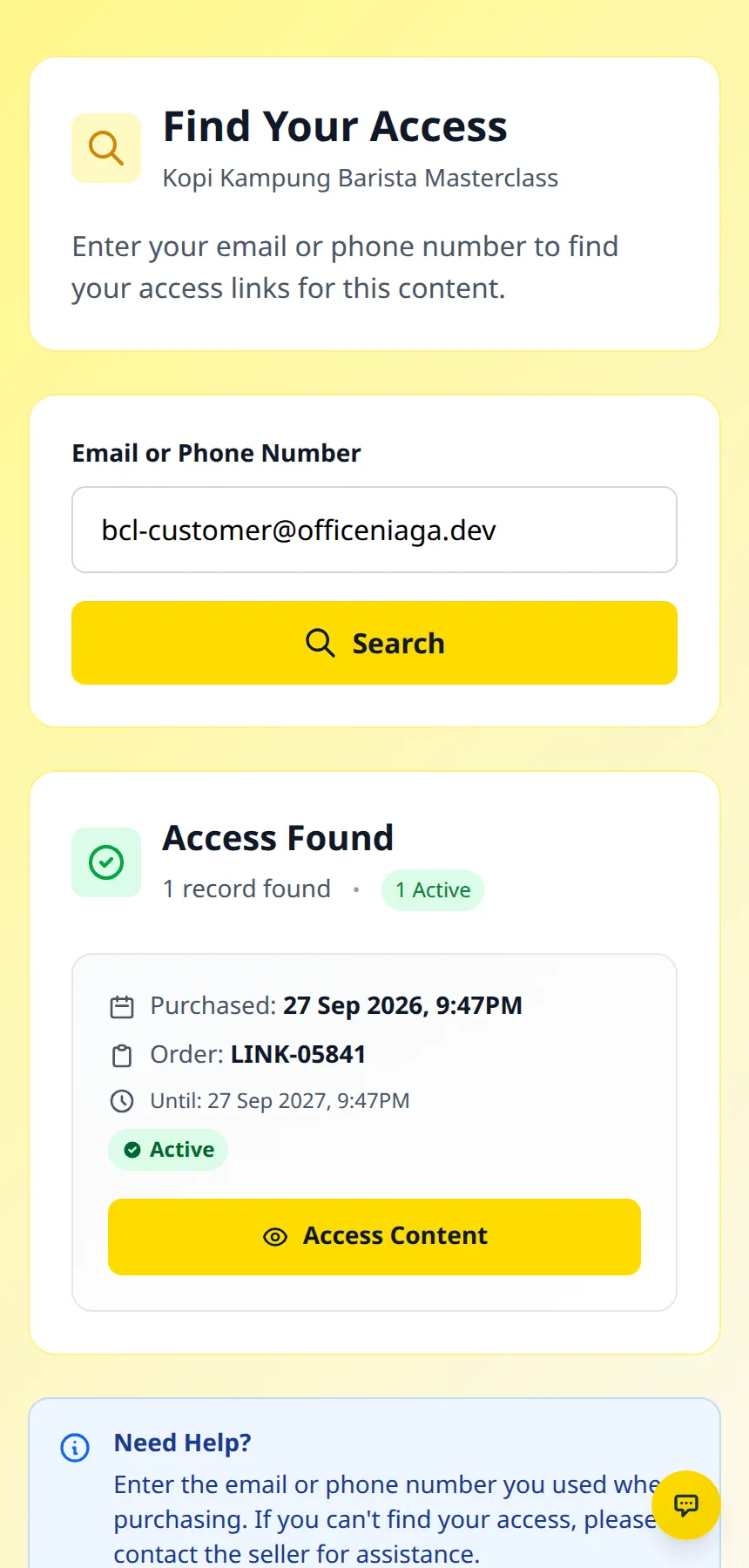
On that page the buyer enters the email or phone number they paid with and taps Search. It lists their access, with Access Content to open it.
-
The Customer Portal. Under Content, buyers see everything they unlocked from you and tap Open. The portal opens the content with a short-lived link, without asking for another code, because they already signed in to the portal with one. The portal only shows live payments. See Your Customer Portal.
Whichever way they come in, the first visit on a new browser asks for a one-time code, unless they come from the Customer Portal.
Most access questions are quick to solve:
- Share the Access Link, not buyers’ own links. One Access Link works for everyone and shows each person only their own access.
- Check Views before you resend. A buyer with views has opened the content already; they may need help with the one-time code rather than a new email.
Common issues
My customer lost the email with their access link. How do they get back in?
Open the content's Customer Access page, open the menu on their row and click Resend Email, or click Access URL and send them the link. They can also look it up themselves on the Access Link page with their email or phone, or open it from the Customer Portal.
My customer says the device limit is full, but they only use one phone.
A different browser counts as another device. On Customer Access, open the menu on their row and click Logout All Devices, then ask them to open the link again.
How do I remove someone's access, for example after a refund?
BCL has Revoke All Access under Actions on the Customer Access page, which removes access for every buyer of that content. It can be undone with Restore All Access.
Was this article helpful?
Thanks for your feedback.
Sorry this didn't help. WhatsApp us and we'll sort it out with you.