
Ask an AI about this page
 ChatGPT
 Claude
 Perplexity
 Google AI Mode
 Microsoft Copilot
 Grok
Grok Mistral Le Chat
Accept cards, e-wallets and pay-later
Besides online banking and DuitNow QR, a BCL form can take credit cards, e-wallets and buy now, pay later (BNPL). BCL cannot switch these channels on by itself: it shows the channels that Bayarcash has switched on for your portal. Once they are on, you tick them on each form.
Which channels BCL offers
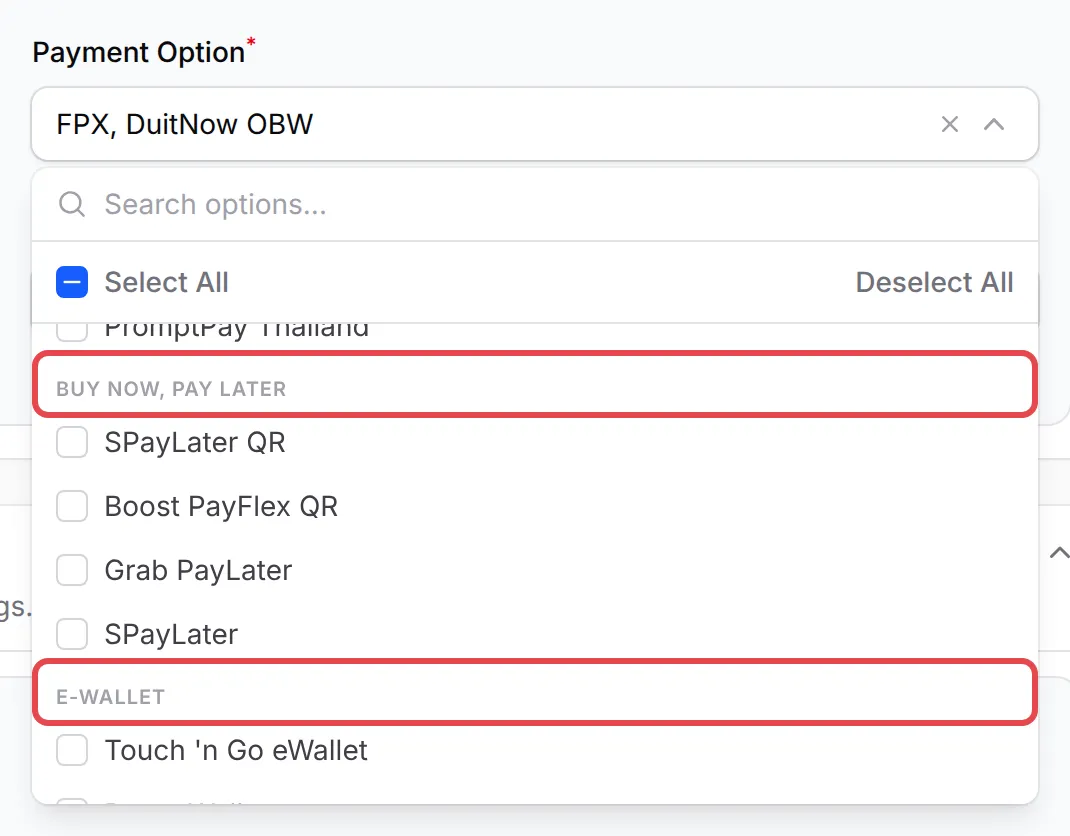
Section titled “Which channels BCL offers”A form’s Payment Option list groups the channels like this:
| Group | Channels | Good for |
|---|---|---|
| Online Banking & Cards | FPX, DuitNow OBW, Line of Credit (Visa or Mastercard credit card accounts from Malaysian banks) and Credit Card (Visa or Mastercard cards from any country) | Most buyers, and buyers who prefer to pay by card |
| QR Payments | DuitNow QR, and QR channels for Indonesia, Singapore, China and Thailand | Paying from a banking or e-wallet app |
| Buy Now, Pay Later | SPayLater QR, Boost PayFlex QR, Grab PayLater and SPayLater | Bigger purchases the buyer wants to split into instalments |
| E-Wallet | Touch ’n Go eWallet, Boost Wallet and GrabPay | Buyers who pay from an e-wallet balance |
| Manual Payment | Cash on Delivery (COD) and Manual Bank Transfer | Needs the COD & Manual Transfer add-on. See Accept COD and manual bank transfer |
Get the channels switched on
Section titled “Get the channels switched on”Cards, e-wallets and pay-later have to be switched on for your Bayarcash portal before BCL can offer them:
- Ask Bayarcash to switch on the channels you want for the portal your form uses. BCL has no button for this.
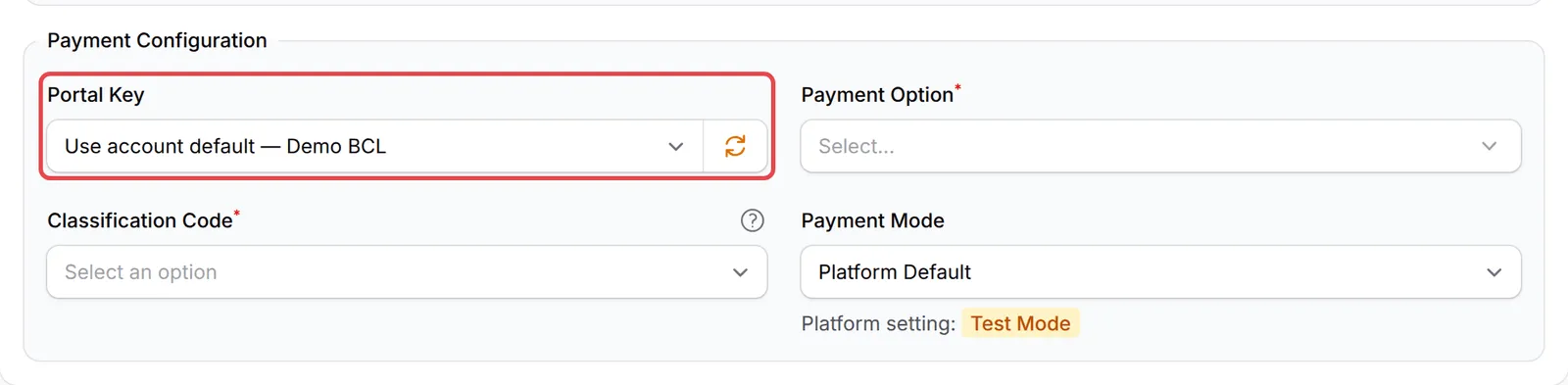
- When they are on, open the form in BCL, go to the Payment Details tab and click the refresh icon next to Portal Key, so BCL loads the portal’s channels again.
In Test Mode, Payment Option lists every channel of the Bayarcash sandbox. A channel you see there only works live once it is switched on for your live portal.
Offer them on a form
Section titled “Offer them on a form”To add the channels to a form:
-
Open the form and go to the Payment Details tab.
-
Under Payment Configuration, check the Portal Key.
-
Open Payment Option and tick the channels to offer, such as Credit Card, Grab PayLater or Touch ’n Go eWallet.
-
Click Update Form.
Your customer then sees the new channels at checkout. Event and booking forms have the same Payment Option field. For a payment link, pick the channel in Payment Option or let your customer choose. See Create a payment link.
Set the fee for these channels
Section titled “Set the fee for these channels”Each channel has its own Bayarcash rate. To charge the fee to your customer, set it on the Enterprise Package tab of Platform Setup → Gateway Fee. It covers Touch ’n Go eWallet, Boost Wallet, GrabPay, Grab PayLater, Credit Card and SPayLater. SPayLater QR and Boost PayFlex QR are on the QR Payment Channels tab, in the DuitNow QR (Malaysia) row.
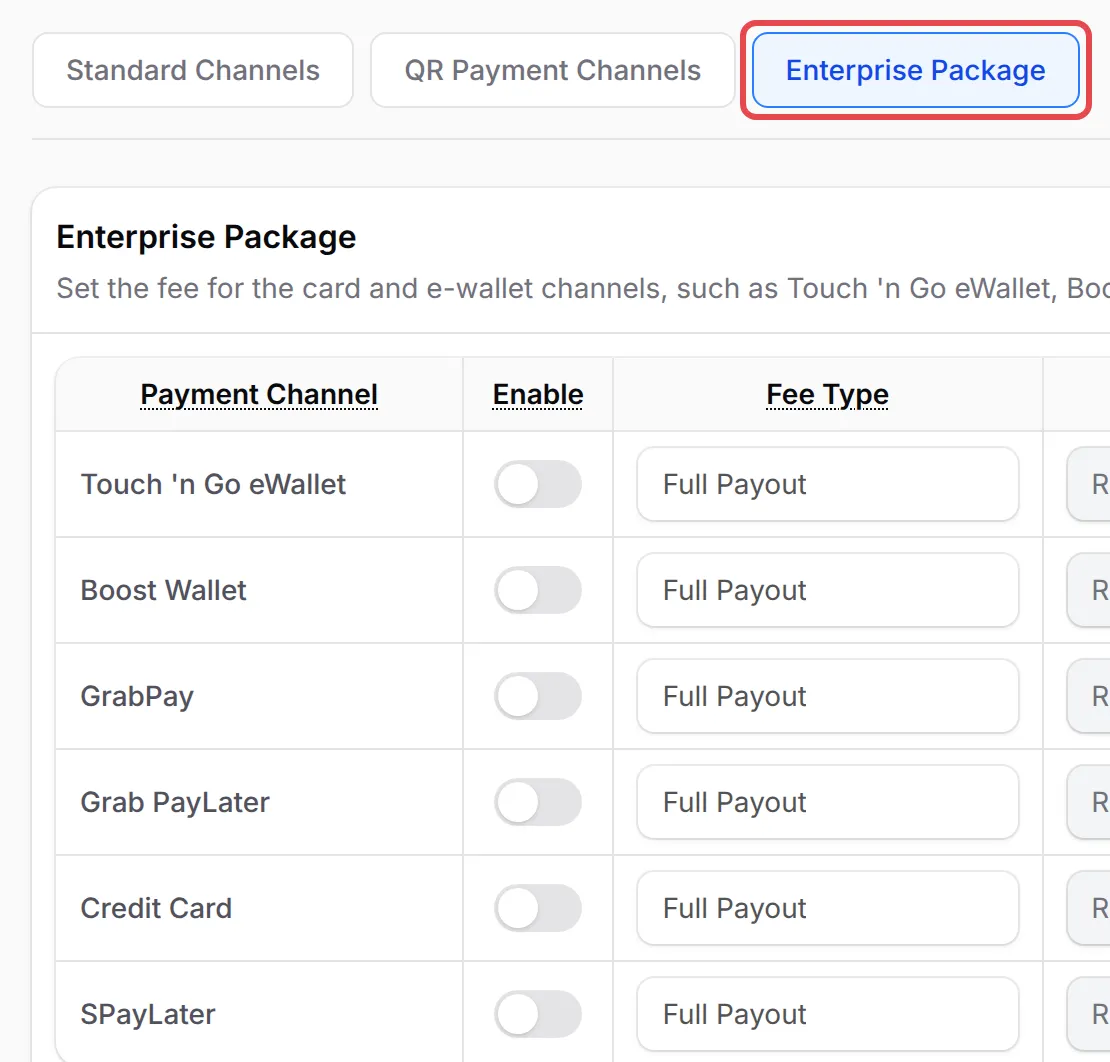
See Set your gateway fees for the fee types and the Fee Calculator. Check each channel’s rate with Bayarcash first.
A few habits help when you add these channels:
- Keep FPX and DuitNow QR on too. New channels add choice; buyers who do not have a card or pay-later account still need a way to pay.
- Turn on Full Payout for card and pay-later channels. Their rates are percentages, and Full Payout makes sure you still receive the full sale.
- Make a test payment after going live. Pay a small amount with the new channel to check that it shows and settles to the right portal.
Common issues
Can my BCL form accept credit cards and BNPL like SPayLater or Atome?
Cards, e-wallets and the pay-later channels BCL lists (SPayLater, SPayLater QR, Grab PayLater and Boost PayFlex QR) work on BCL forms once Bayarcash has switched them on for your portal. Then tick them in the form's Payment Option. BCL shows no Atome channel.
Why is Credit Card not in my form's Payment Option list?
Payment Option only lists the channels switched on for the portal in Portal Key. Ask Bayarcash to switch Credit Card on for that portal, then click the refresh icon next to Portal Key to load the list again.
What is the Enterprise Package on the Gateway Fee page?
It is where you set the gateway fee for the card and e-wallet channels: Touch 'n Go eWallet, Boost Wallet, GrabPay, Grab PayLater, Credit Card and SPayLater. The fee only applies once the channel is switched on for your portal.
Was this article helpful?
Thanks for your feedback.
Sorry this didn't help. WhatsApp us and we'll sort it out with you.