
Ask an AI about this page
 ChatGPT
 Claude
 Perplexity
 Google AI Mode
 Microsoft Copilot
 Grok
Grok Mistral Le Chat
Share a Live Dashboard of your sales
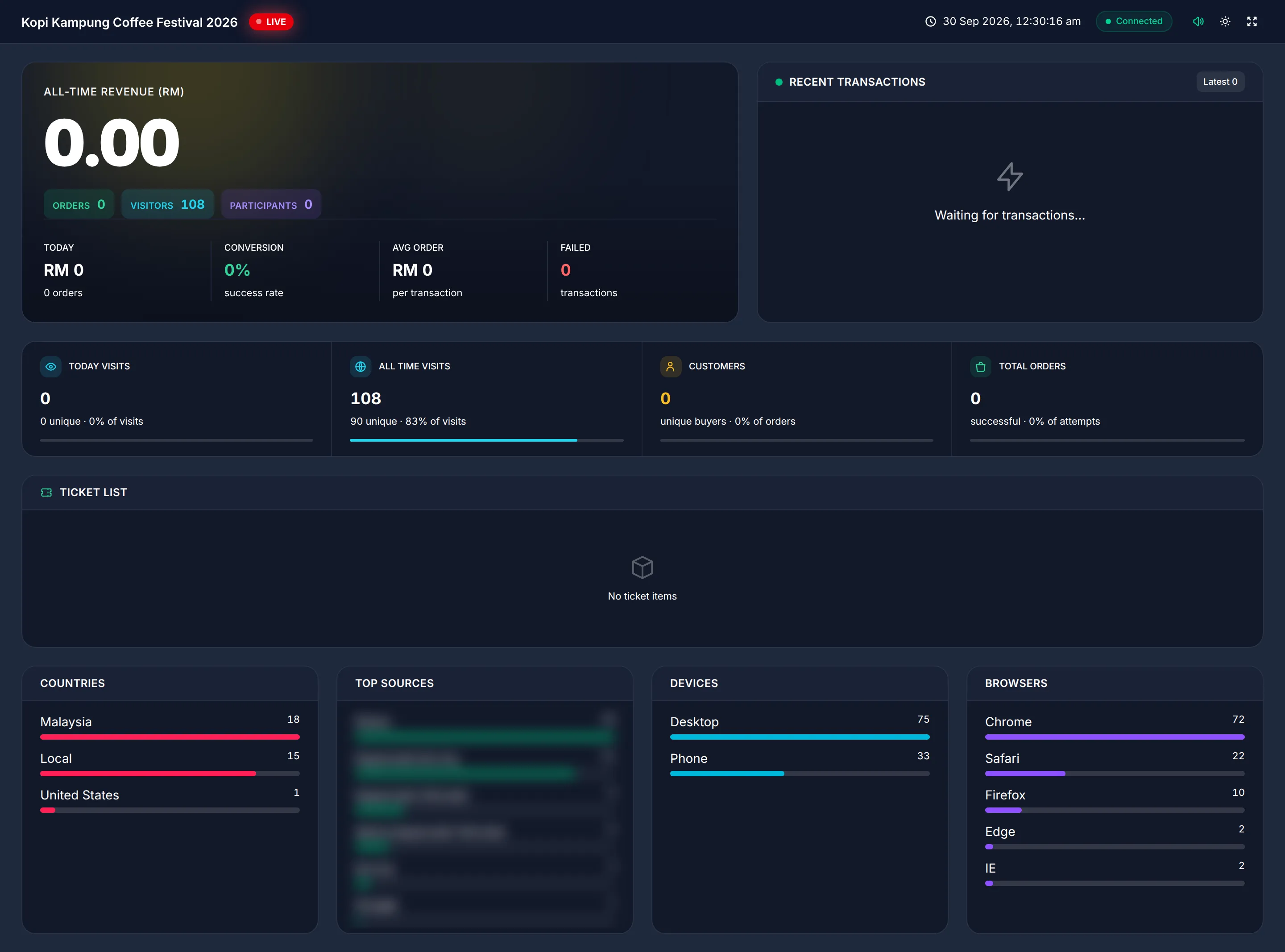
The Live Dashboard is a web page that shows the sales of one form as they happen: revenue, orders, what sells best and where your visitors come from. You share it as a private link, so your team, a partner or an event organiser can watch sales without signing in to BCL. Payment forms and event forms have one each.
What the Live Dashboard shows
Section titled “What the Live Dashboard shows”The page updates by itself when a payment comes in, and plays a short sound for each new sale. It shows:
| Part | What it shows |
|---|---|
| Revenue and orders | All-time revenue with the number of orders, visitors and (for an event) participants, then today’s revenue and orders, the conversion rate, the average order and failed payments. |
| Visits and customers | Today’s and all-time visits to the form, the number of customers and the total orders. |
| Recent transactions | The latest paid orders, with the customer’s name, amount and order number. |
| Product or ticket list | Each product or ticket type with the quantity sold, the stock left and its revenue. |
| Affiliate ranking | Your top affiliates by sales, when affiliates are turned on for the form. |
| Visitor details | Countries, top sources (such as Facebook, Instagram, TikTok or WhatsApp), devices and browsers. |
Buttons at the top turn the sound off, switch between light and dark, and show the page full screen.
Create the link
Section titled “Create the link”Anyone who can edit the form can create its link. The steps are the same for an event form and a payment form:
-
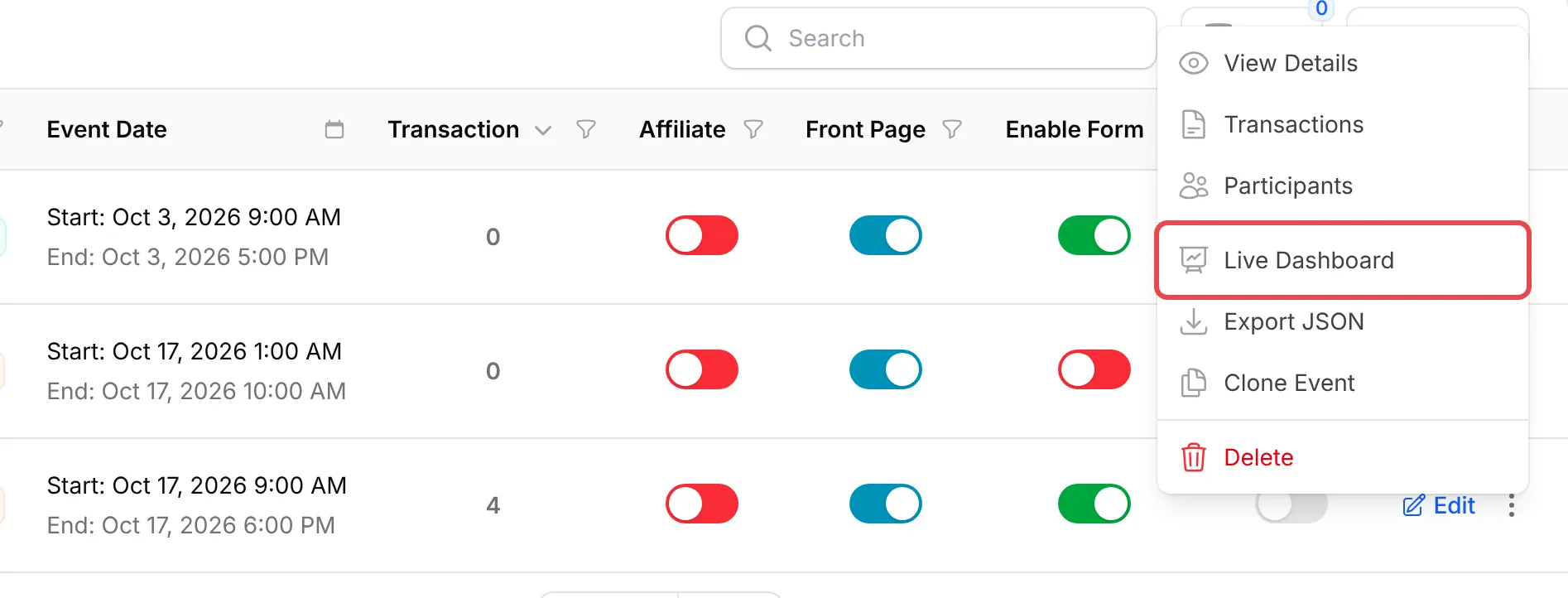
Go to Events → Events for an event form, or Payments → Forms for a payment form.
-
Click the three dots at the end of the form’s row, then click Live Dashboard.
-
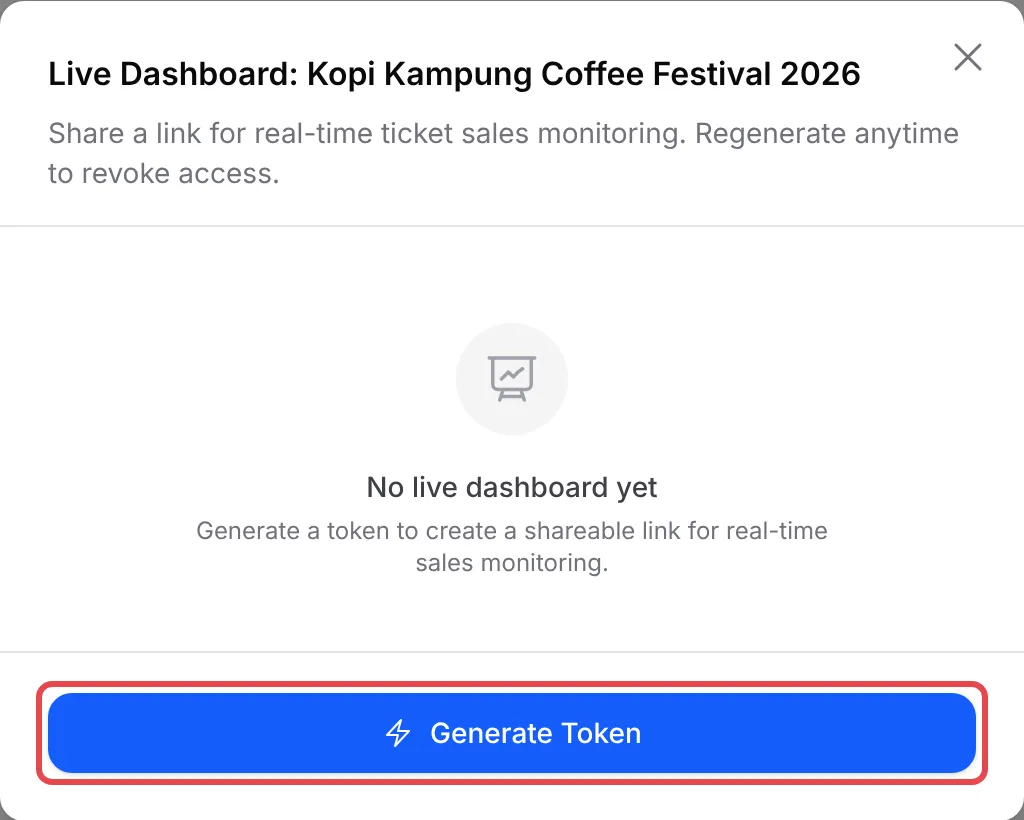
The pop-up says No live dashboard yet. Click Generate Token.
-
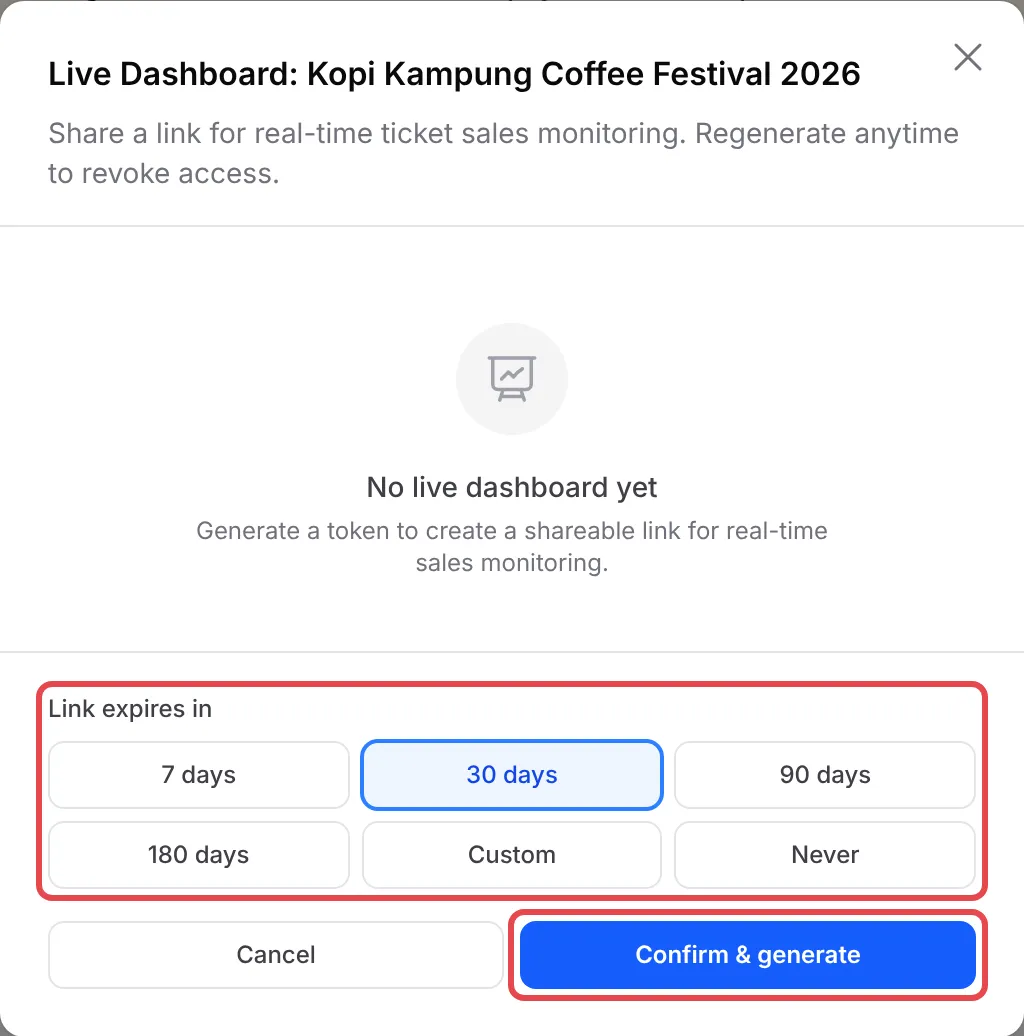
Under Link expires in, choose how long the link works: 7 days, 30 days, 90 days, 180 days, Custom (1 to 365 days) or Never.
-
Click Confirm & generate.
-
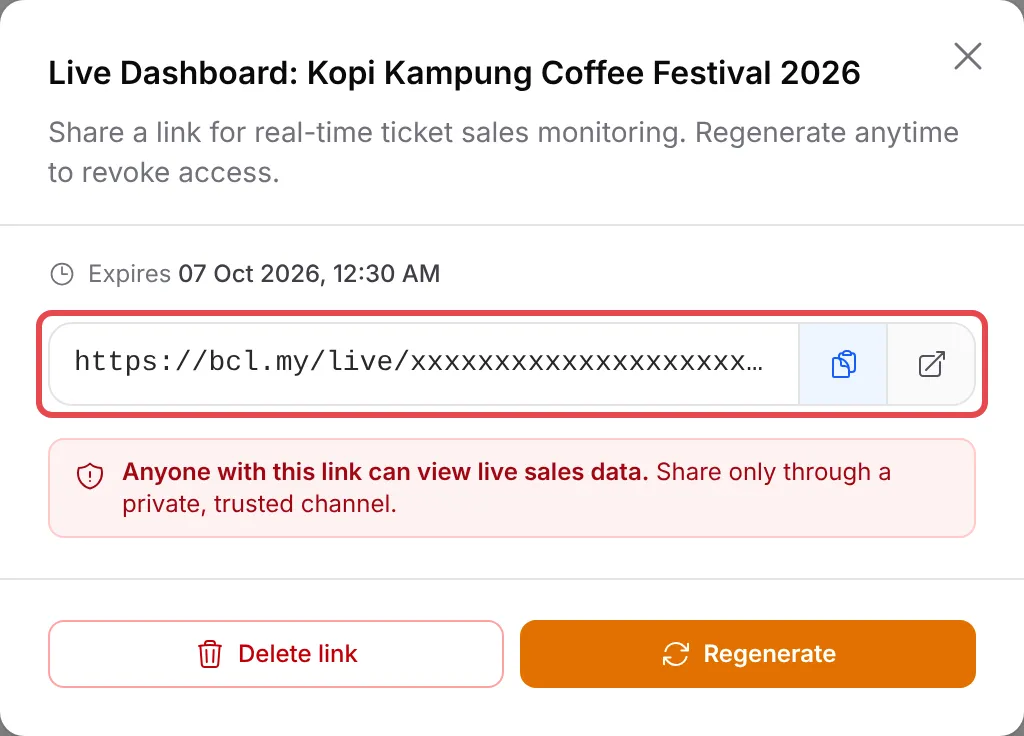
The link appears in the pop-up with its expiry date. Click the copy button next to it, or the open button to see the dashboard in a new tab.
Stop or replace the link
Section titled “Stop or replace the link”Open Live Dashboard on the same form again to manage its link:
- Regenerate gives you a new link with a new expiry. The old link stops working straight away. Confirm with Confirm regenerate.
- Delete link turns the link off. Confirm with Confirm delete. You can create a new one later with Generate Token.
When a link expires, the page says This dashboard link has expired. Create a new link to share it again.
A few things help on launch day:
- Test with a real payment, not a test one. The Live Dashboard only counts live payments, so its sales figures stay at 0 while your form is in Test Mode. Visits still count.
- Choose a short expiry for people outside your team. A 7-day link for an event partner stops working on its own after the event.
- Put it on a big screen. Open the link on a TV or laptop at your booth or office, turn on full screen, and your team sees each sale arrive.
- Add your logo first. The browser tab of the dashboard shows the logo from your company details.
Common issues
How do I get a Live Dashboard link to monitor sales for my event?
On Events → Events, click the three dots at the end of your event's row, then Live Dashboard. Click Generate Token, choose when the link expires under Link expires in, and click Confirm & generate. Copy the link that appears.
Can I have a Live Dashboard for a payment form, not only an event?
Yes. Payment forms have the same Live Dashboard action in the three-dot menu of each row on Payments → Forms. Booking forms and lead forms do not have one.
My Live Dashboard stays empty although I made test payments. Why?
The Live Dashboard only counts live payments. Payments made in Test Mode or through the Bayarcash sandbox do not appear on it, so revenue, orders and participants stay at 0. Visits to the form are still counted.
I shared the link with the wrong person. How do I stop it working?
Open Live Dashboard on the same form again and click Delete link, then Confirm delete. Or click Regenerate to get a new link: the old one stops working straight away.
Was this article helpful?
Thanks for your feedback.
Sorry this didn't help. WhatsApp us and we'll sort it out with you.