
Ask an AI about this page
 ChatGPT
 Claude
 Perplexity
 Google AI Mode
 Microsoft Copilot
 Grok
Grok Mistral Le Chat
See your customers
Updated

The Customers page lists everyone who has paid you through a BCL form, with what they spent and whether their e-invoice details are complete. BCL builds it for you: each payment adds the buyer, matched by their email address.
Open your customer list
Section titled “Open your customer list”You need the Admin or Super Admin role to see this page.
-
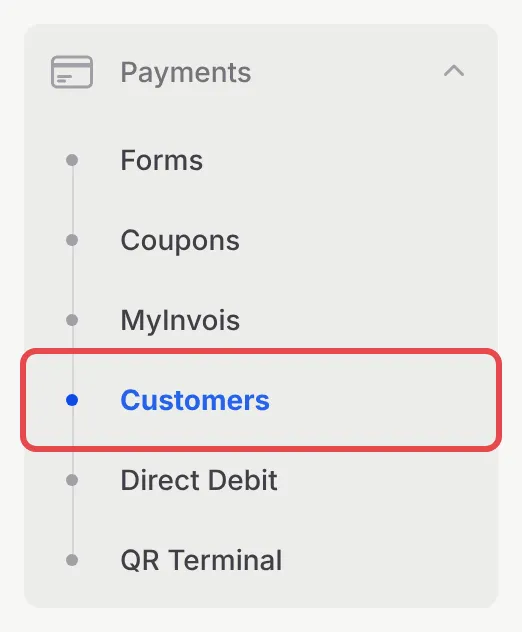
In the sidebar, go to Payments → Customers.
-
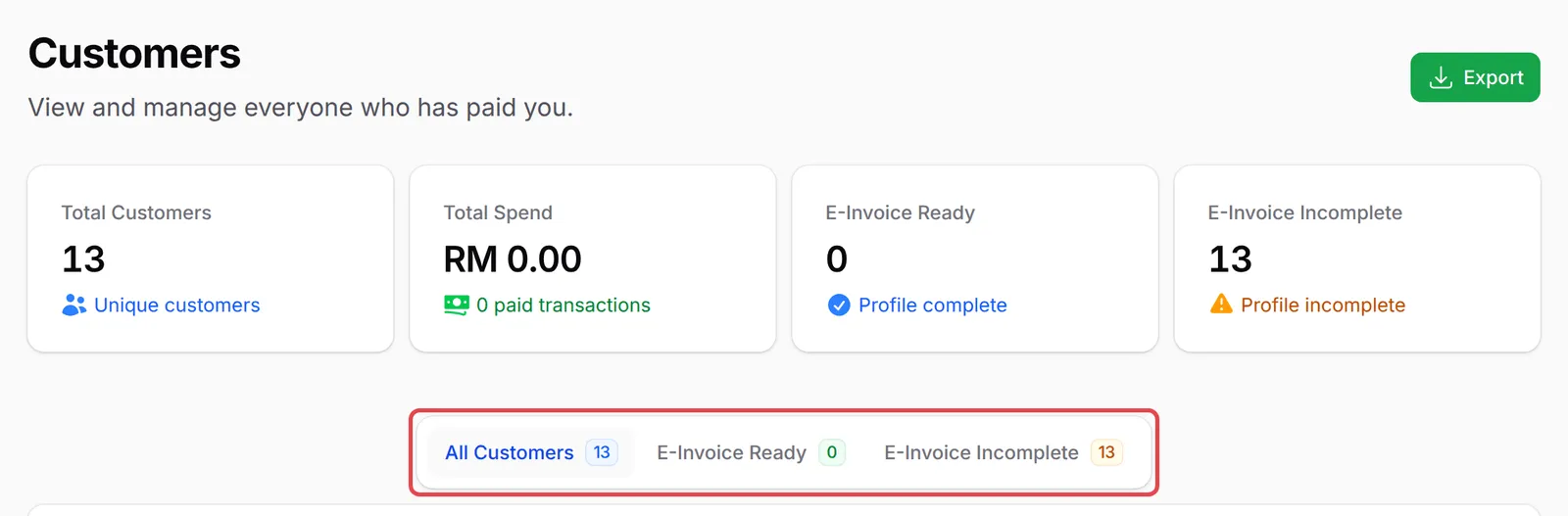
The cards at the top show Total Customers, Total Spend, E-Invoice Ready and E-Invoice Incomplete. Use the tabs to switch between All Customers, E-Invoice Ready and E-Invoice Incomplete.
-
Type a name, email or phone number in the search box to find someone. The list shows each customer’s Transactions, Total Spent, First Transaction and Last Transaction.
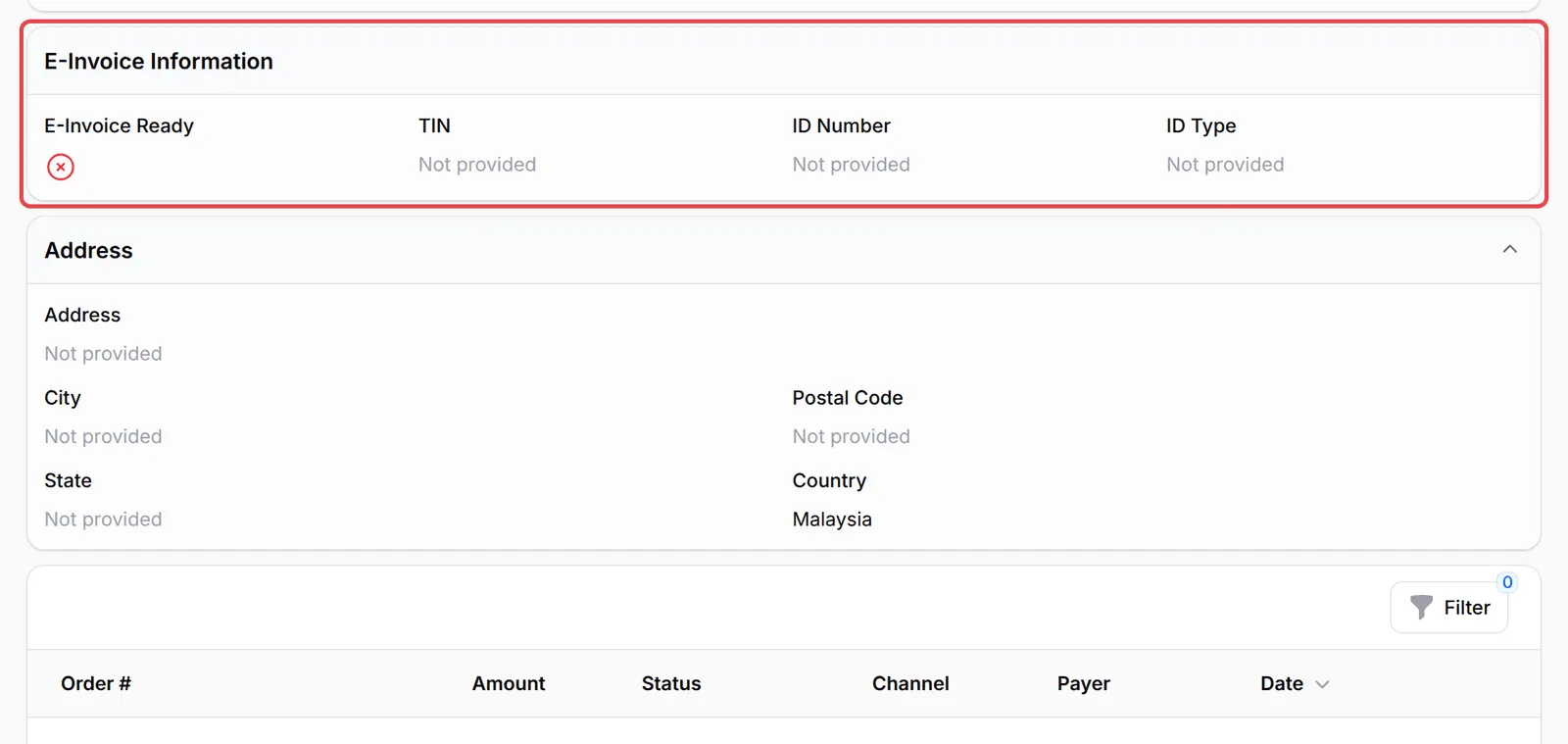
A customer is E-Invoice Ready when BCL has their TIN, ID number and type, and their address with city, postcode and state. You need these to issue an LHDN e-invoice in their name.
Look at one customer
Section titled “Look at one customer”Each customer has a page with everything BCL knows about them:
-
Find the customer and click View Details at the end of their row.

-
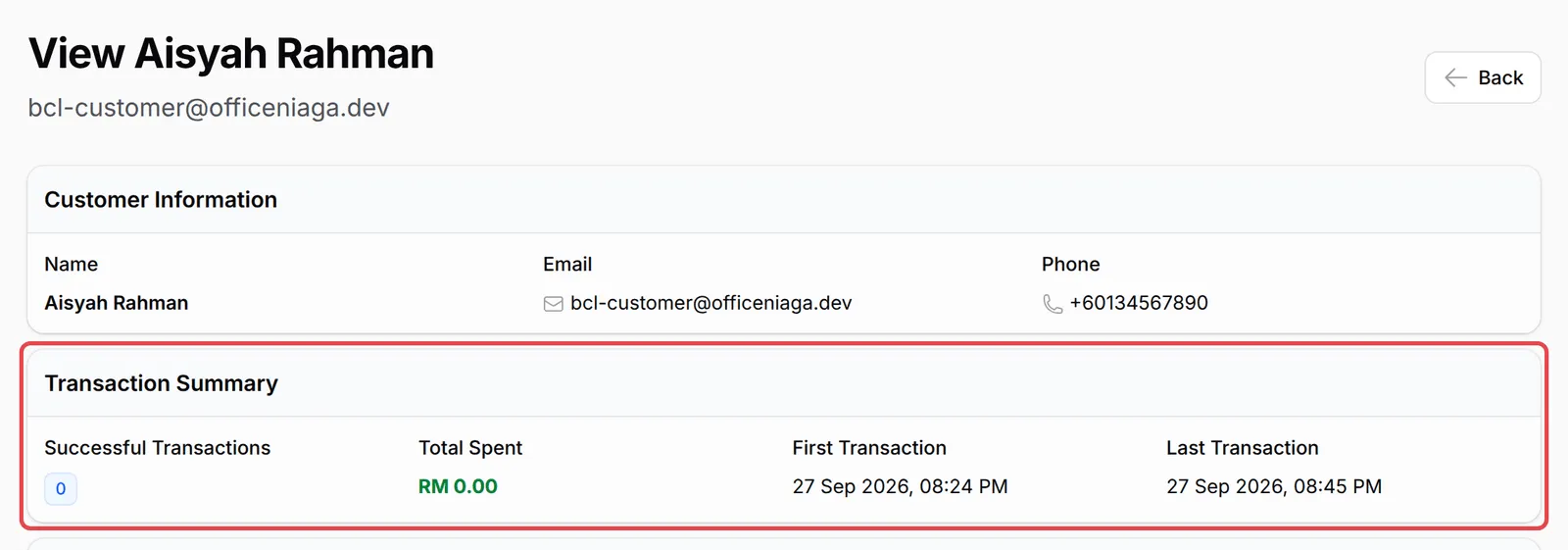
Customer Information shows their name, email and phone. Transaction Summary shows their Successful Transactions, Total Spent, and the dates of their first and last transaction.
-
Scroll down for E-Invoice Information (TIN, ID number and ID type) and Address. The table at the bottom lists their live payments to you, with the Order #, Amount, Status, Channel, Payer and Date. Click View on a row to open that payment on the Transactions page in a new tab.
Click Back to return to the list.
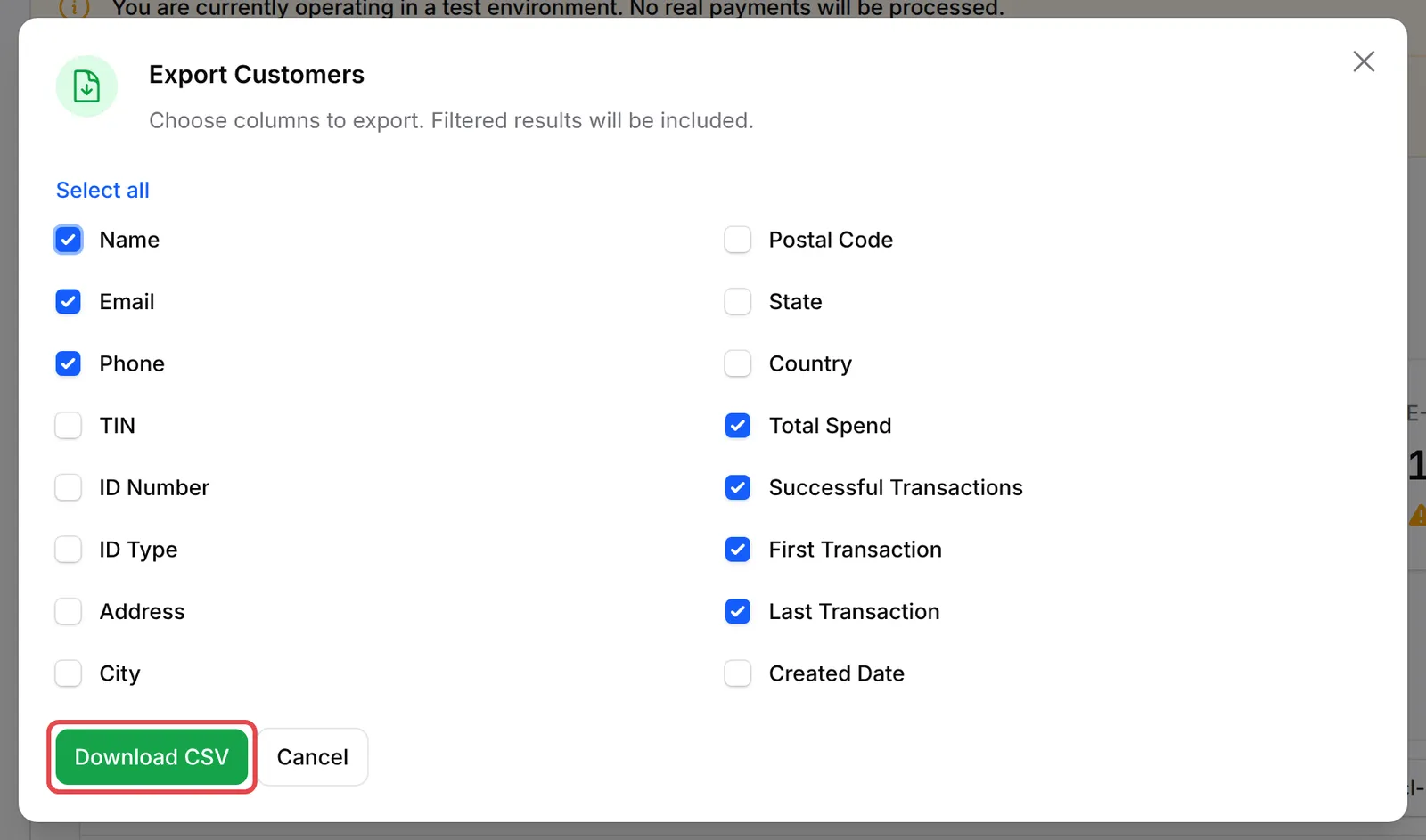
Export your customers
Section titled “Export your customers”You can download the list as a CSV file, for example to import into a mailing tool:
-
On the Customers page, pick a tab or search first if you only want some customers. The export follows what the list shows.
-
Click Export.
-
Tick the columns you want, or click Select all, then click Download CSV.
A few things are worth knowing about the numbers on this page:
- Test payments do not add to the totals. Transactions, Total Spent and the Total Spend card count successful live payments only, refreshed every hour. A customer who only paid in Test Mode shows 0.
- One email, one customer. If a buyer uses a new email address, they appear as a new customer. The name and phone on the list follow their latest payment.
- Your customers can find their own receipts. Send them to your Customer Portal instead of looking up old orders for them.
Common issues
Why does a customer show 0 Counts and RM 0.00 when they have paid?
Transactions and Total Spent count successful live payments only, and BCL updates them every hour. Test Mode payments never count, so a customer who only bought in Test Mode stays at 0.
A customer's name changed on the Customers page. Why?
BCL keeps one customer record per email address. Each new payment updates the name and phone number to what the buyer typed at checkout, so the list shows the details from their latest payment.
Can my staff see the customer list?
Admins and Super Admins can. Members with the Team or Crew Event role do not see Customers in the sidebar.
Was this article helpful?
Thanks for your feedback.
Sorry this didn't help. WhatsApp us and we'll sort it out with you.