
Ask an AI about this page
 ChatGPT
 Claude
 Perplexity
 Google AI Mode
 Microsoft Copilot
 Grok
Grok Mistral Le Chat
Change your password
You change your password on the My Account page. Open it from the Account Menu: click your company name at the bottom of the sidebar.
Change your password
Section titled “Change your password”You need your current password to set a new one:
-
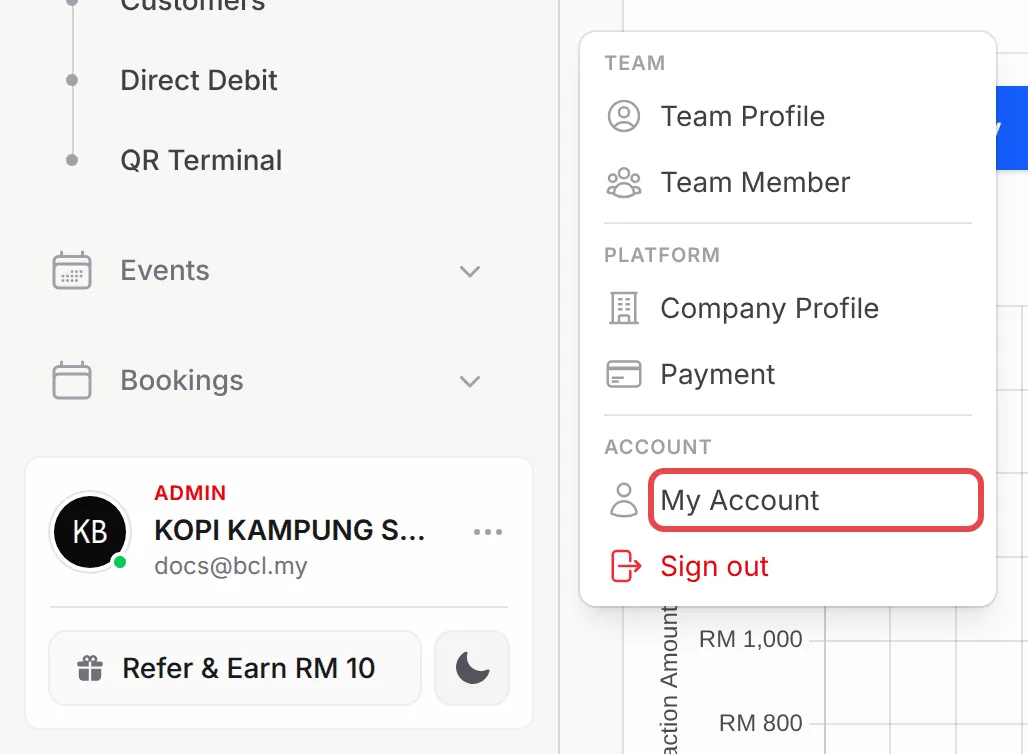
Click your company name at the bottom of the sidebar to open the Account Menu.
-
Under Account, click My Account. If no menu opens, clicking your name has taken you straight to the page.
-
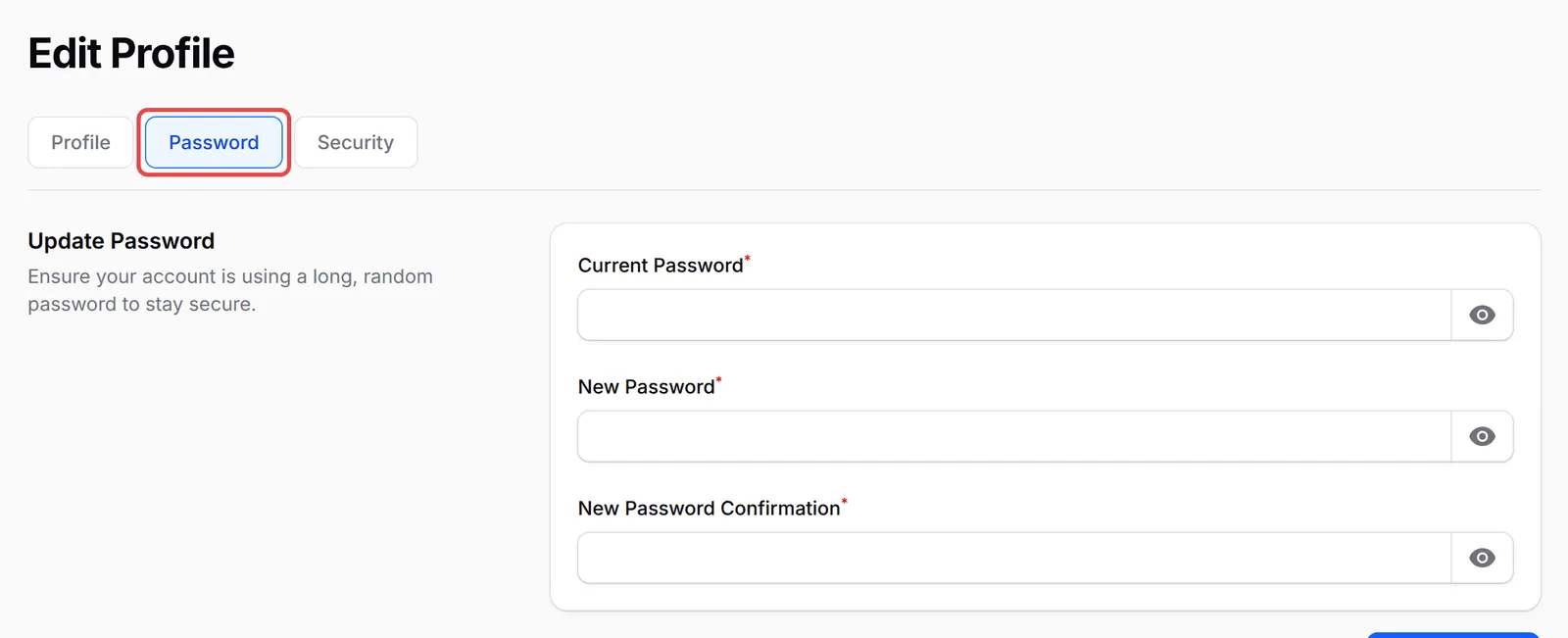
The Edit Profile page opens. Click the Password tab.
-
Enter your Current Password.
-
Enter your new password in New Password and again in New Password Confirmation.
-
Click Save Password.
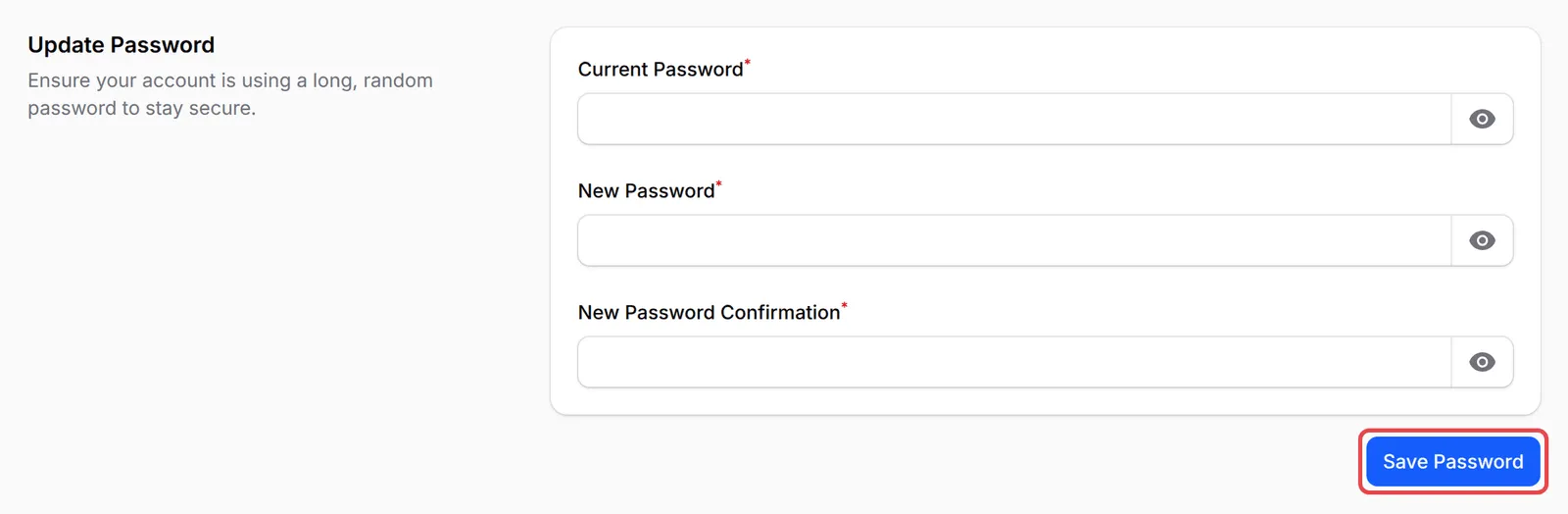
BCL shows Password Updated Successfully and keeps you signed in.
Reset a forgotten password
Section titled “Reset a forgotten password”If you cannot sign in, reset your password by email:
-
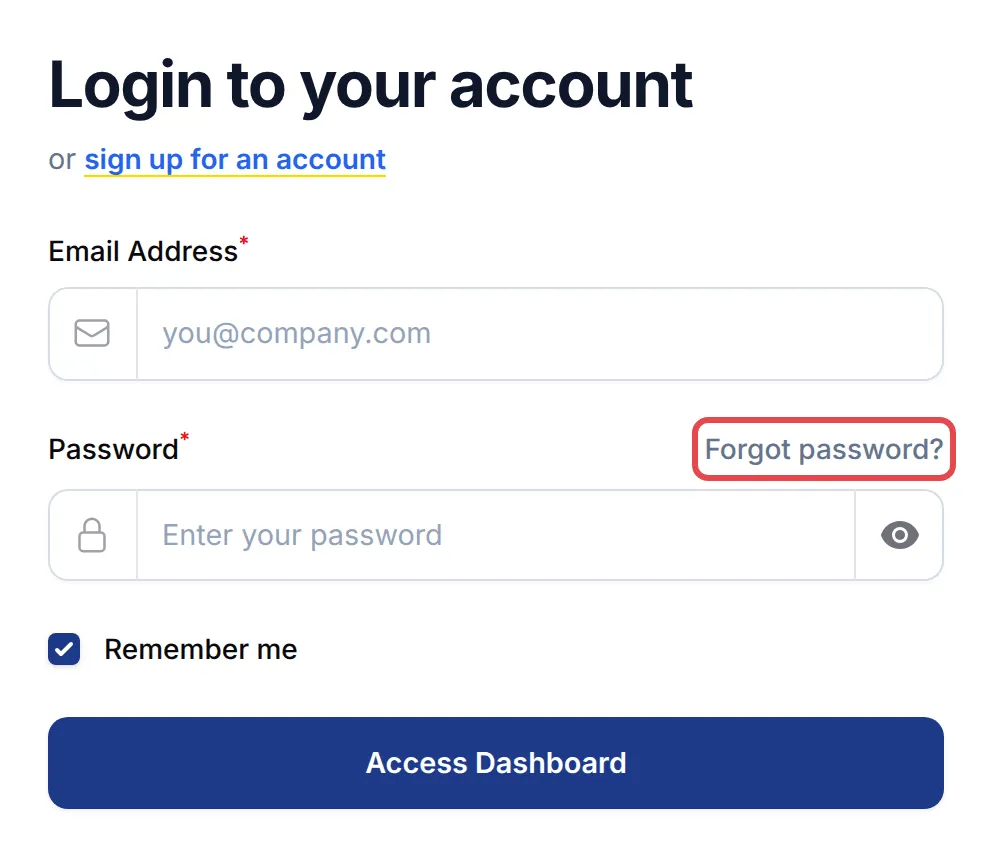
On the sign-in page, click Forgot password?.
-
On the Reset Password page, enter your Email Address and click Send Email.
-
Open the Reset your password email from BCL and click Reset Password to choose a new password. The link works for 60 minutes.
Add two-factor sign-in or a passkey
Section titled “Add two-factor sign-in or a passkey”The Security tab on My Account adds extra protection to your account.
To turn on two-factor sign-in:
-
Click Enable Two-Factor Authentication.

-
Scan the QR code with an authenticator app such as Google Authenticator or Authy.
-
Enter the 6-digit code in Verification Code and click Confirm & Enable.
-
Click Show Recovery Codes and keep the codes somewhere safe. If you lose your phone, sign in with Use recovery code. Each code works once.
To sign in with your fingerprint, face or a security key instead of a password:
-
Under Passkeys, type a name for this device in the box, for example MacBook Pro.
-
Click Register New Passkey and follow your device’s prompt.

Next time, click Sign in with Passkey on the sign-in page.
Common issues
I forgot my password. How do I get back in?
On the sign-in page, click Forgot password?. Enter your Email Address and click Send Email, then follow the link in the email to set a new password.
Where did Edit Profile go?
It moved to the Account Menu. Click your company name at the bottom of the sidebar and choose My Account. Your profile, password and sign-in security each have their own tab there.
A staff member forgot their password. Can I reset it for them?
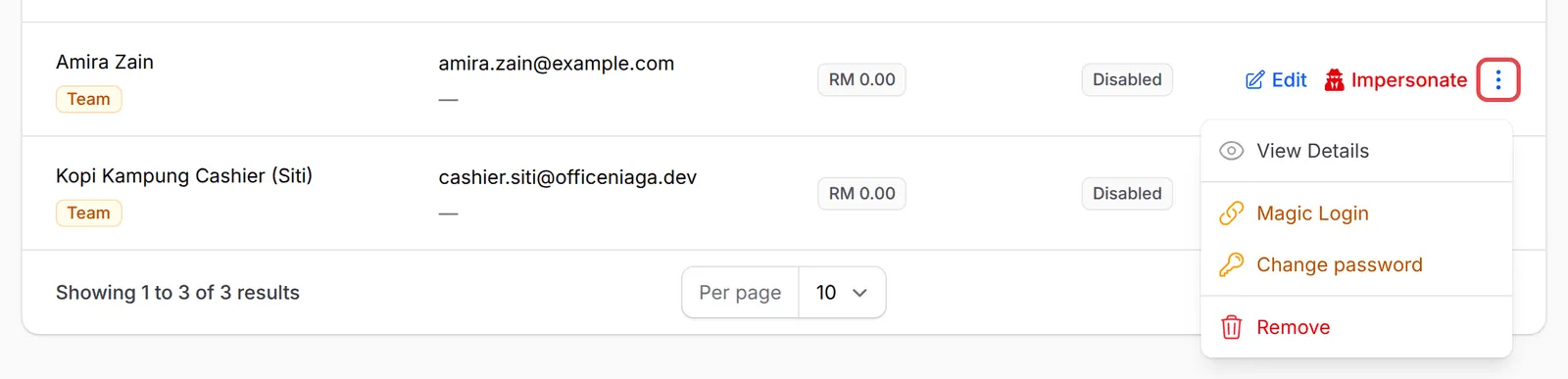
Yes, if you are an admin. Open Team Member from the Account Menu, open the actions menu on their row and choose Change Password. See Add a team member.
Was this article helpful?
Thanks for your feedback.
Sorry this didn't help. WhatsApp us and we'll sort it out with you.