
Ask an AI about this page
 ChatGPT
 Claude
 Perplexity
 Google AI Mode
 Microsoft Copilot
 Grok
 Mistral Le Chat
Connect your Bayarcash account
BCL collects payments through Bayarcash. To take real payments, paste your Bayarcash Personal Access Token (PAT) and API Secret Key into BCL. This is step 1 of 4 to your first sale.
Until you connect Bayarcash or turn on Test Mode, BCL opens the Payment Settings page each time you sign in.
Before you start
Section titled “Before you start”You need two things before you connect:
- An approved Bayarcash merchant account. If you do not have one, register as a Bayarcash merchant first.
- To be the BCL account owner. Only the owner can change payment settings.
Get your token and secret key
Section titled “Get your token and secret key”Both keys come from the Bayarcash Console:
- Log in to the Bayarcash Console.
- Open the Integration page.
- Copy your Personal Access Token (PAT) and your API Secret Key.
Connect BCL to Bayarcash
Section titled “Connect BCL to Bayarcash”With both keys copied, connect your account in BCL:
-
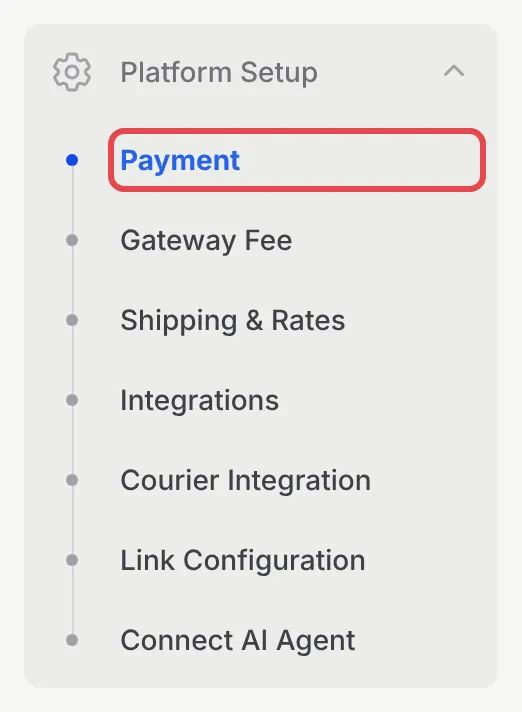
In the sidebar, go to Platform Setup → Payment.
-
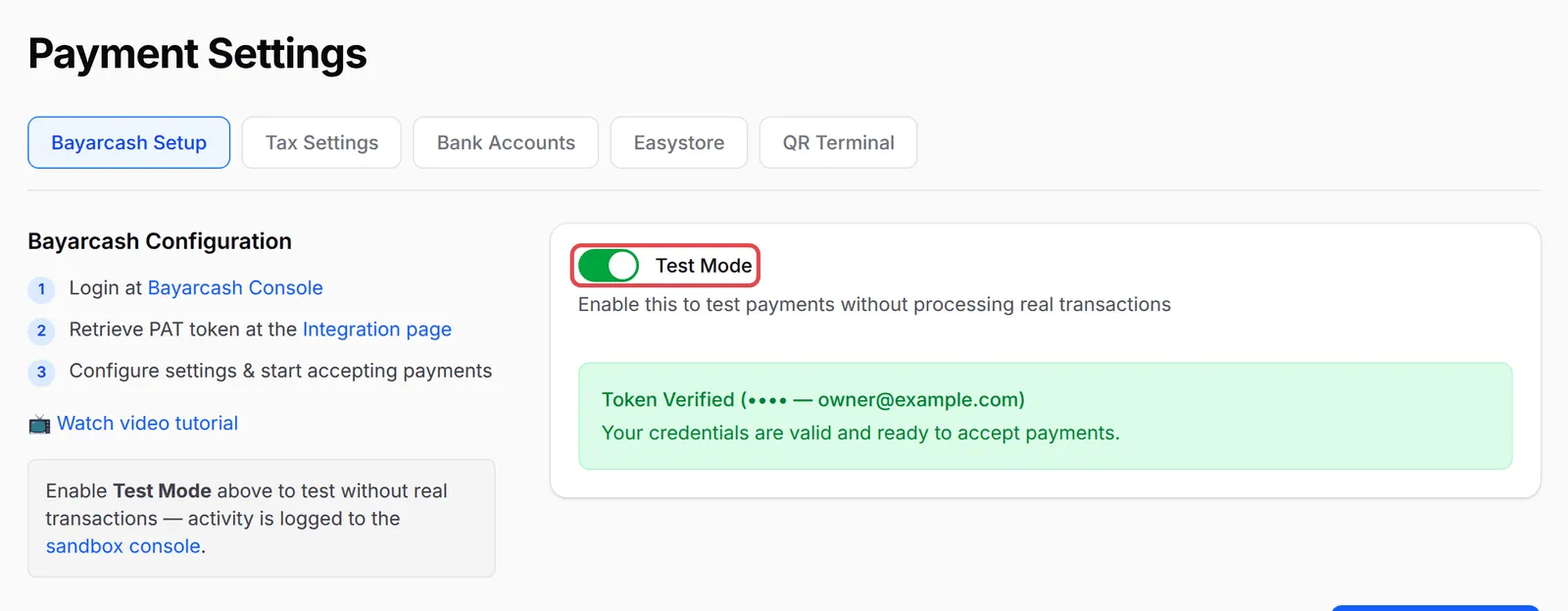
The Payment Settings page opens on the Bayarcash Setup tab. Turn off Test Mode.
-
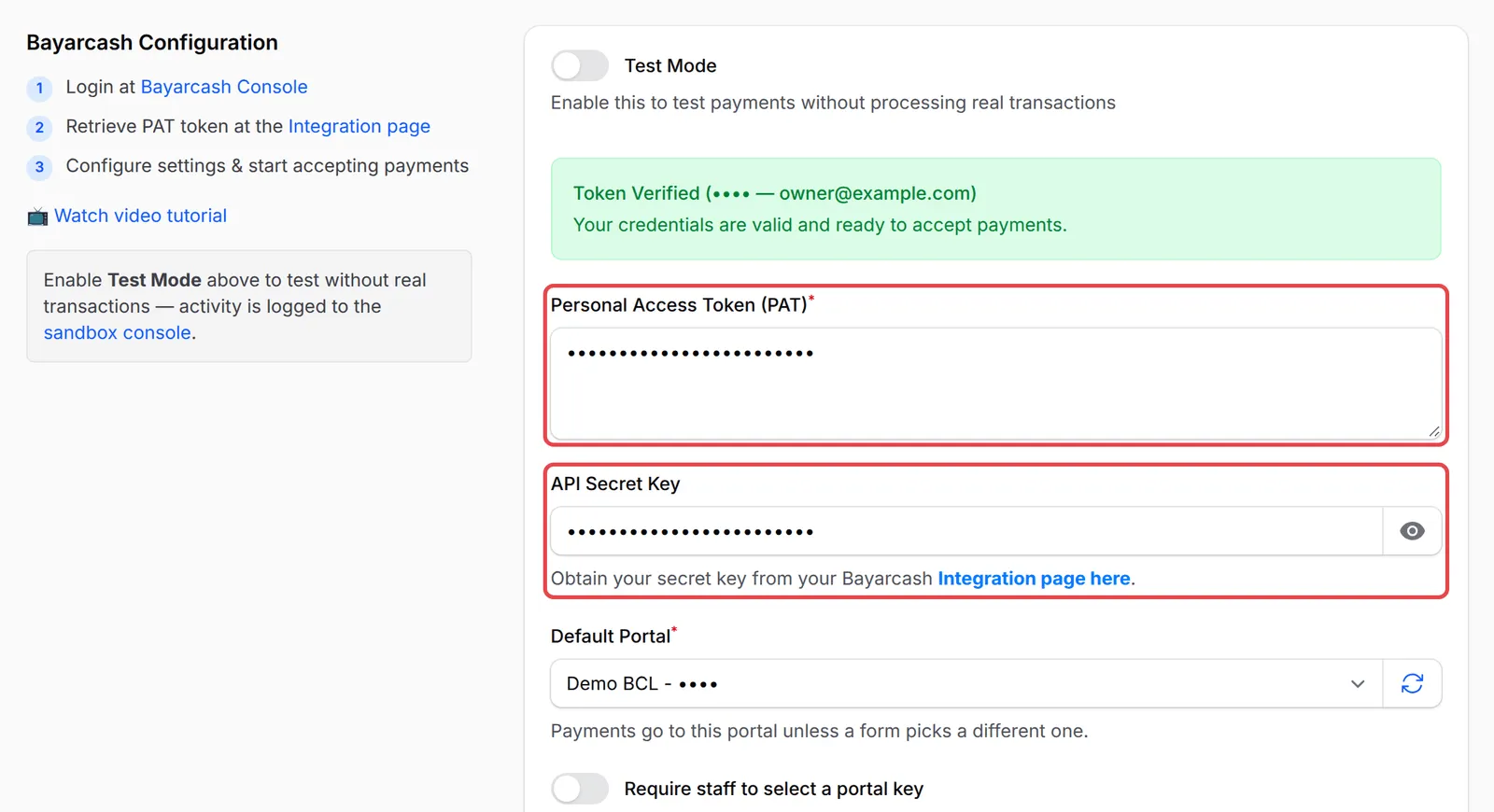
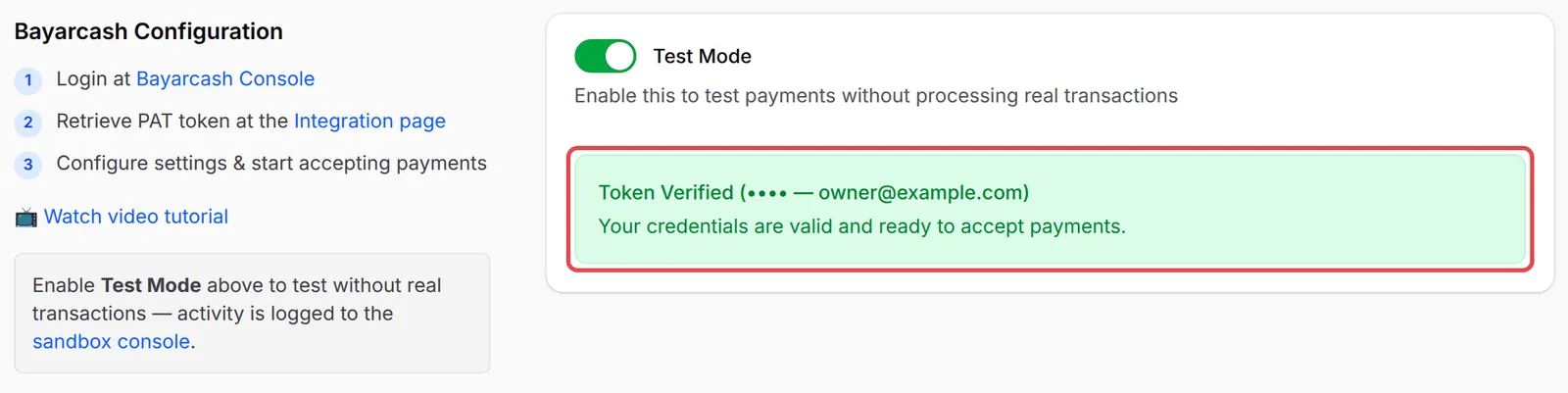
Paste your token into Personal Access Token (PAT) and your key into API Secret Key. BCL checks both keys when you click out of each field. When they are valid, a green Token Verified box shows your Bayarcash merchant name and email.
-
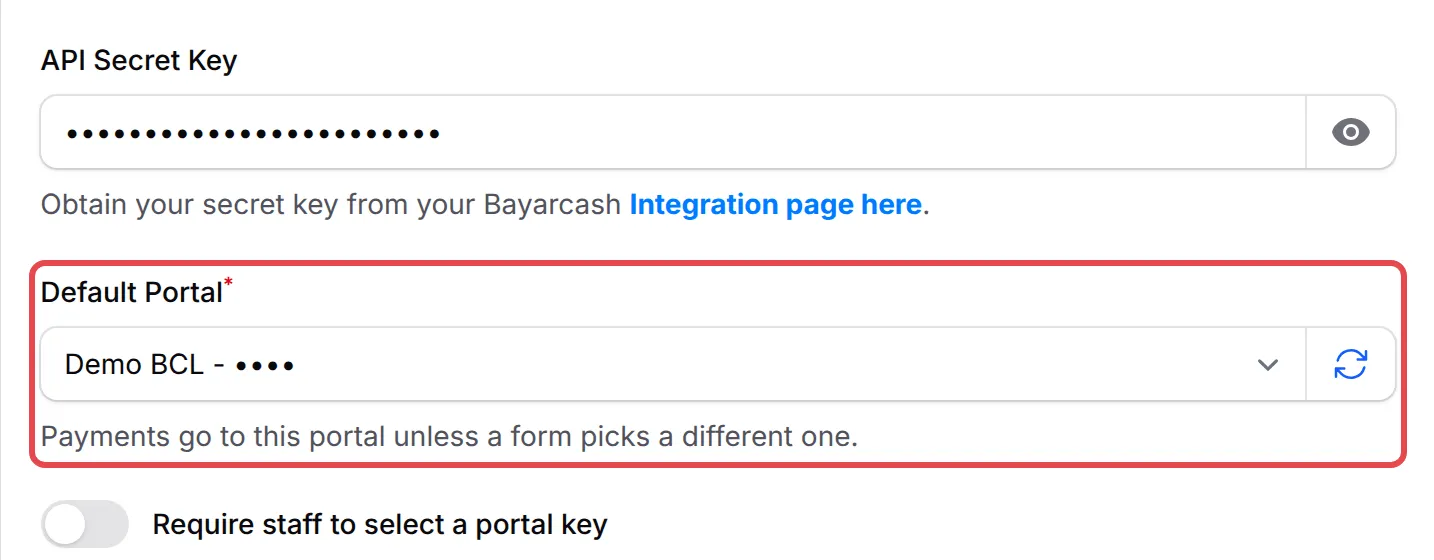
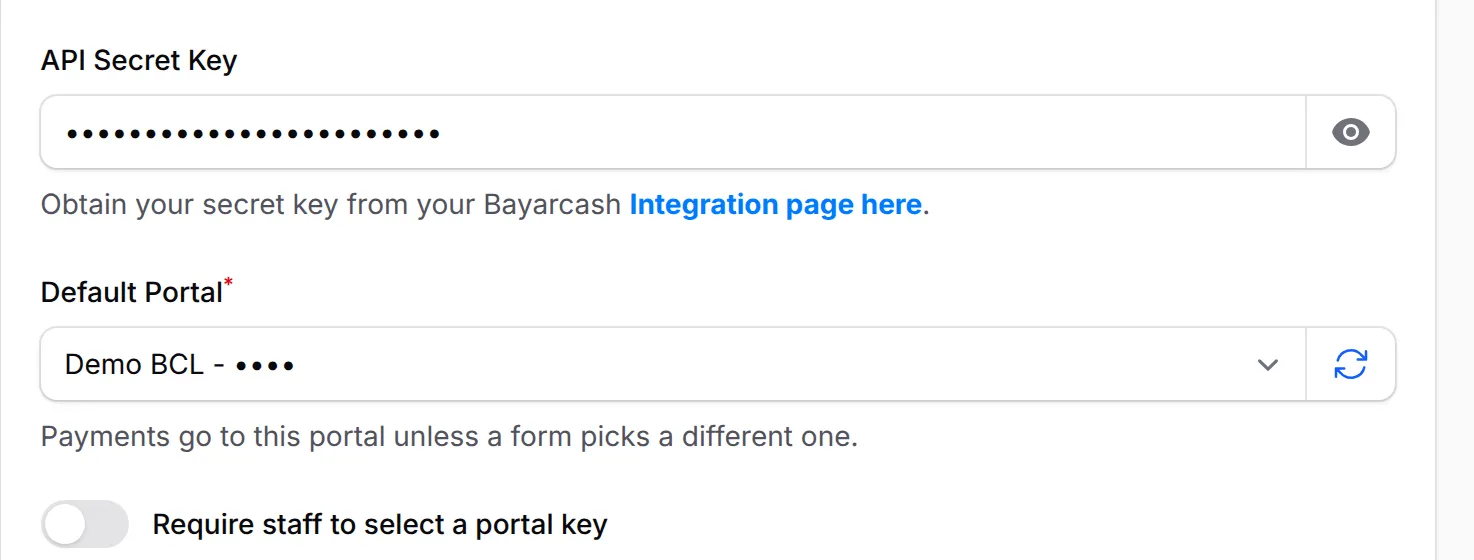
When BCL verifies the keys, a Default Portal field appears. Choose the Bayarcash portal that receives payments when a form does not choose its own. If you only have one portal, BCL chooses it for you. See Choose a Bayarcash portal key.
-
Click Save Configuration.
The first time you save, BCL also copies your company details from the Bayarcash Console if your company profile has no registration number yet.
Change your settings later
Section titled “Change your settings later”When you change the token, secret key or default portal after the first save, BCL asks for a one-time code to confirm it is you:
- Make your change and click Save Configuration.
- In Send code via, choose Email or SMS, then click Send code. BCL offers SMS only when the owner’s phone number is a Malaysian (+60) number.
- Type the code in One-time code and click Verify & Save.
Next step: Set your gateway fees.
Common issues
Bayarcash approved my account. Do I need to edit the forms I built in Test Mode?
No. On Platform Setup → Payment, paste your token and secret key, choose a Default Portal and turn off Test Mode. Forms that do not choose their own portal use the default portal.
Why does BCL keep sending me back to the Payment Settings page?
BCL needs either a connected Bayarcash account or Test Mode turned on. Save your Personal Access Token (PAT) and API Secret Key, or turn on Test Mode to try BCL first.
Why does BCL not show me the token fields?
Only the account owner can change payment settings. Other admins see a notice with the owner's name and email instead. Ask the owner to make the change.
BCL shows Token Verified, but says my account is currently disabled. Why?
Your keys are correct, but Bayarcash did not enable your merchant account for payments yet, so your forms cannot take payments yet. Only Bayarcash can change this. Email support@bayarcash.com with your merchant name. When Bayarcash enables the account, go to Platform Setup → Payment. Click in the API Secret Key field, then click out of it. BCL checks the keys again and shows that they are ready to accept payments.
Was this article helpful?
Thanks for your feedback.
Sorry this didn't help. WhatsApp us and we'll sort it out with you.